









This update introduces a comprehensive multi-guest management system that allows you to add and manage multiple tourists for each trip, assign them to specific services and hotels, and share their details across all booking communications. We’ve also improved the Proforma Invoice with a dropdown for tax types and made task filters accessible to all users for better workflow management.
Let’s dive into more details.
1. Multi-Guest Management System
We have introduced a powerful Multi-Guest Management System that transforms how you handle tourist information throughout the booking lifecycle. Previously limited to a single guest name per trip, you can now add complete details for all travellers and assign them to specific services.
Trip Tourist Management
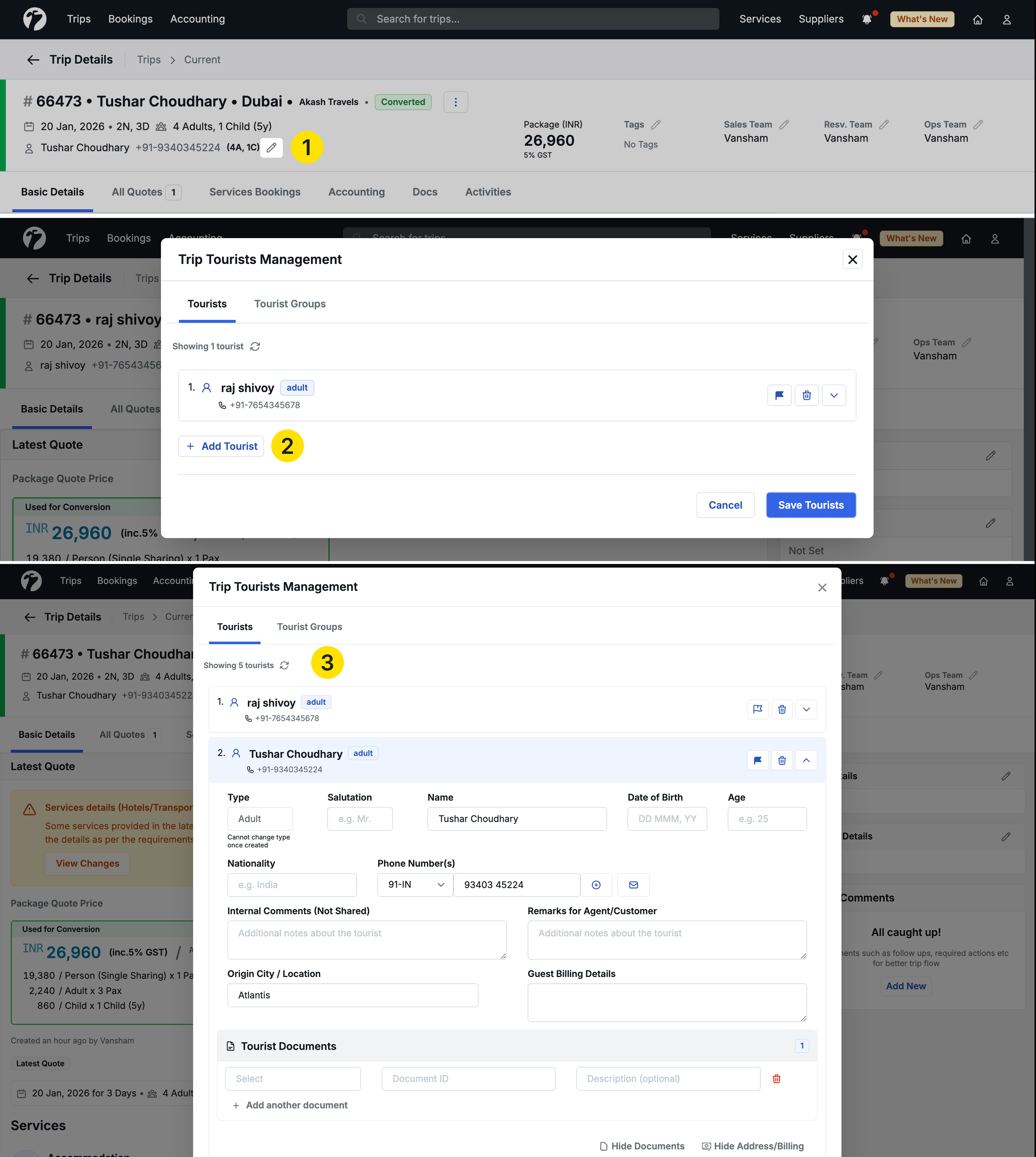
Once a trip is created, you can now access the Trip Tourist Management module directly from the trip details page.
How to access
- Navigate to Trip Details where guest information is displayed.
- Click the edit icon next to the guest name section to open the Trip Tourist Management interface.
The management interface consists of two main tabs: Tourist and Tourist Groups.
Adding Tourist Details
The Tourist tab allows you to add comprehensive information for each traveler in your trip.
Guest capacity
- The number of tourists you can add is limited by the total guest count specified during trip creation.
- For example, if you specified 10 guests while creating the trip, you can add details for up to 10 tourists only.
Tourist information fields
Each tourist entry captures the following details:
- Type (Mandatory): Adult or Child
- Salutation: Mr., Mrs., Ms.
- Name (Mandatory): Full name of the tourist
- Date of Birth: For age verification and documentation
- Age: Required if tourist type is set to “Child”
- Nationality: Country of citizenship
- Phone Number: Contact information
Additional tourist details
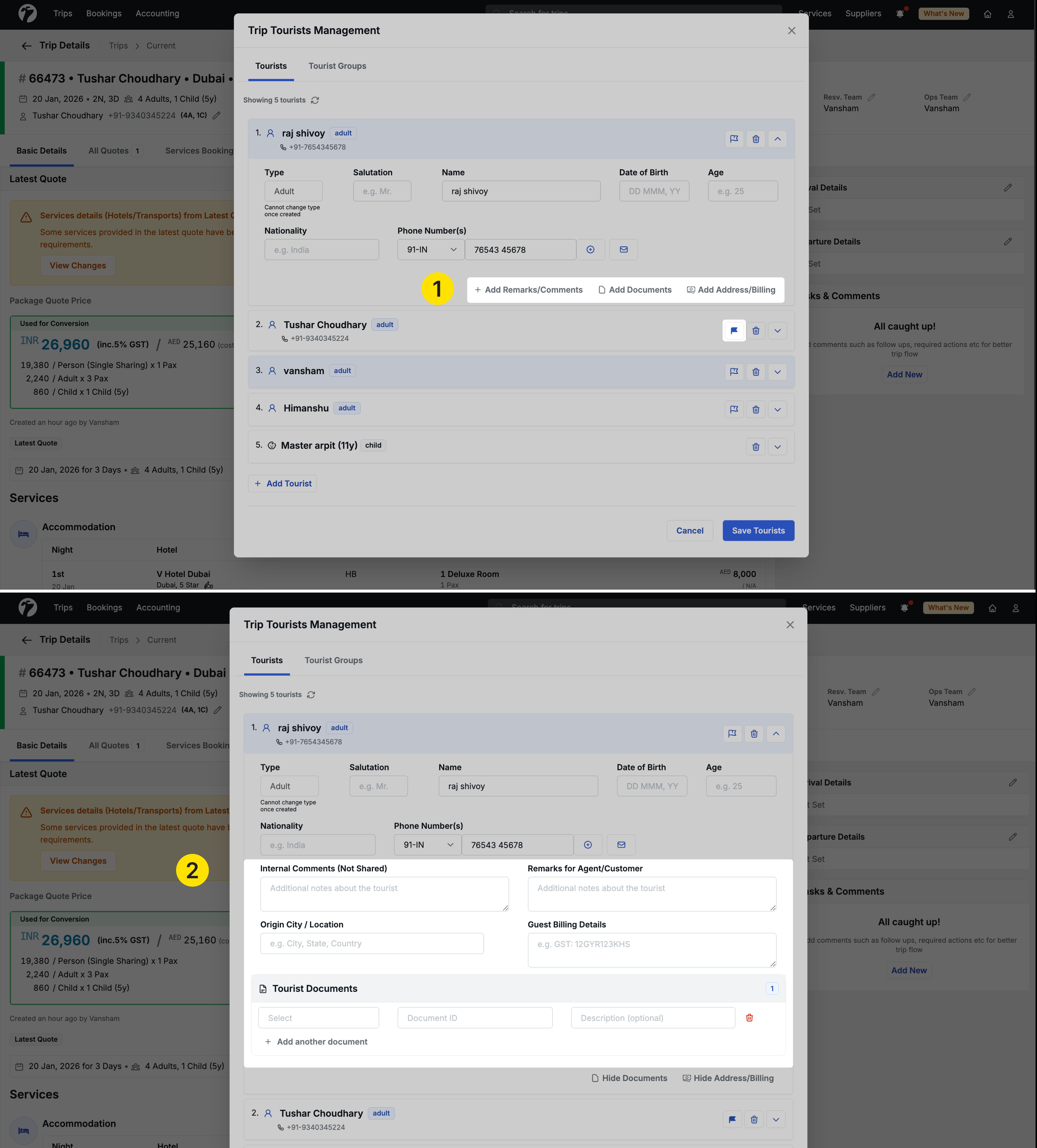
Beyond basic information, you can add:
- Remarks and Comments: Special notes or requirements for the tourist
- Address and Billing Information: Complete address details for the guest
- Primary Guest Designation: Mark one tourist as the primary guest for the trip
Tourist Document Management
You can add important travel documents to each tourist’s profile for easy reference.
Document fields
-
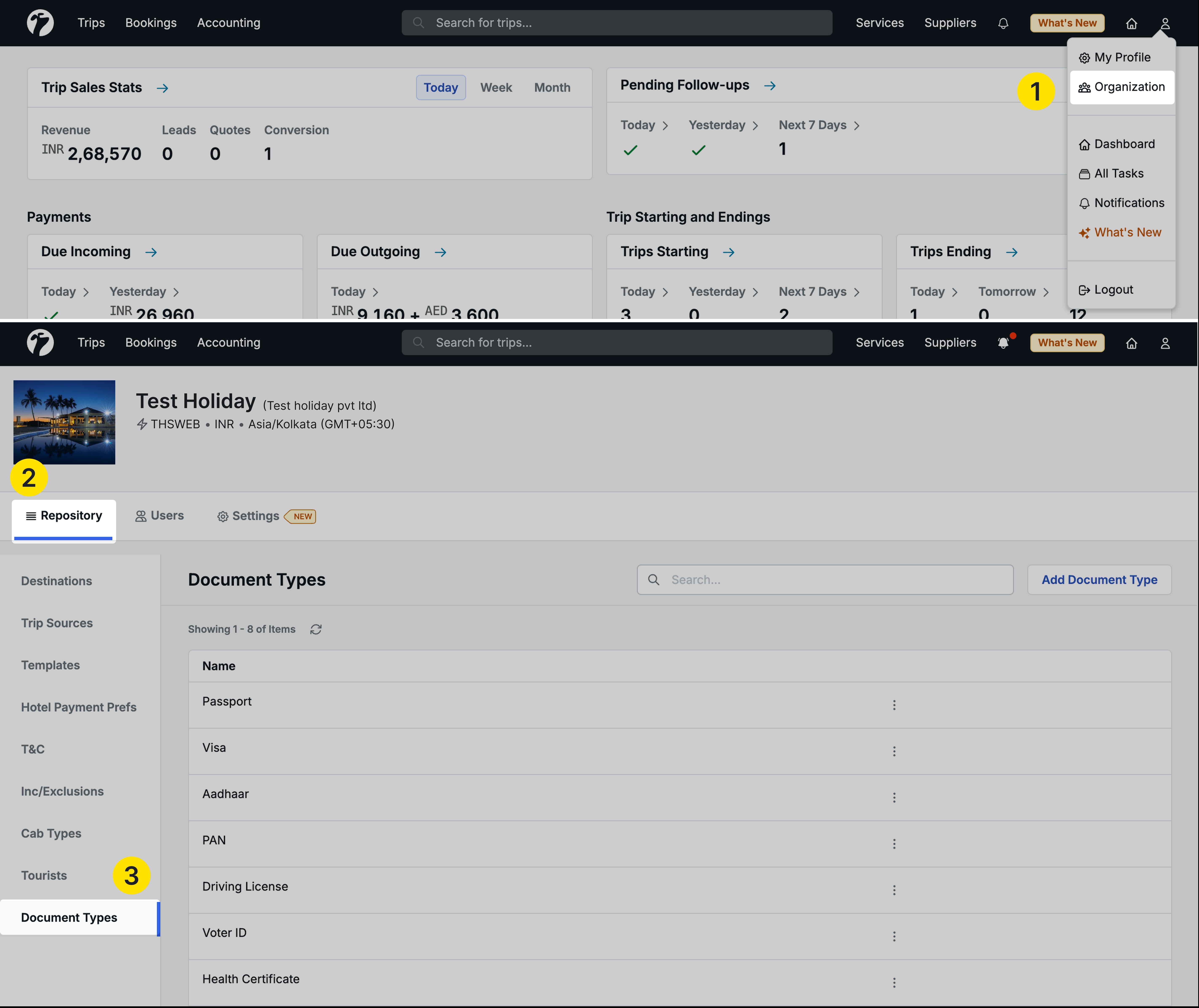
Document Type: Select from a dropdown list (Passport, Visa, etc.)
- This list is customizable from Organization Settings
- Admins can add new document types as needed
-
Document ID: Enter the document number
-
Document Description (Optional): Additional notes about the document
Important: Document details are stored with the tourist profile but are not displayed in the Settings > Documents section. They remain attached to the specific tourist throughout the booking process. Also, you can update/remove unused document types from the list.
Tourist Groups
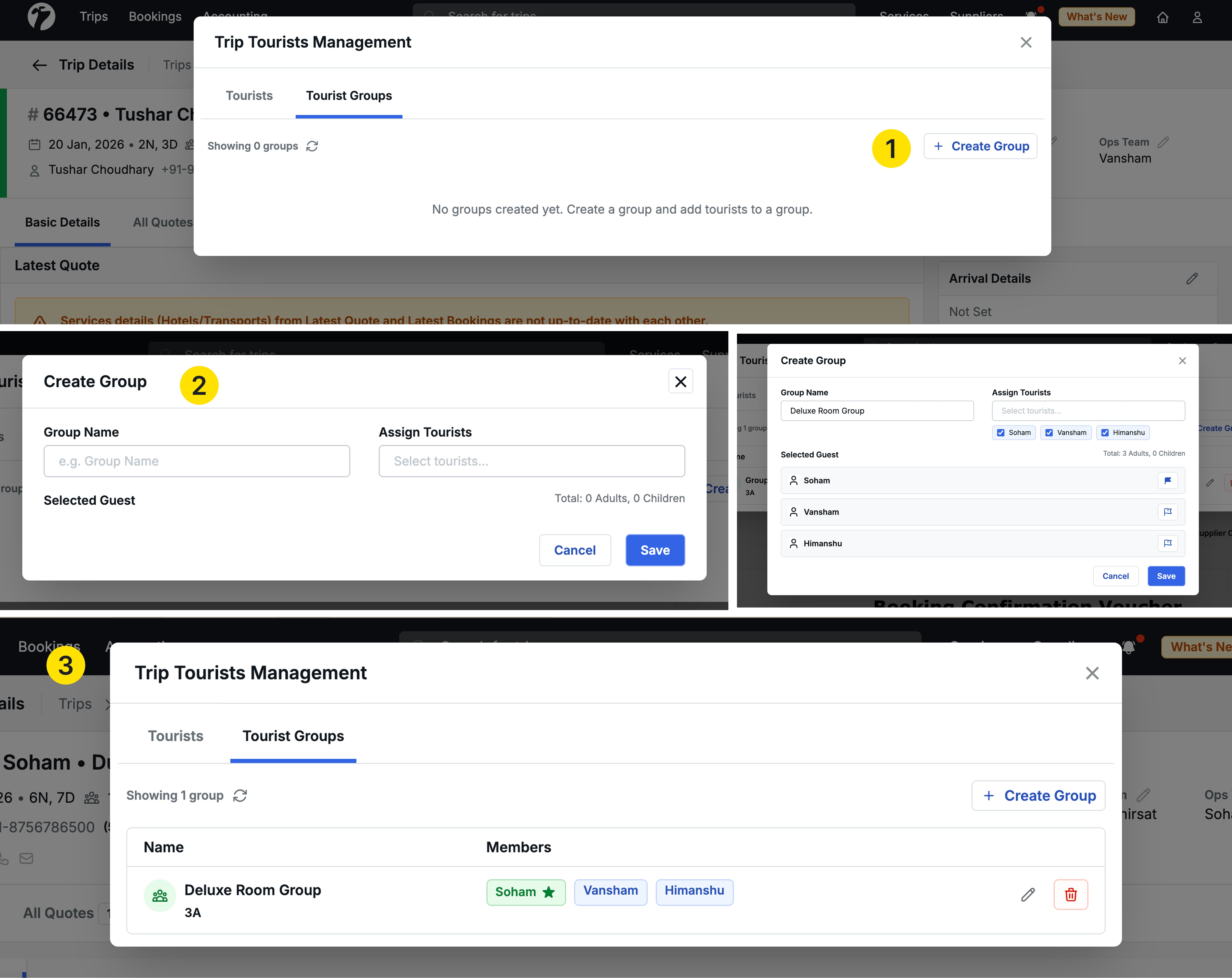
The Tourist Groups tab enables you to create logical groupings of tourists for service assignments.
Why use tourist groups
- Group specific tourists who will use the same services together (e.g., a family of four traveling together, or a group of friends on a corporate retreat)
- Easily assign a subset of travelers to particular hotels, transport, or activities
- Simplify communication by sharing details only for relevant tourists with service providers
Creating tourist groups
- Click Create Group and provide a group name
- Select which tourists from your tourist list should be part of this group
- You can create multiple groups with different combinations of tourists
- Groups can be used across hotels, transport services, and activities
Multi-Guest in Trip Voucher
Tourist details are automatically integrated into trip documentation.
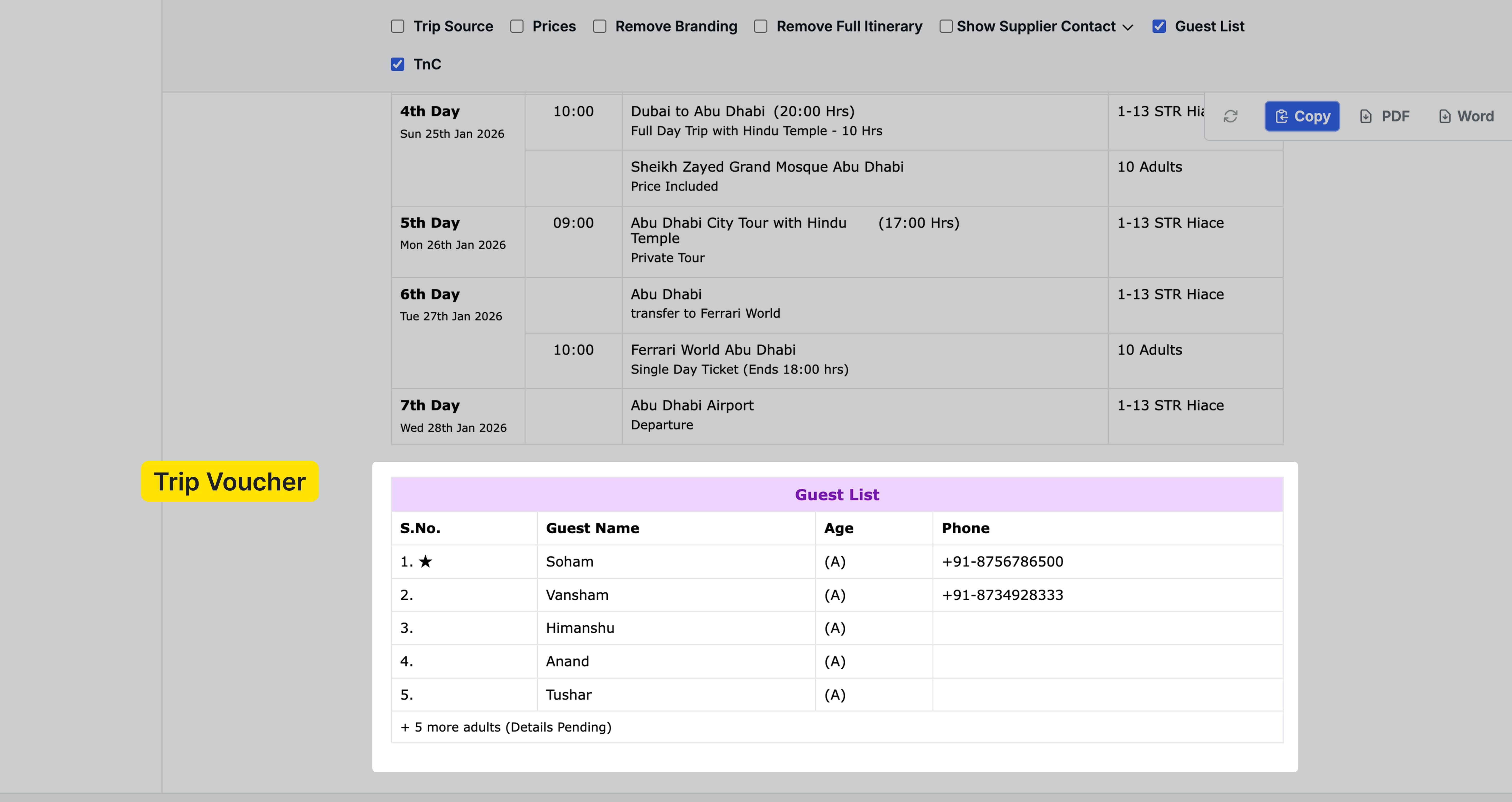
Guest list display and visibility control
- Once you add multiple tourists, a Guest List section appears in the Trip Voucher under the Documents tab
- By default, the guest list display is enabled (checkbox checked), and all tourist details you’ve entered will be shown in the voucher
- If you haven’t added any tourist details beyond the primary guest, the guest list section won’t appear
- You can uncheck the Guest List checkbox to hide the section from the trip voucher
- This gives you flexibility to control what information is shared in official documents
Assigning Tourists to Hotels
Once you have added multiple Tourists/Groups, you can then assign specific tourists or groups to each hotel booking, ensuring accurate guest information is shared with properties.
Default hotel assignment
- By default, all tourists you’ve added are automatically assigned to all hotels in the trip after conversion/holding.
- This ensures guest lists are ready without manual configuration in the first place.
- If you have modified the tourists list for a particular hotel and later update the tourists list at the Trip level, the hotel’s assigned tourist list will not be updated automatically to preserve your custom assignments.
Custom Assignment in Hotels
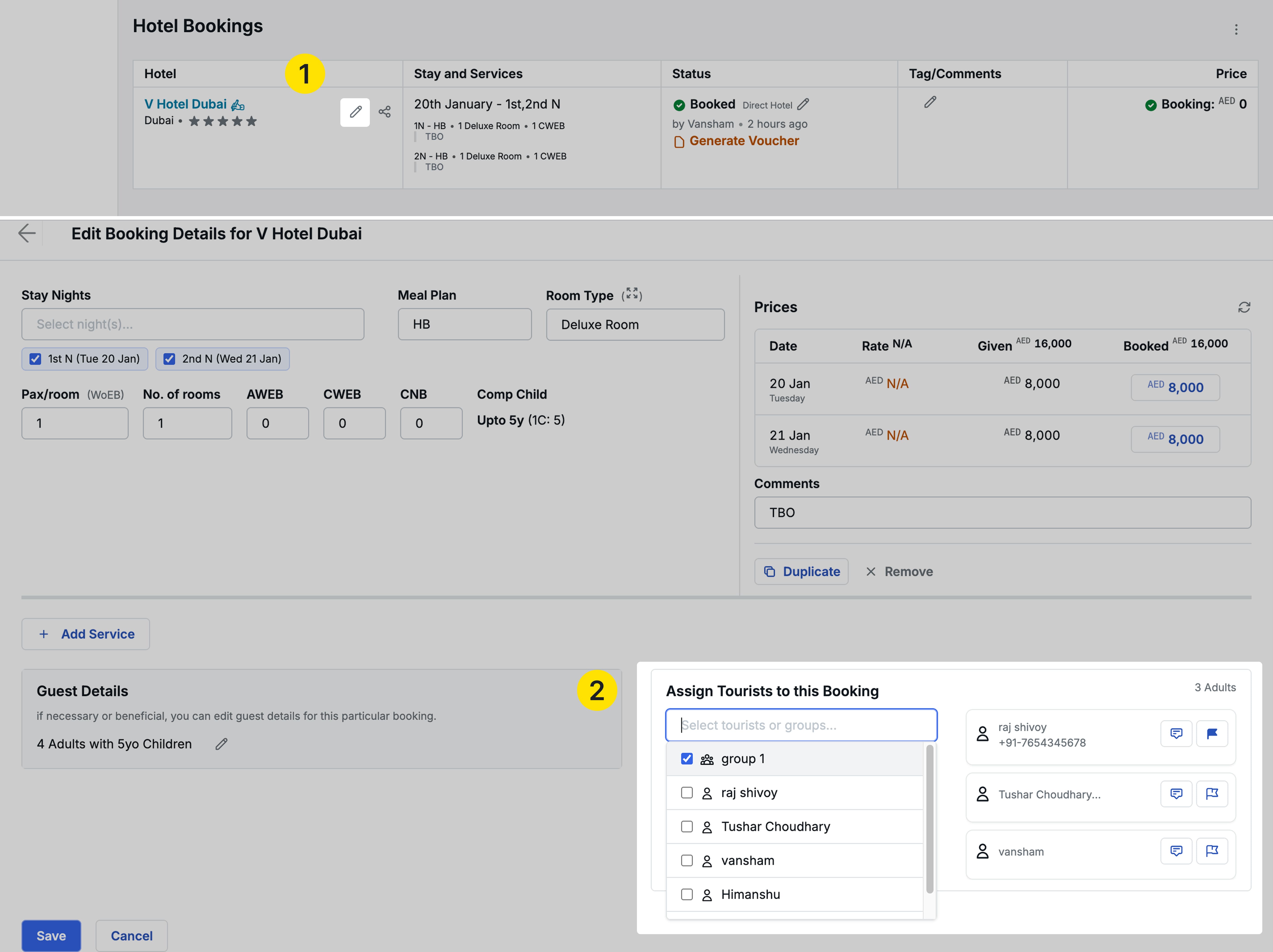
To assign specific tourists to a particular hotel:
- Navigate to the hotel booking in your trip
- Click the edit icon for the hotel
- Find the Assign Tourists to Booking section in the editing screen
- Uncheck tourists who won’t be staying at this property
- If you’ve created tourist groups, you can assign entire groups instead of individual tourists
Hotel booking communication
When sharing hotel booking details, you have control over guest list visibility:
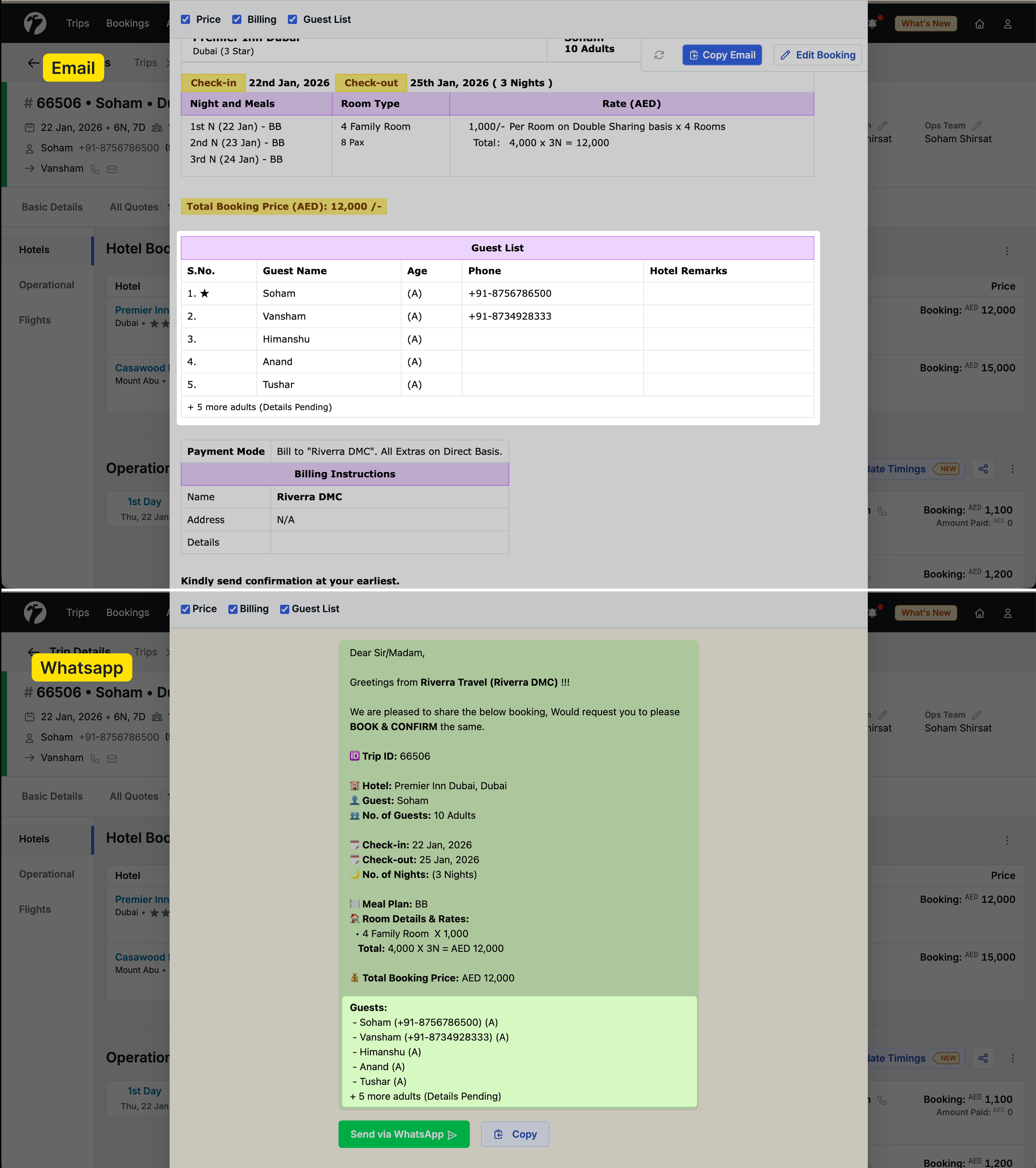
- A Guest List checkbox appears in the hotel booking sharing options
- This checkbox controls guest list display in both Email and WhatsApp communications
- When checked: The guest list for assigned tourists is included in the booking details
- When unchecked: The booking communication continues as before without displaying the guest list
Assigning Tourists to Operational Services
For operational services like transports and activities, you have granular control over tourist assignments.
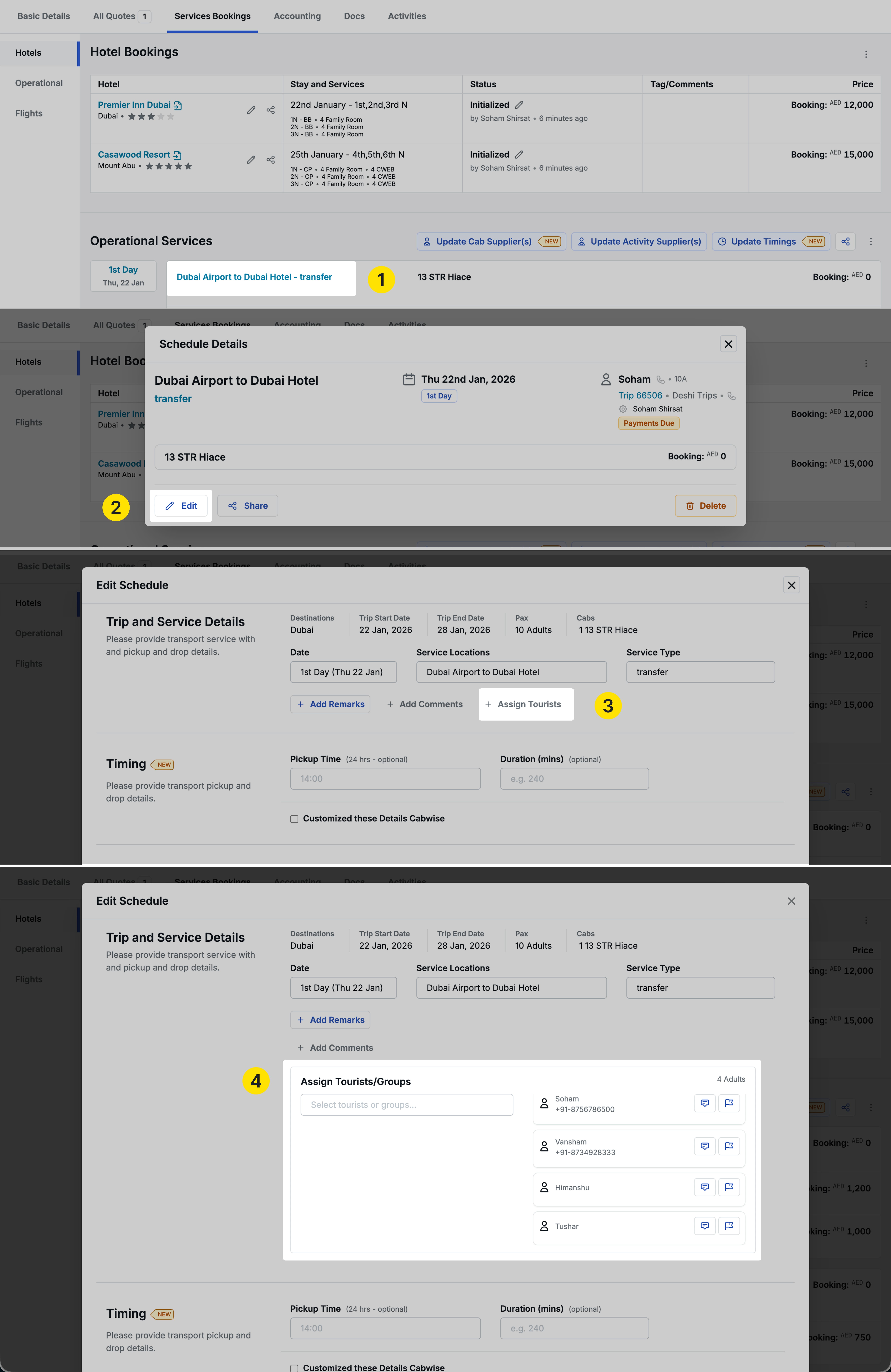
Service-level tourist assignment
Unlike hotels, no tourists are assigned by default to services as the assignment varies from cab-to-cab and service-to-service. You must manually assign them:
- Click on any Transport or Activity service
- Click edit to open the service details
- Find the Assigned Tourists and Groups section
- Select individual tourists or groups who will use this service
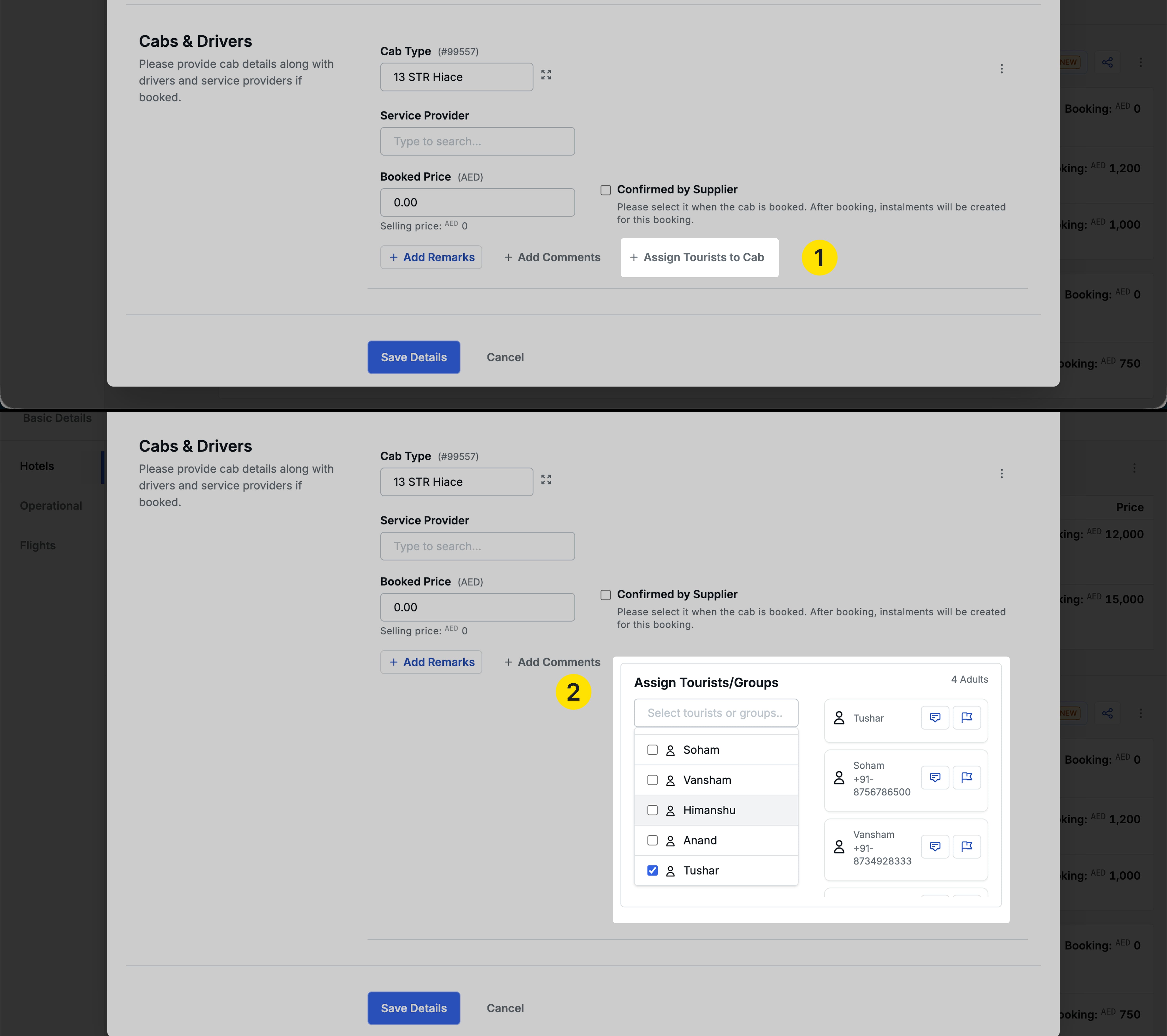
Cab-level assignments for transport
For transport services, you can go even deeper:
- Assign specific tourists to individual cabs within a transport service
- Useful when different guests are traveling in separate vehicles
- Ensures accurate passenger manifests for drivers and transport providers
Activity tourist assignment
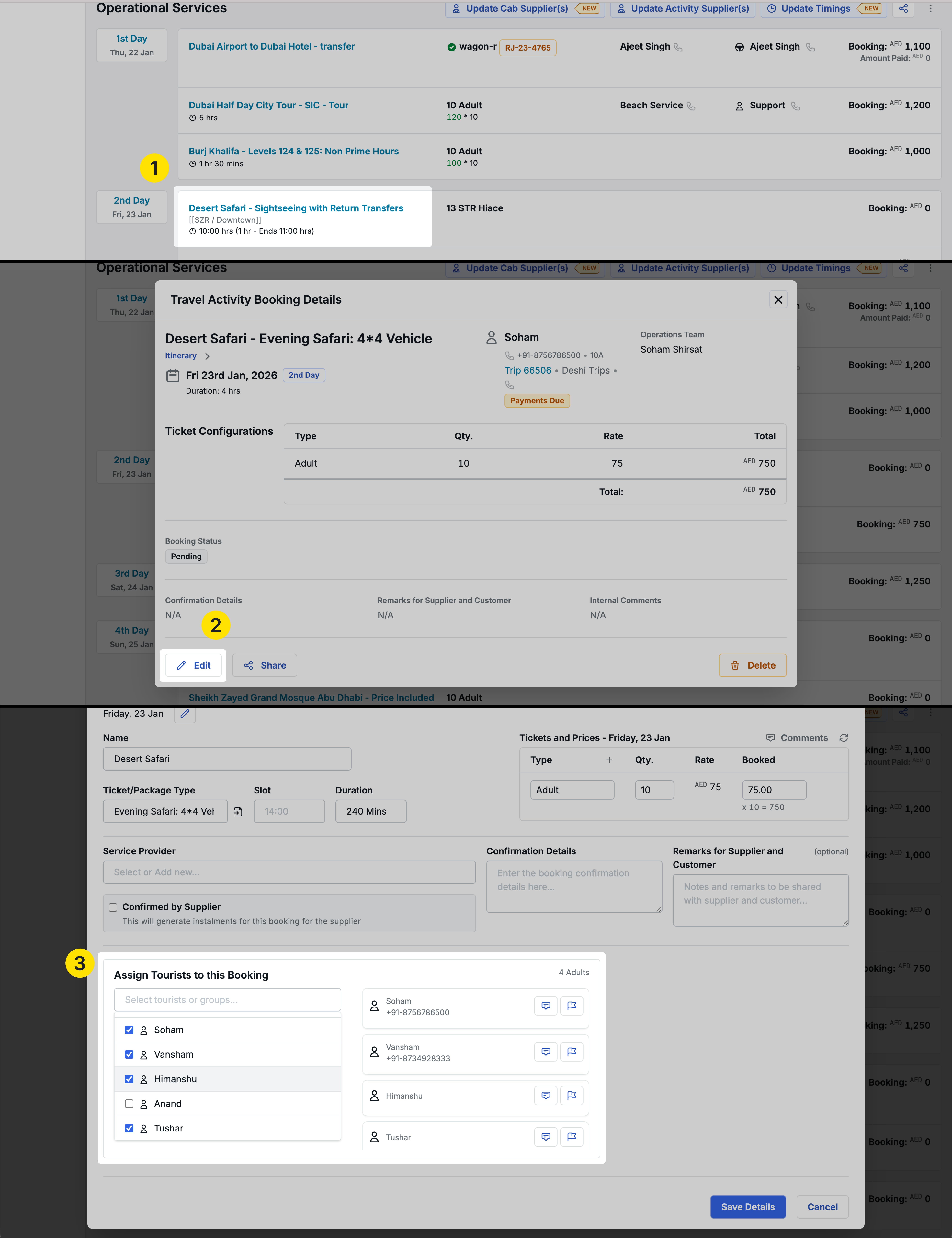
The same assignment capability exists for activities:
- Edit any activity booking
- Use the Assigned Tourists for this Booking section
- Select relevant tourists or groups who will participate
Service Sharing with Guest Lists
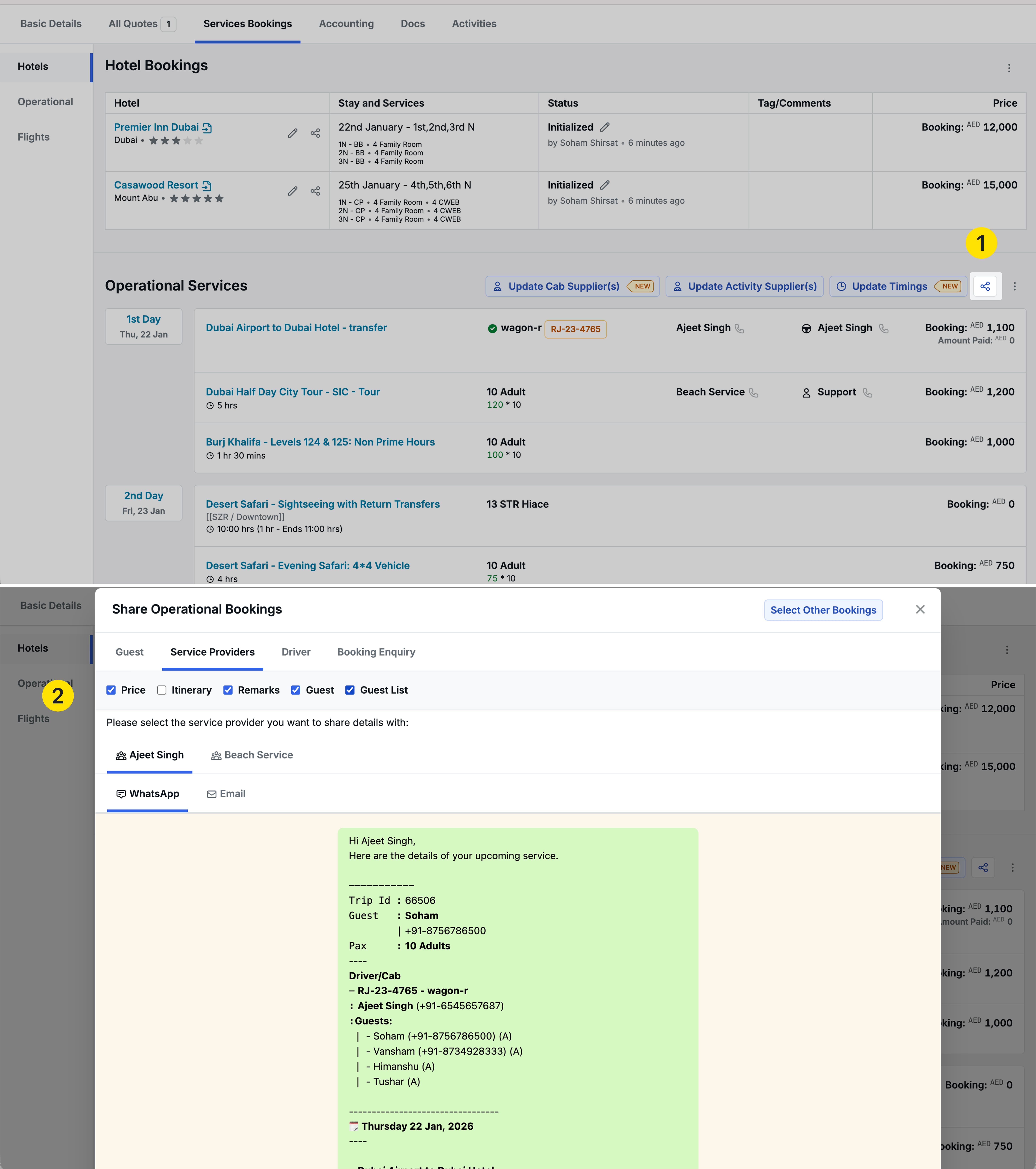
When sharing operational booking details, guest lists can be included across multiple sharing formats with Suppliers and Drivers as well as Guests.
Overall service sharing
For comprehensive sharing that includes all transport, activities, and services:
- Guest Sharing: Includes guest list checkbox for sharing with travelers
- Service Provider Sharing: Includes guest list checkbox for sharing with vendors
- Driver Sharing: Includes guest list checkbox for driver assignments
All three sharing types support the guest list feature with dedicated checkboxes in both Email and WhatsApp formats.
Individual service sharing
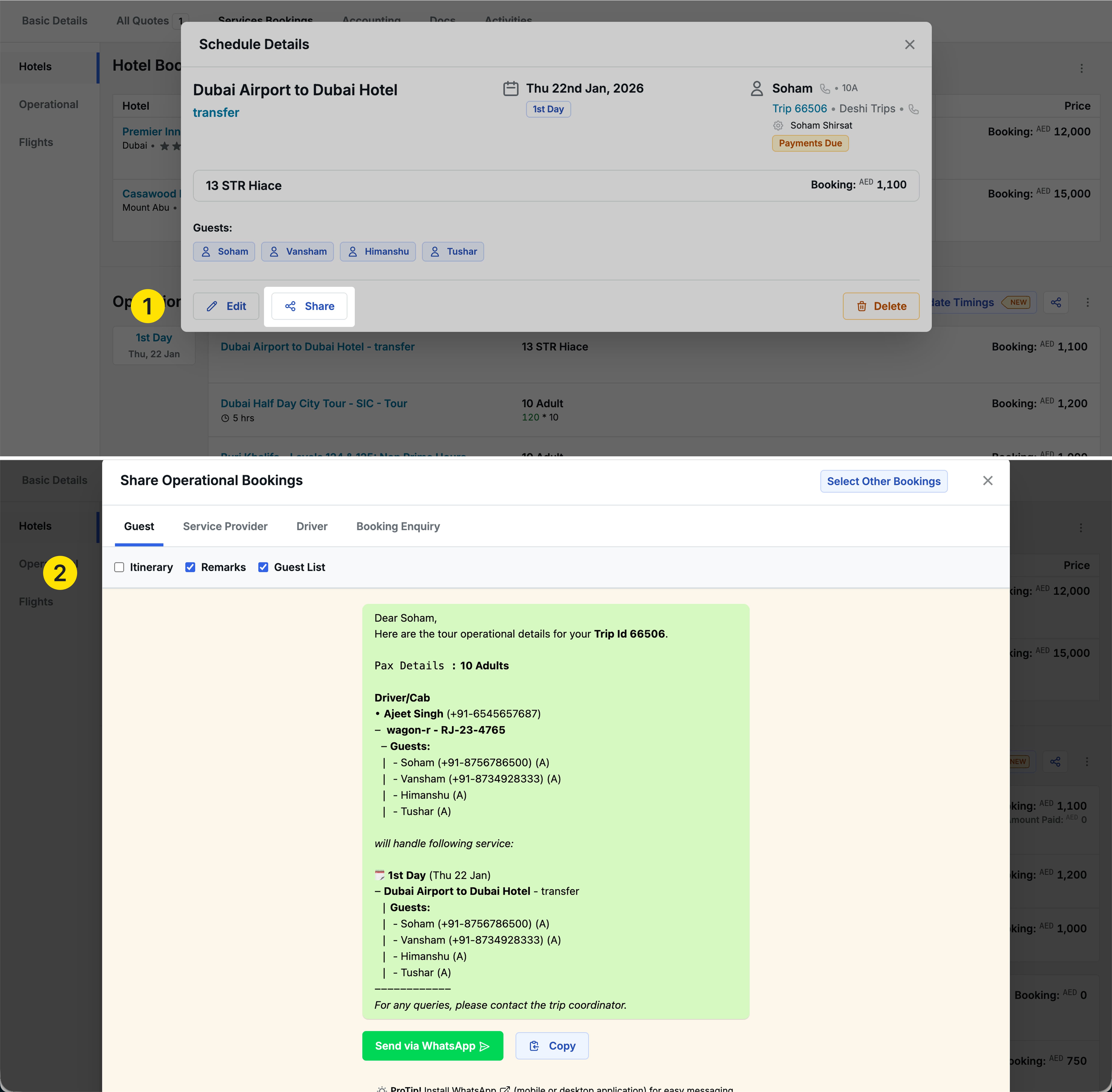
When sharing individual services (one transport booking or one activity):
- The same guest list checkbox appears
- You can control whether guest information is shared for that specific service
- Works consistently across email and WhatsApp channels
Guest Lists in Hotel Vouchers
Hotel vouchers now automatically include guest information based on assignments.
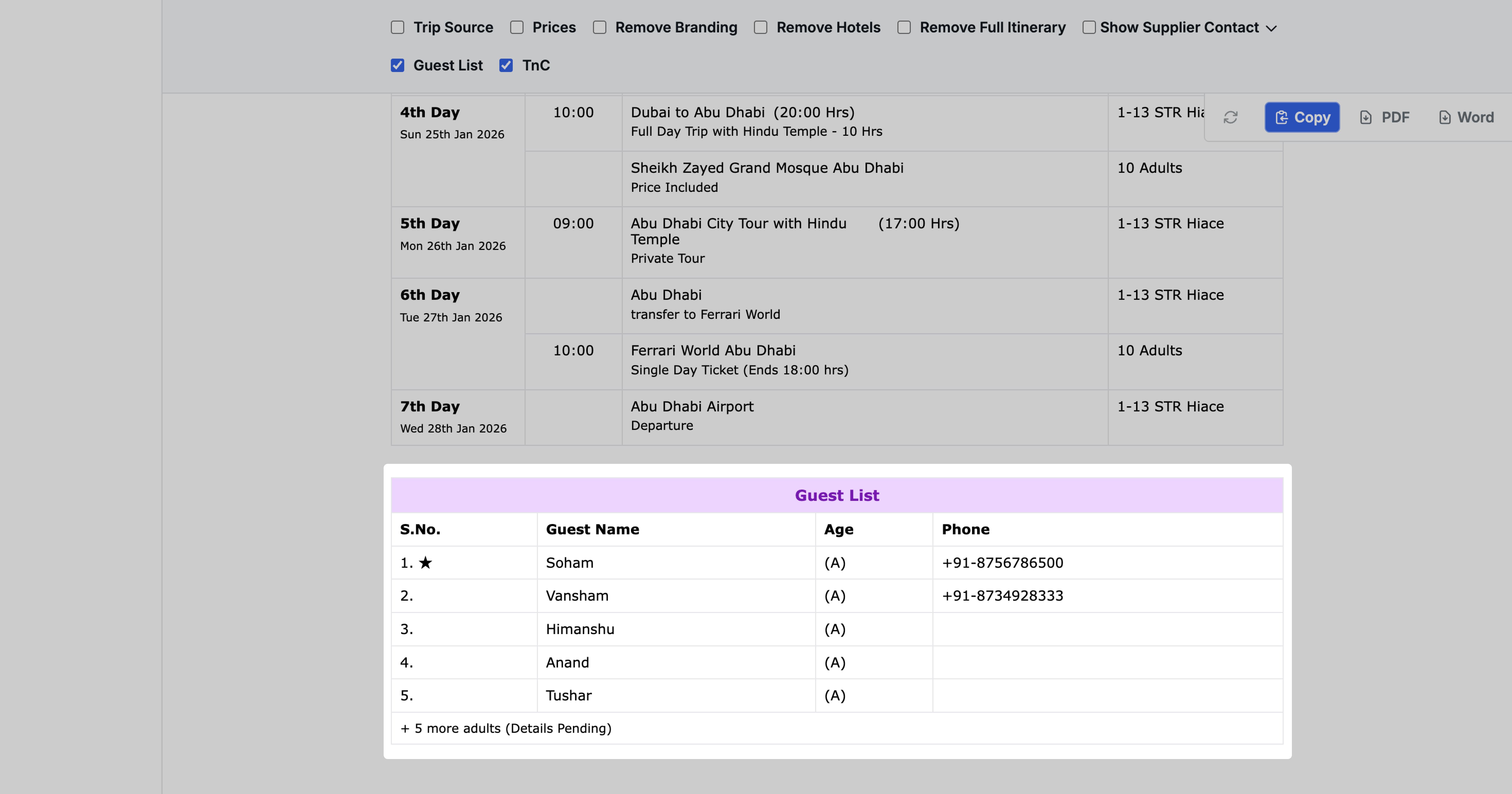
Default guest list inclusion
- When tourists are assigned to a hotel, their details appear in the hotel voucher by default
- The guest list shows all tourists assigned to that specific property
Guest list controls based on booking status
- For trips on hold: A checkbox allows you to show or hide the guest list in the voucher
- For confirmed bookings: No checkbox appears—the guest list is displayed by default and cannot be hidden
This ensures confirmed bookings always have complete guest information for hotel reference.
Use case summary
The multi-guest system solves a critical workflow gap:
- Before: Only one guest name could be captured per trip
- After: Complete details for all travelers can be recorded and managed
Use case summary
The multi-guest system solves a critical workflow gap:
-
Before: Only one guest name could be captured per trip
-
After: Complete details for all travelers can be recorded and managed
-
Benefits:
- Assign specific guests to relevant services and hotels
- Share accurate passenger manifests with transport providers
- Provide complete guest lists to hotels and service providers
- Maintain organized documentation across emails, WhatsApp, and vouchers
- Streamline operations by grouping tourists for service assignments
- Eliminate the need to maintain separate tourist and group lists in Excel sheets—all information is now centralized within the system.
2.Proforma Invoice - Tax Type Dropdown
We have improved the Proforma Invoice creation process with better tax name handling.
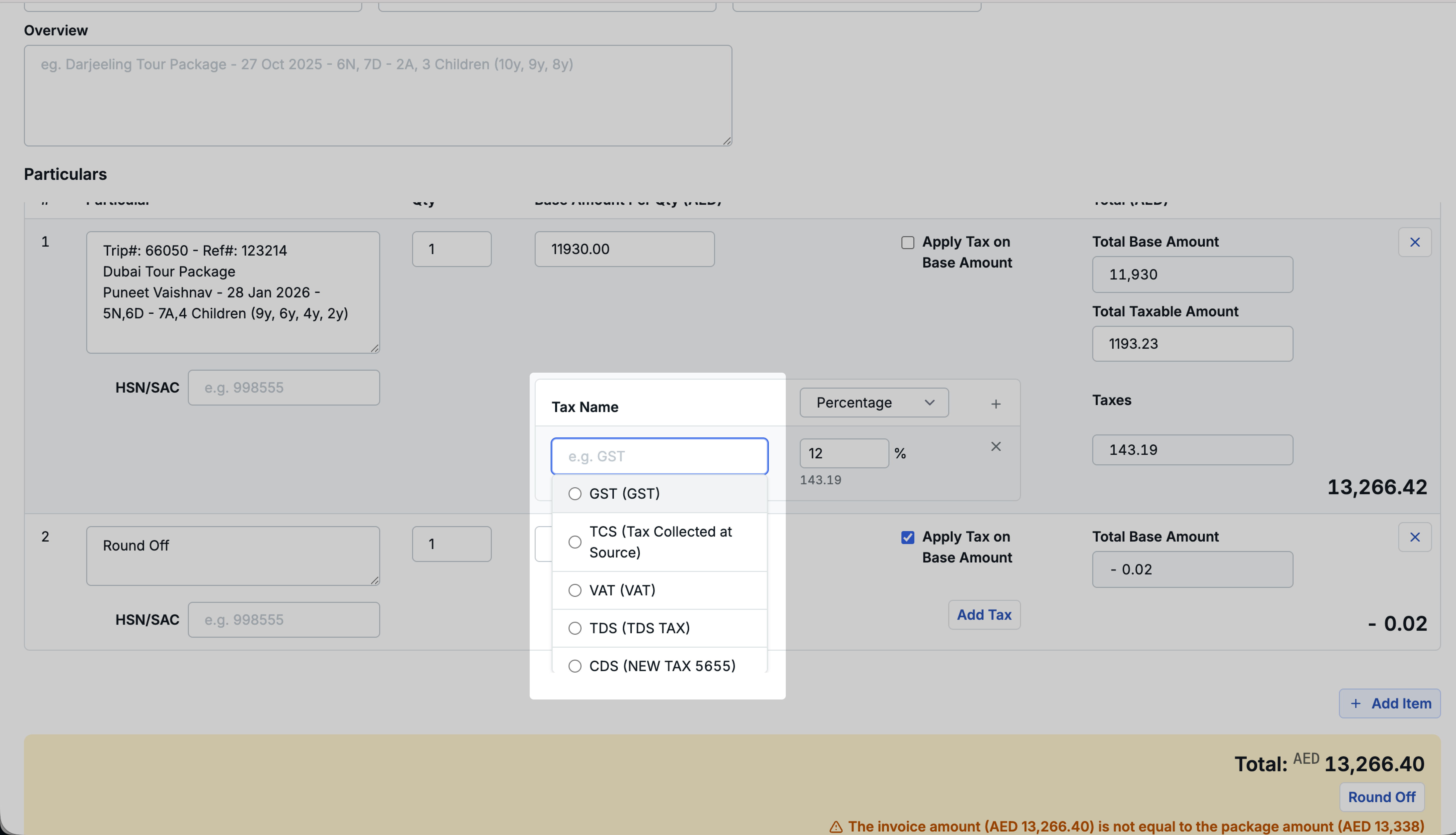
What changed
- Previously, the Tax Name field under Particulars was a free-text entry
- You had to manually type the tax name each time, which could lead to inconsistencies
- Now, the Tax Name is a selectable dropdown with predefined options
How it works
- The dropdown automatically shows the tax selected during quotation creation as the default value
- You can still change it by selecting a different tax type from the dropdown
- This ensures consistency and reduces manual data entry errors
Benefits
- Faster proforma invoice creation with pre-filled tax information
- Consistent tax naming across all invoices
- Easy tax type changes when needed through dropdown selection
3.All Task Module - Filter Access for All Users
We have expanded access to task filtering capabilities across all user roles for improved workflow management.
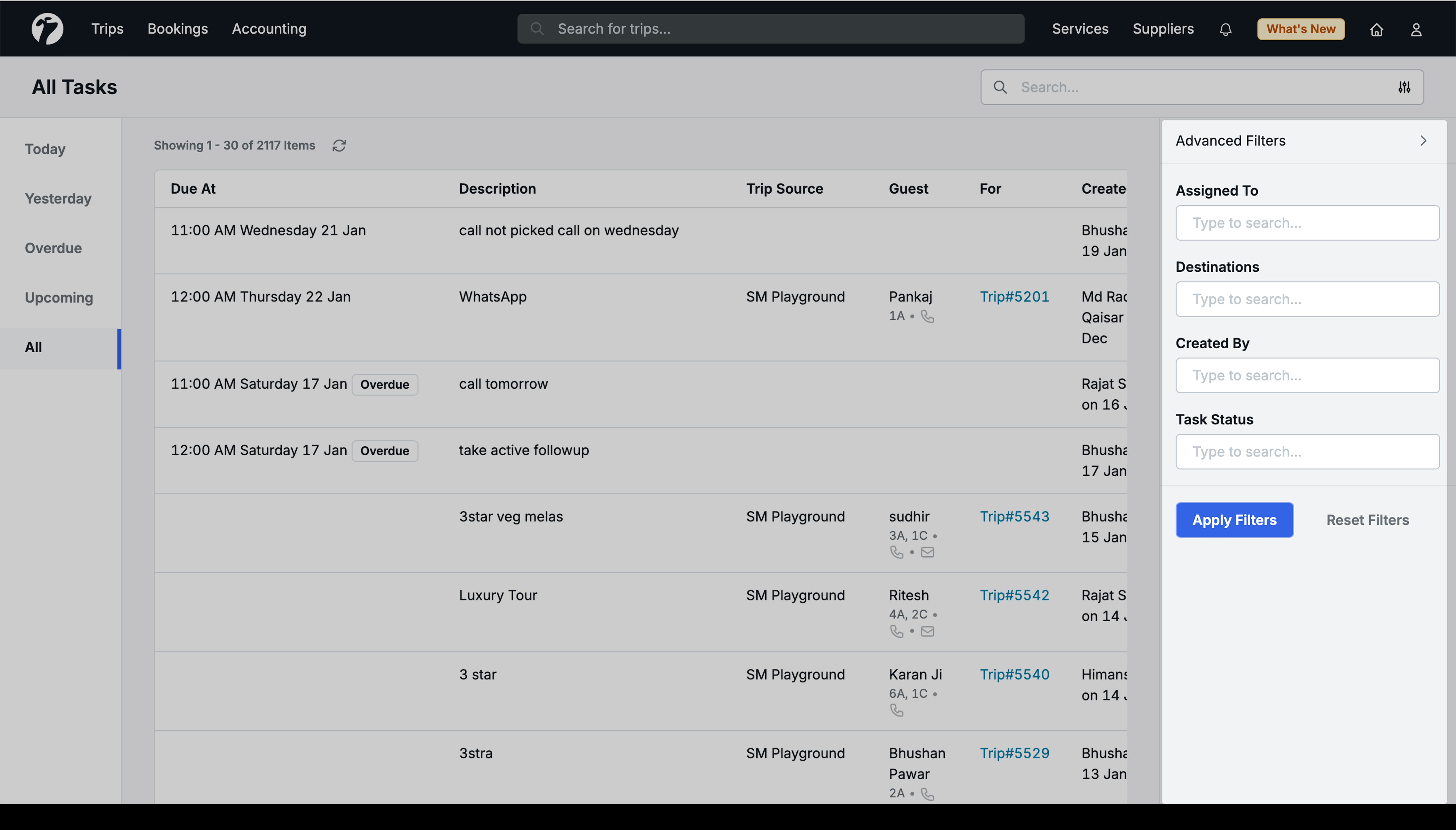
What changed
Previously, filters in the All Task Module were only visible to Admin users. This included:
- Assigned To filter
- Destination filter
- Created By filter
- Task Status filter
New filter access
After this update:
-
All users can now see and use most task filters:
- Destination
- Created By
- Task Status
-
Assigned To filter remains restricted to leadership roles:
- Admin
- Sales/Reservation/Operation Head
- Team Manager
Benefits
- Team members can filter and find their tasks more efficiently
- Better visibility into tasks by destination or status without admin assistance
- Leadership retains oversight capability through the Assigned To filter
- Improved self-service and reduced dependency on admins for basic task filtering
4.Other Improvements
- Cab type display enhancement: Improved UI to show clear visual distinction between Cab Type name and its code in the expanded view.
- Hotel Booking Quote difference warning: Improved quote-booking diffing process to handle the multi-supplier hotel bookings for same hotel-nights e.g. 20 + 20 Room-Nights booked from different suppliers but sold as once unit in quotation (40 Room-Nights).
- Service Provider email subject: Operation booking emails now include dynamic subject lines according to transport and activities included in email.
- Hotel supplier contact visibility: Contact person details for hotel suppliers are now visible directly below the hotel name in service bookings.
- Dropdown overflow fix: Ellipsis options in table rows no longer get clipped when clicked in the last row of tables.
- Payment Receipt footer update: Changed footer text from “This is a computer generated document. No signature required.” to “This is a computer generated document. No signature/stamp required.”
- Sales Report lead filter: Fixed the lead filtering functionality in Sales Team Report where clicking on the number of leads against each user now correctly filters and displays those trips.