






1. Stop Sale & Blackout Dates for Hotels
We have added Stop Sale Dates and Blackout Dates for hotels, giving you direct control over hotel availability and rate validity for specific date ranges. These two date types serve distinct purposes and behave differently across the quotation and booking workflows.
Why this feature matters
Previously, managing blackout dates required a workaround — teams had to leave rates blank for the blackout date ranges in the hotel rate sheet. There was no dedicated way to mark dates as sold out or to enforce stop-sale restrictions at the system level. This feature replaces that rate sheet hack with a proper, structured setup — giving you explicit control over both blackout and stop sale dates with clear warnings and enforcement at the point of quotation and booking.
Understanding the two date types
Let’s go into the details of these two types of configurations.
Stop Sale Dates (Sold Out)
Stop Sale dates indicate that a hotel or specific room type is completely unavailable for the selected date range. Common reasons include property sold out, maintenance periods, or any scenario where no bookings should be accepted.
System behavior:
-
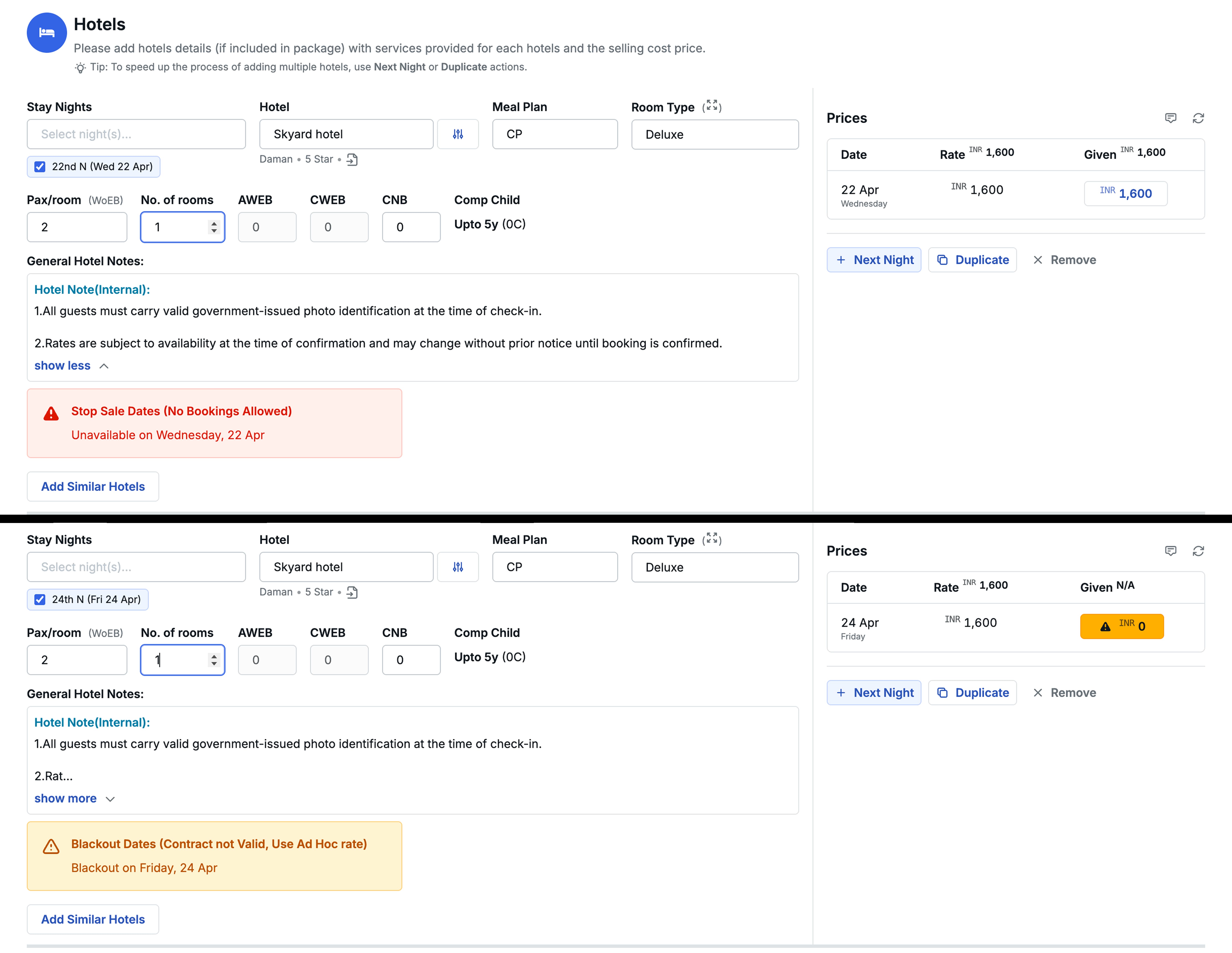
When a quotation includes a hotel on a Stop Sale date, the system displays a hard warning: “Stop sell dates, no booking allowed, unavailable on [date]”
-
The system will not allow you to save the quotation - this is a blocking restriction
-
In Service Booking, if Stop Sale dates are set after the quotation was already created, the system will block that hotel from being booked for those dates.
Blackout Dates (High Demand / Contract Not Valid)
Blackout dates indicate that the contracted rates are not valid for the selected date range — typically during peak seasons, festivals, or high-demand periods. The hotel may still be available, but at different (often higher) rates.
System behavior:
- The system displays a soft warning: “Blackout dates (contract not valid), use ad hoc rates”
- The system will not auto-fill the system rate in the Given column for the blackout dates — the rate field defaults to
0 - You cannot save the quotation with a
0price for the blackout date — you must manually enter a rate (contact the hotel for current pricing or use the system rate if appropriate) - The warning does not block saving the quotation once a valid rate is entered
- The blackout date warning is also displayed during Service Booking, keeping you aware while proceeding with the booking.
Accessing the feature
You can configure Stop Sale and Blackout dates in three places:
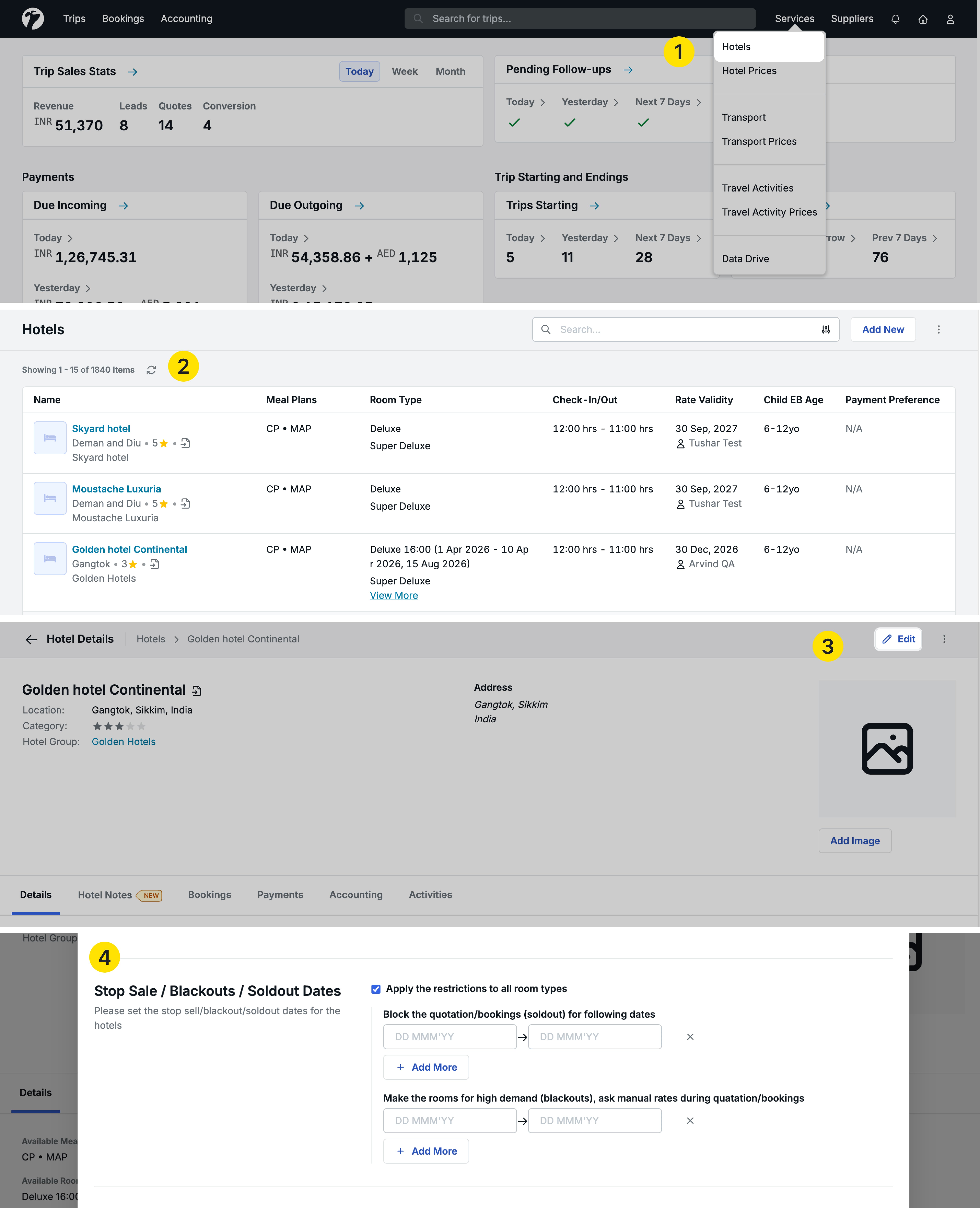
- While adding a new hotel: Navigate to Services → Hotels → Add Hotel — find the new section in the hotel form
- While editing an existing hotel: Navigate to Services → Hotels → select a hotel → Edit — find the new section in the editing page
- From the hotel detail page (without full edit): Navigate to Services → Hotels → select a hotel → Details tab → scroll to the Stop Sale / Blackout / Room Types section — click to open the panel and add or modify date intervals directly
Setting up at hotel level (all room types)
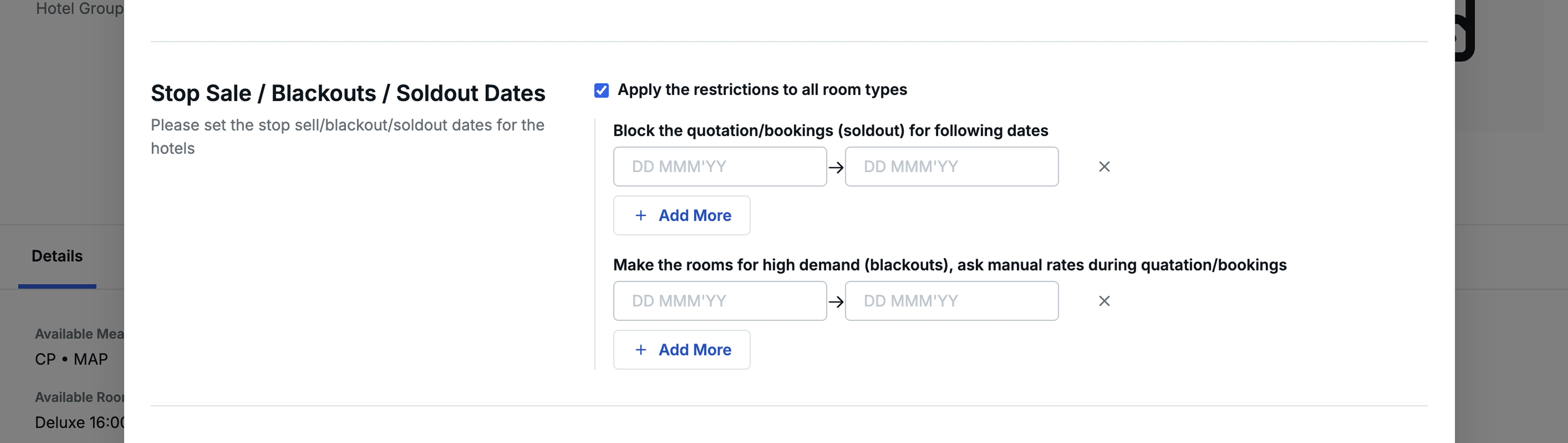
By default, the checkbox “Apply the restriction to all room types” is checked. In this mode, you configure two date interval sections:
1. Block the quotation/booking (Sold Out) for following dates
Add one or more date ranges here. These dates will be treated as Stop Sale dates and will apply to the entire hotel (all room types).
2. Make the rooms for high demand — Blackout (ask manual rates during quotation/booking)
Add one or more date ranges here. These dates will be treated as Blackout dates and will apply to the entire hotel (all room types).
Setting up at room type level
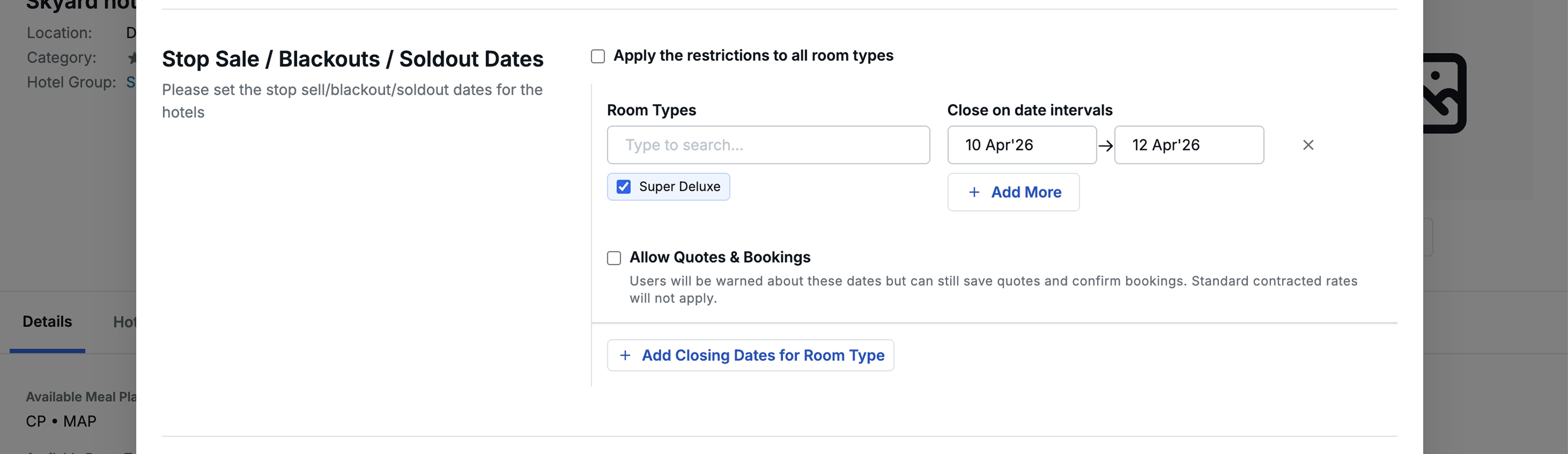
If you need different restrictions for different room types, uncheck the “Apply the restriction to all room types” checkbox. The interface changes to a room-level configuration:
- Room Type — Select the room type from the dropdown
- Close on Date Interval — Add one or more date ranges for the selected room type
By default, room-level entries act as Stop Sale (Sold Out) dates. To mark them as Blackout dates instead, check the “Allow quotes and booking” checkbox below the entry. When checked, the dates become Blackout dates (warning only, no blocking). When unchecked, they remain Stop Sale dates (blocking).
You can add multiple combinations:
- Select different room types with different date intervals
- Mix Stop Sale and Blackout dates across room types
- Use the “Add closing dates for the room type” option to add additional entries
Example:
- Room Type A + Jan 1–10: Blackout dates (Allow quotes and booking checked)
- Room Type B + Room Type C + Jan 5–15: Stop Sale dates (Allow quotes and booking unchecked)
- Room Type A + Feb 1–5: Stop Sale dates
Impact on quotation and booking workflow
During quotation creation
- If a hotel is added to a quotation for dates matching Stop Sale dates, the system shows a blocking warning and prevents saving the quotation
- If a hotel is added to a quotation for dates matching Blackout dates, the system shows a warning, does not auto-fill the system rate in the Given column, and requires you to manually enter a rate before saving
During service booking
-
Blackout dates: A warning is displayed while booking the service, keeping you informed that the hotel is on blackout for the selected dates. You can proceed with the booking.
-
Stop Sale dates: If Stop Sale dates are set after a quotation was already created, the system blocks that hotel from being booked in Service Booking for the affected dates.
Benefits
- Prevent accidental quoting and booking on dates when hotels are unavailable
- Flag high-demand dates where contracted rates are not valid, prompting manual rate entry
- Configure restrictions at the hotel level or granularly at the room type level
- Manage date intervals directly from the hotel detail page without a full edit
- Enforce availability rules consistently across quotation creation and service booking
2. Customer Payment Preference
We have introduced Customer Payment Preferences, allowing you to define standardized installment breakdowns for customer payments. You can set conditions based on trip timing, duration, and package value — and the system will automatically apply the matching preference when converting a trip package.
Why this feature matters
Previously, payment preferences existed only for suppliers and hotels. On the customer side, sales teams had to manually calculate installment breakdowns every time a package was converted — figuring out how many days until the trip, what the package value was, and how to split payments accordingly. This feature automates that process by letting you define rules once and have them apply automatically across all matching trips.
Accessing the feature
Navigate to Profile → Organization → Repository → Customer Payment Preference
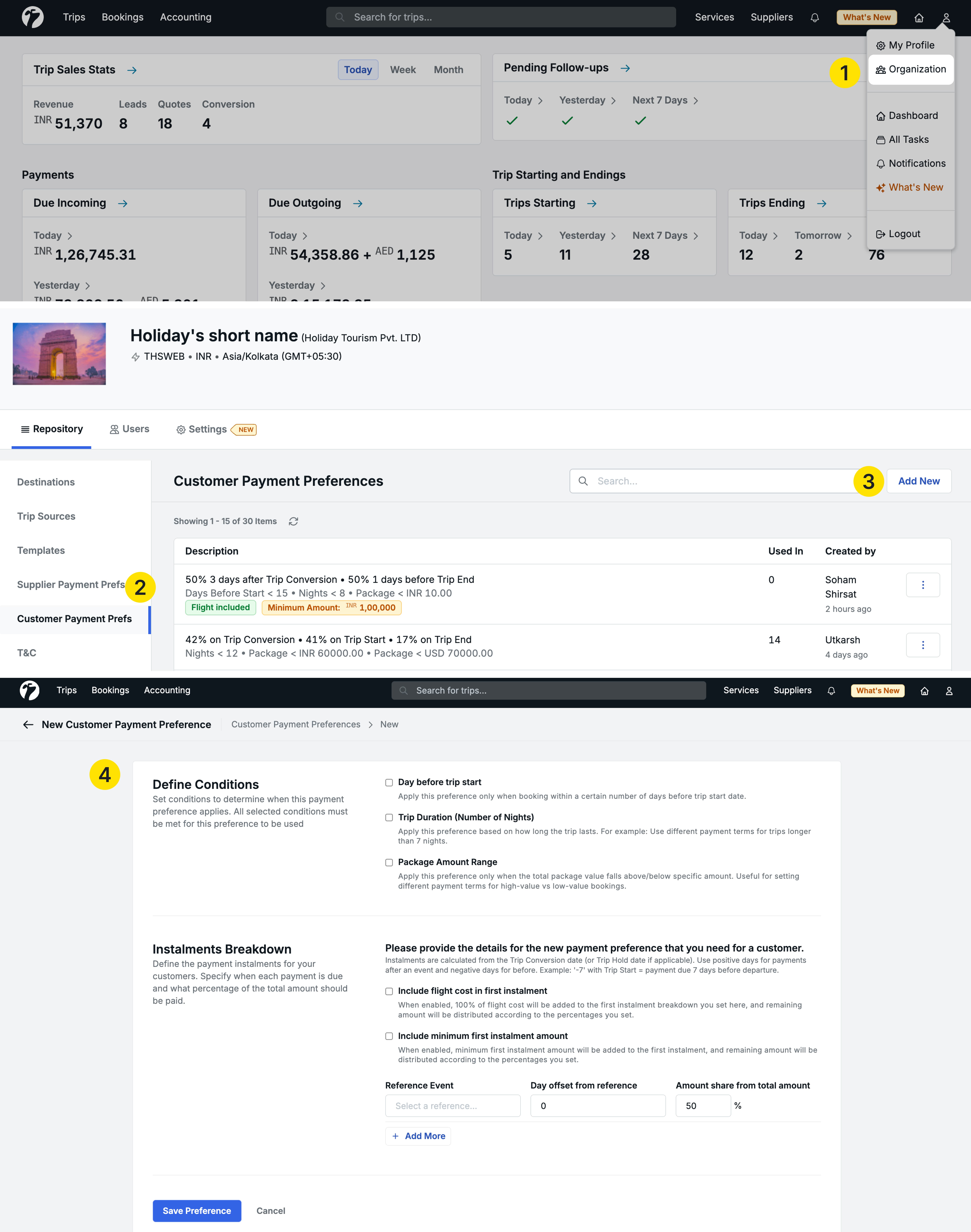
Setting up a customer payment preference
Each preference has two sections: Define Conditions and Installment Breakdown.
Define Conditions
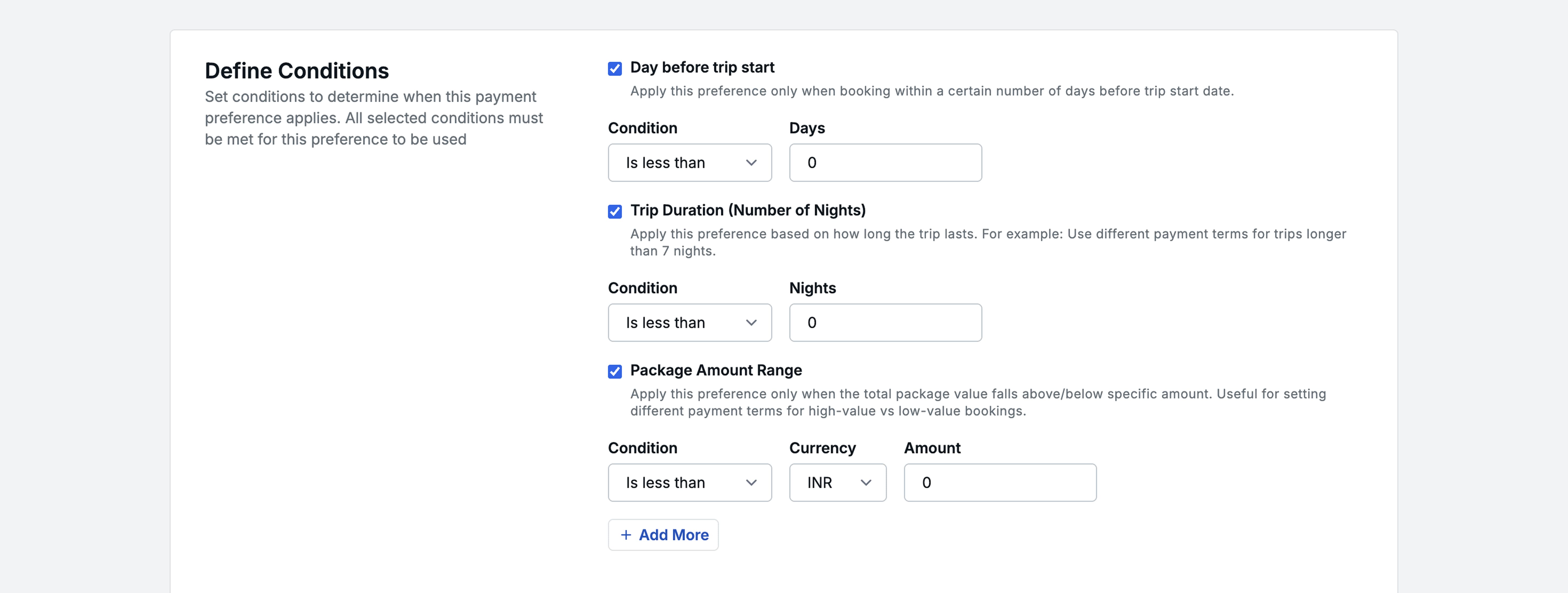
Conditions determine when a payment preference applies. You can use one or more of the following:
1. Day Before Trip Start
This condition checks how many days remain between the current date (when converting or editing the package) and the trip start date.
- Condition dropdown:
Is less thanorIs greater than - Days input: Enter the number of days
Example: Day Before Trip Start → Is less than → 15 — this preference applies if the trip starts within the next 15 days from the date of conversion.
2. Trip Duration (Number of Nights)
This condition checks the total duration of the trip in nights.
- Condition dropdown:
Is less thanorIs greater than - Nights input: Enter the number of nights
3. Package Range
This condition checks the total package amount.
- Condition dropdown:
Is less thanorIs greater than - Amount input: Enter the amount
- Currency selection: Select the applicable currency
Since packages can be in multiple currencies, you can add multiple entries for different currencies under this condition, each with its own amount threshold and less than / greater than logic.
Installment Breakdown
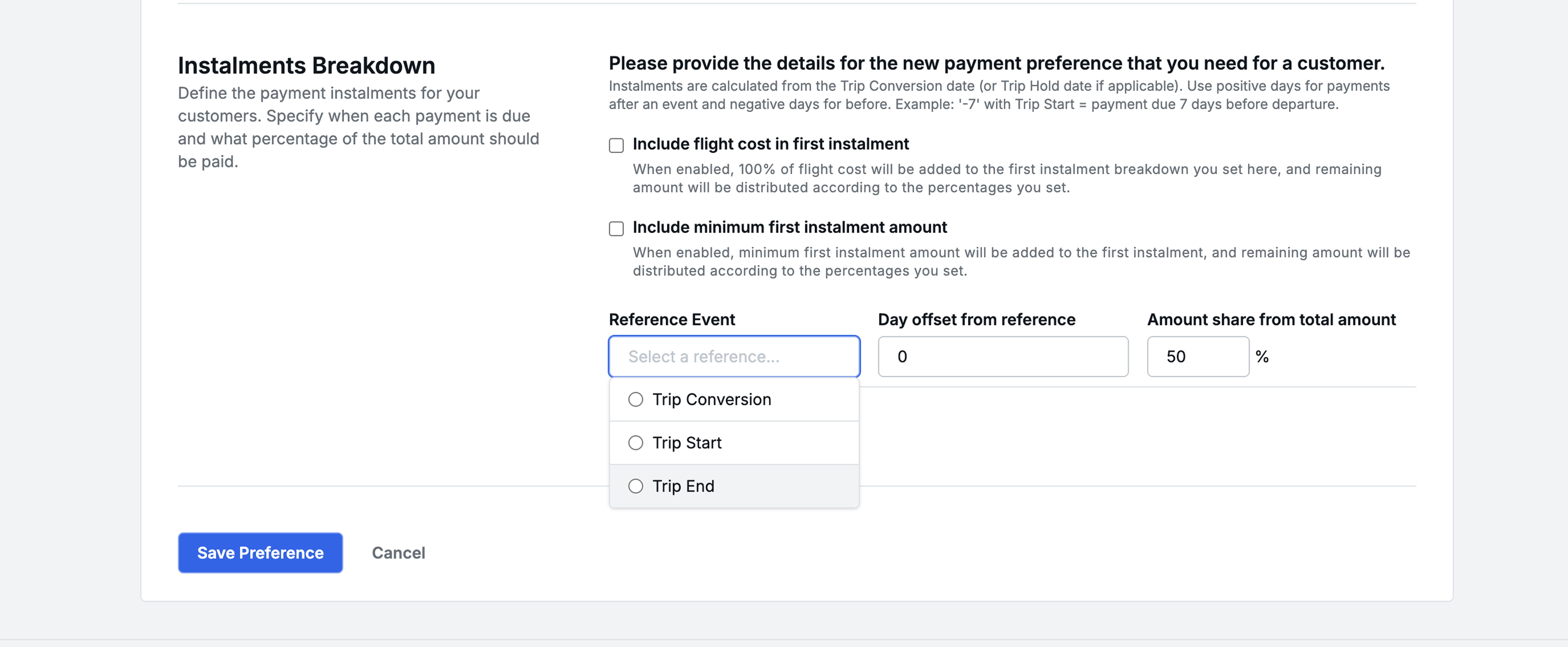
If the defined conditions match, this breakdown determines how the package amount is split into installments. Each installment entry has three fields:
1. Reference Event
Trip Conversion— the date when the package is convertedTrip Start— the trip start dateTrip End— the trip end date
2. Day Offset from Reference
- Positive values (e.g.,
+3) mean days after the reference event - Negative values (e.g.,
1) mean days before the reference event
3. Amount Share from Total Amount
- Enter the percentage of the total package amount for this installment
Example:
| Installment | Reference Event | Day Offset | Share |
|---|---|---|---|
| 1st | Trip Conversion | +3 | 50% |
| 2nd | Trip Start | -1 | 50% |
In this example, the first 50% is due 3 days after trip conversion, and the remaining 50% is due 1 day before the trip starts.
Additional conditions in installment breakdown
Include Flight Cost in Total Installment
When checked, if the trip package includes flights, the system separates the flight cost from the total amount before applying the percentage split, and then adds the full flight cost to the first installment.
Example: Total package is ₹1,200 and flight cost is ₹200. The system calculates: ₹1,200 − ₹200 = ₹1,000. The 50-50 split applies to ₹1,000 (₹500 each). The first installment becomes ₹500 + ₹200 (flight) = ₹700. The second installment is ₹500.
Include Minimum First Installment
When checked, you can set a minimum amount (with currency selection) that the first installment must meet. If the calculated first installment falls below this threshold, it is raised to the minimum amount. You can add multiple entries for different currencies.
How it applies during trip conversion
- Navigate to any in-progress trip → select a package → click Convert on Hold or Convert Using This Code
- In the Installments section, if the package matches all defined conditions of a saved payment preference, that preference is automatically applied
- The installment breakdown appears below with the calculated amounts for each installment based on the preference rules
- You can view which preference is applied in the Payment Preference column
Important: If you edit the applied payment preference manually, the trip will not be counted in the “Used In” column of that preference.
Payment gateway integration
If you have a payment gateway integration enabled, the system uses the applied customer payment preference to determine the first installment amount. The payment link shared with the customer will reflect the first installment amount as per the preference breakdown.
Managing preferences
The Customer Payment Preference list displays all saved preferences in a table with:
- Description: A summary of the conditions and breakdown rules
- Used In: The number of packages where this preference has been applied (excluding manually edited ones)
- Created By: The user who created the preference
Each preference has an ellipsis menu (⋯) with a Disable option. Disabled preferences will not be applied to any new packages.
Benefits
- Eliminate manual installment calculations during trip conversion
- Standardize payment terms across your organization
- Automatically handle flight cost separation in installments
- Set minimum first installment thresholds per currency
- Reduce errors and save time during the conversion and payment sharing process
3. Pick-up & Drop Location for Transport Services and Travel Activities
We have added Pick-up and Drop Location management for transport services and travel activities. You can now maintain a list of precise pick-up and drop locations at the service or ticket level, and these locations flow automatically into service booking, sharing documents, trip vouchers, and reports.
Why this feature matters
Transport services already have a Start City and End City in the location section, but these are high-level location markers — for example, “Hawa Mahal” as the start point and “Ajmer Fort” as the end point. In operations, when sharing service details with service providers, drivers, and guests, you need precise pick-up and drop points — for example, “Hawa Mahal Main Gate” or “Cafe opposite Hawa Mahal” for pick-up, and “Ajmer Fort East Entrance” for drop. Similarly, certain travel activities that include transport (such as cruises or excursion packages) also require precise pick-up and drop information.
Until now, there was no structured way to manage these precise locations, leading to ad hoc communication and inconsistencies across the operations workflow.
Accessing the feature for transport services
Navigate to Services → Transport → select or add a transport service
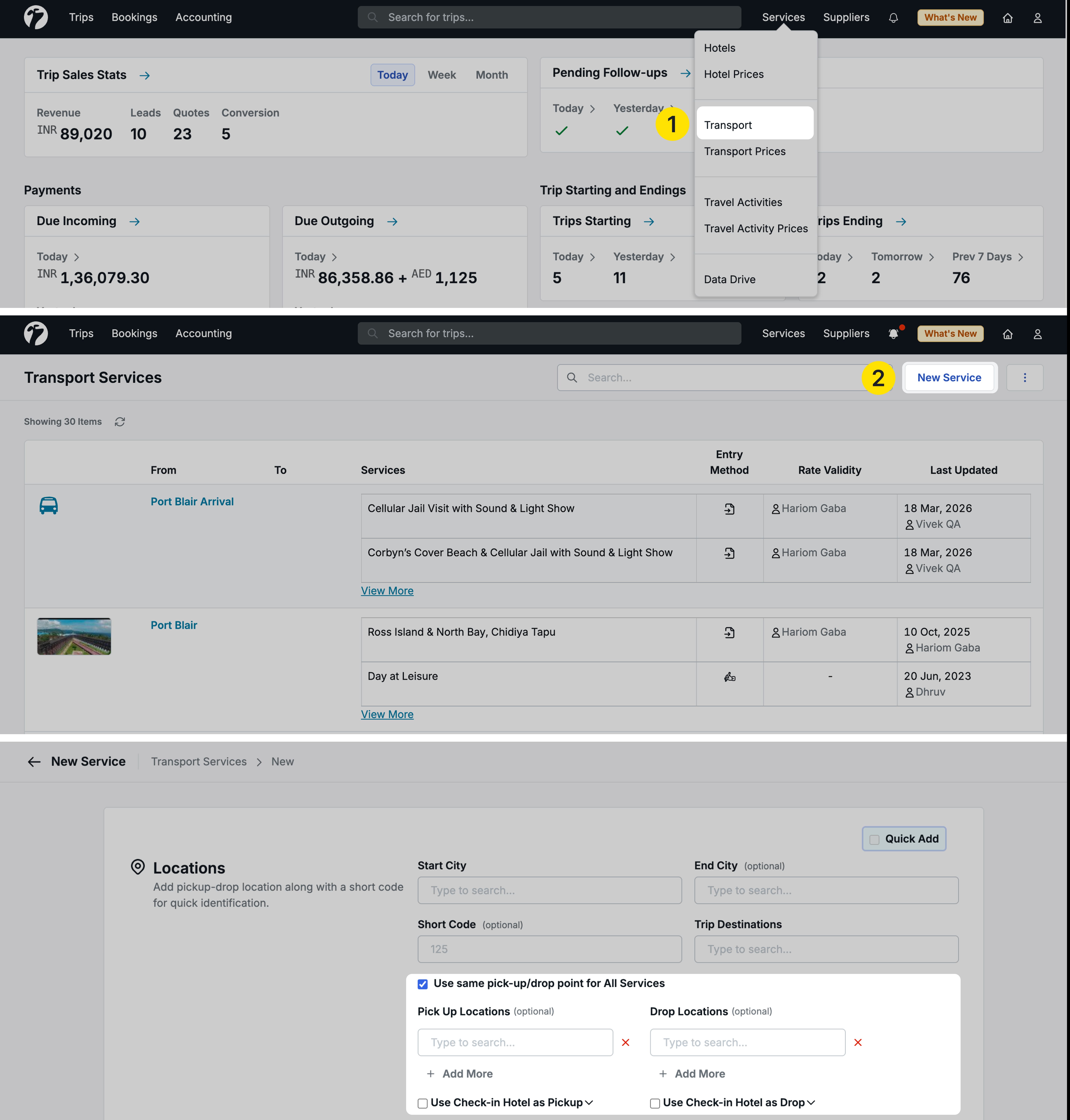
Setting up pick-up and drop locations on transport services
Location level (all services)
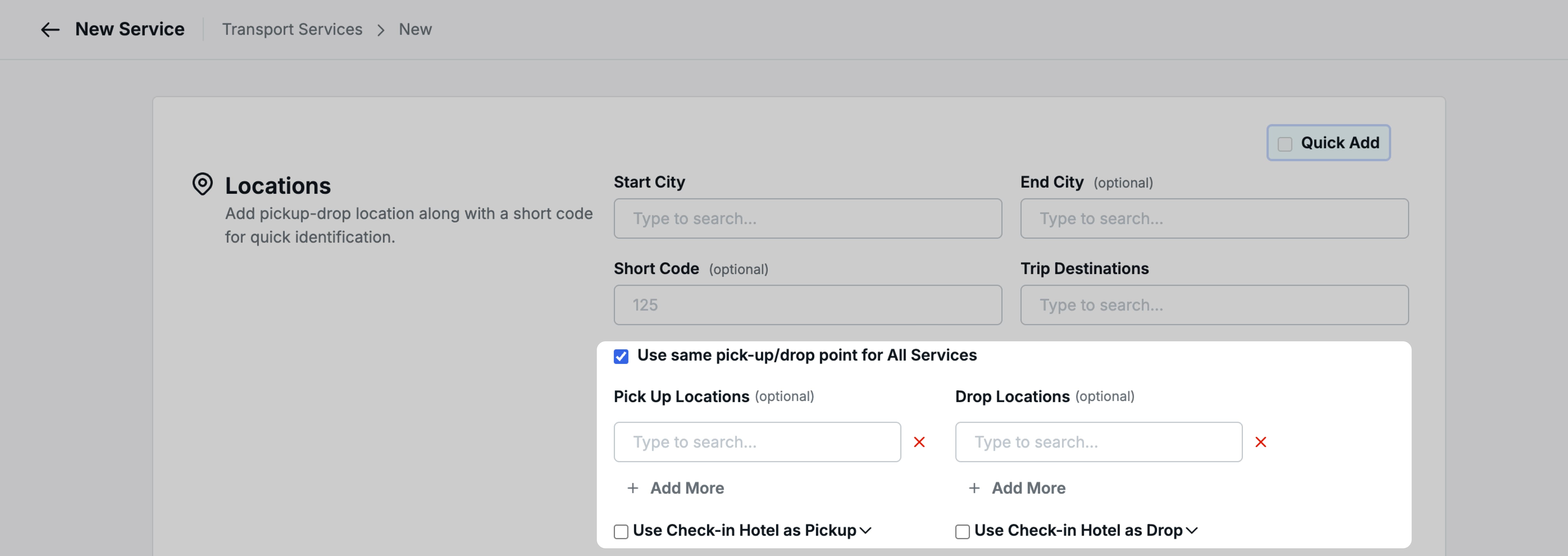
By default, the Quick Add mode is enabled, which hides the pick-up and drop location fields. Click on Quick Add to uncheck it and reveal the full location section.
When the checkbox “Use same pick-up/drop point for all services” is checked (default), the pick-up and drop location list is set at the location level and applies to all services under that location.
- Pick-up Locations: Add one or more pick-up location entries using Add More
- Drop Locations: Add one or more drop location entries using Add More
The sequence in which you add the locations matters — the first entry in each list becomes the default selection in Service Booking after the quotation is converted.
Service level (per service)
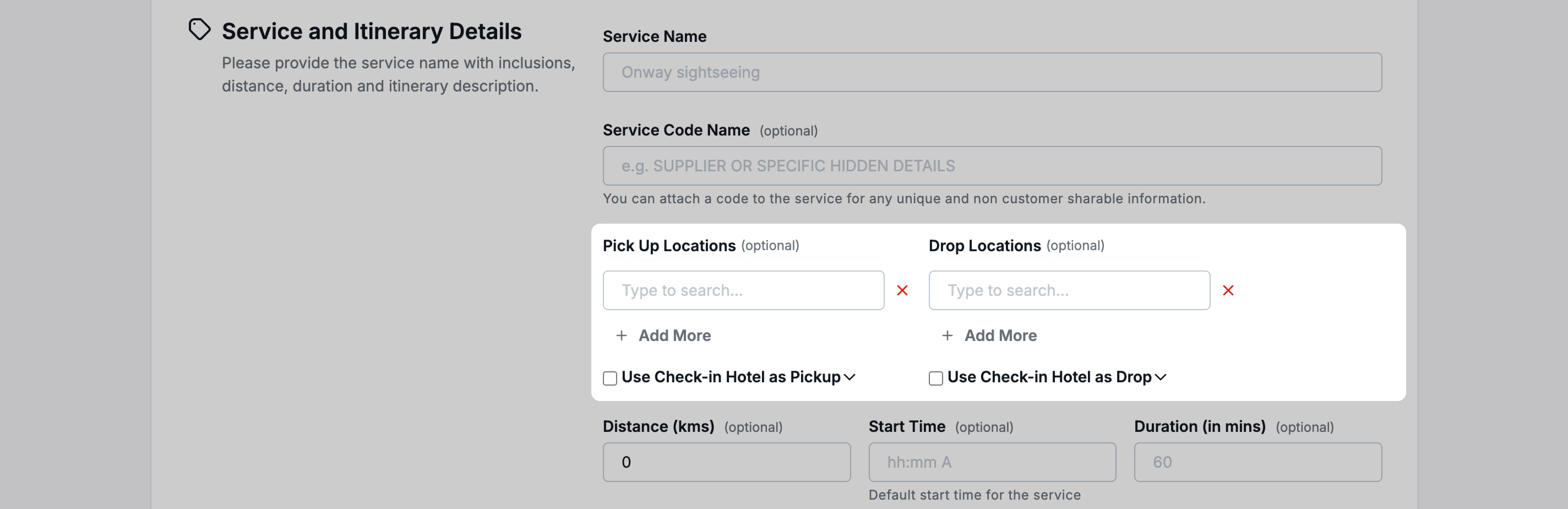
If you uncheck “Use same pick-up/drop point for all services”, the pick-up and drop location fields move to the individual service level. Each service under the location can then have its own distinct list of pick-up and drop locations with independent sequencing.
The functionality remains the same — multiple entries, sequence-based default selection — but you gain granular control per service.
Using hotel as pick-up or drop location
In many real-world scenarios, the pick-up or drop point is the guest’s hotel. Since the hotel changes based on the trip and package, you cannot hardcode hotel names into the pick-up/drop location list.
To handle this, we have added a checkbox with a dropdown below both the pick-up location list and the drop location list:
For pick-up location:
- Use Check-in Hotel as Pick-up — the system finds the hotel where the guest has a check-in or stay on the service day, and uses that hotel name as the pick-up location
- Use Checkout Hotel as Pick-up — the system finds the hotel where the guest has their last night (checkout day) on the service day, and uses that hotel name as the pick-up location
For drop location:
- Use Check-in Hotel as Drop — same logic as above, applied to the drop point
- Use Checkout Hotel as Drop — same logic as above, applied to the drop point
How the hotel matching works
- Check-in Hotel: The system looks for a booked hotel where the service day falls on the hotel’s first day or any mid-stay day
- Checkout Hotel: The system looks for a booked hotel where the service day falls on the hotel’s last day of stay
- The hotel must be booked (not just quoted) for the match to apply
- When this checkbox is checked, the pick-up/drop location list selection is frozen — you cannot manually select from the list, as the system is using the hotel name instead
Controlling the checkbox from service masters
The checkbox setting (checked or unchecked) is configured on the service level in your service masters. When this service is used in a quotation and converted:
- If the checkbox was checked in the service master, it appears checked by default in Service Booking
- If the checkbox was not checked in the service master, it appears unchecked in Service Booking
- You can override the setting in Service Booking if needed
Pick-up and drop locations in service booking
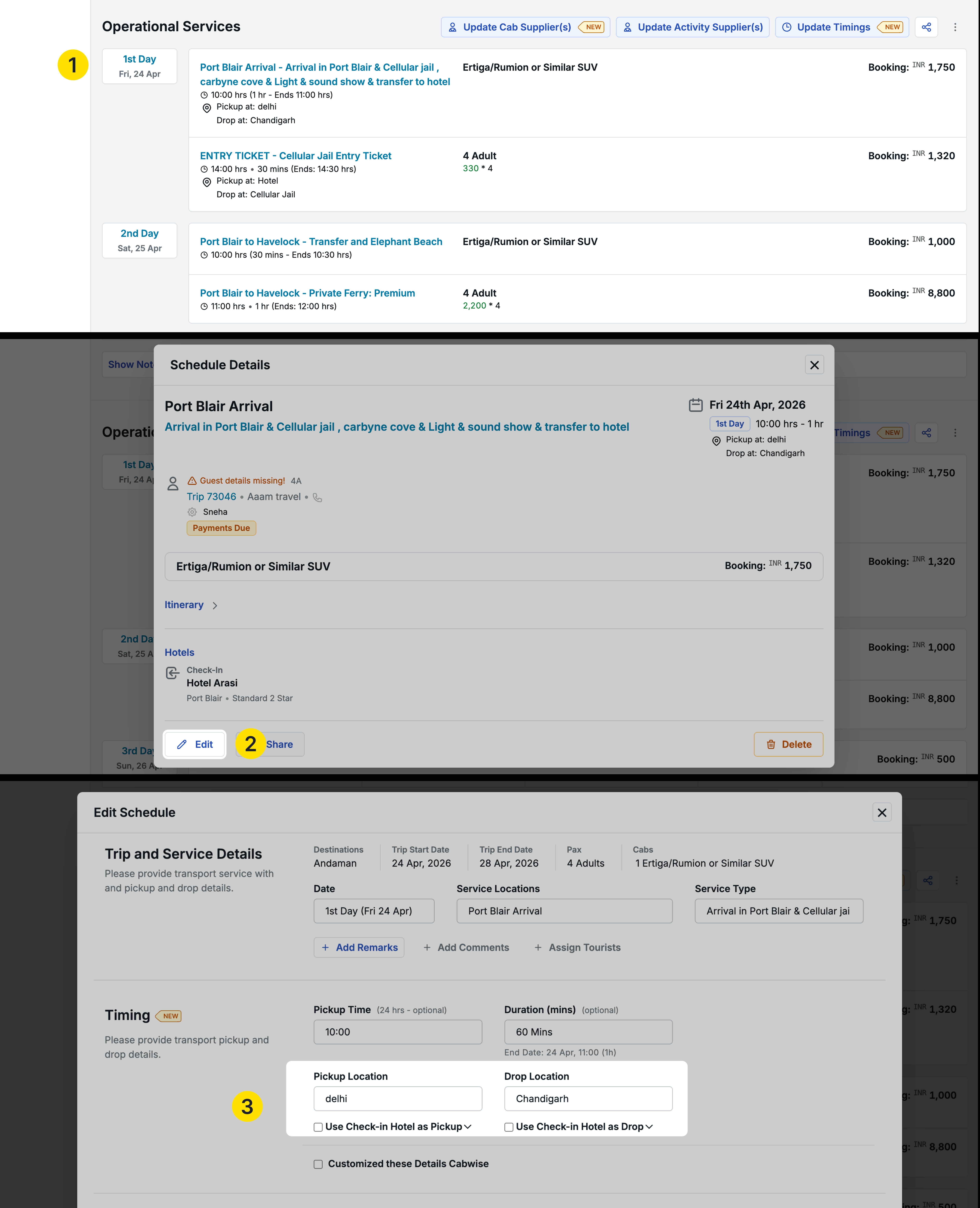
After a quotation is converted, in Service Booking:
- Open the service → click the service name → click Edit
- In the Timing section (where pick-up time and duration already exist), you will now find Pick-up Location and Drop Location fields
- The default selection is based on the sequence set in the service master
- You can change the selection to any other location from the list, or use the hotel checkbox options
Cab-wise customization (transport services only)
Below the timing section, there is a checkbox: “Customize these details cab-wise”. Clicking this moves the pick-up location, drop location, pick-up time, and duration fields to the cab level. If a service has multiple cabs, each cab can have its own pick-up and drop location settings.
Pick-up and drop locations for travel activities
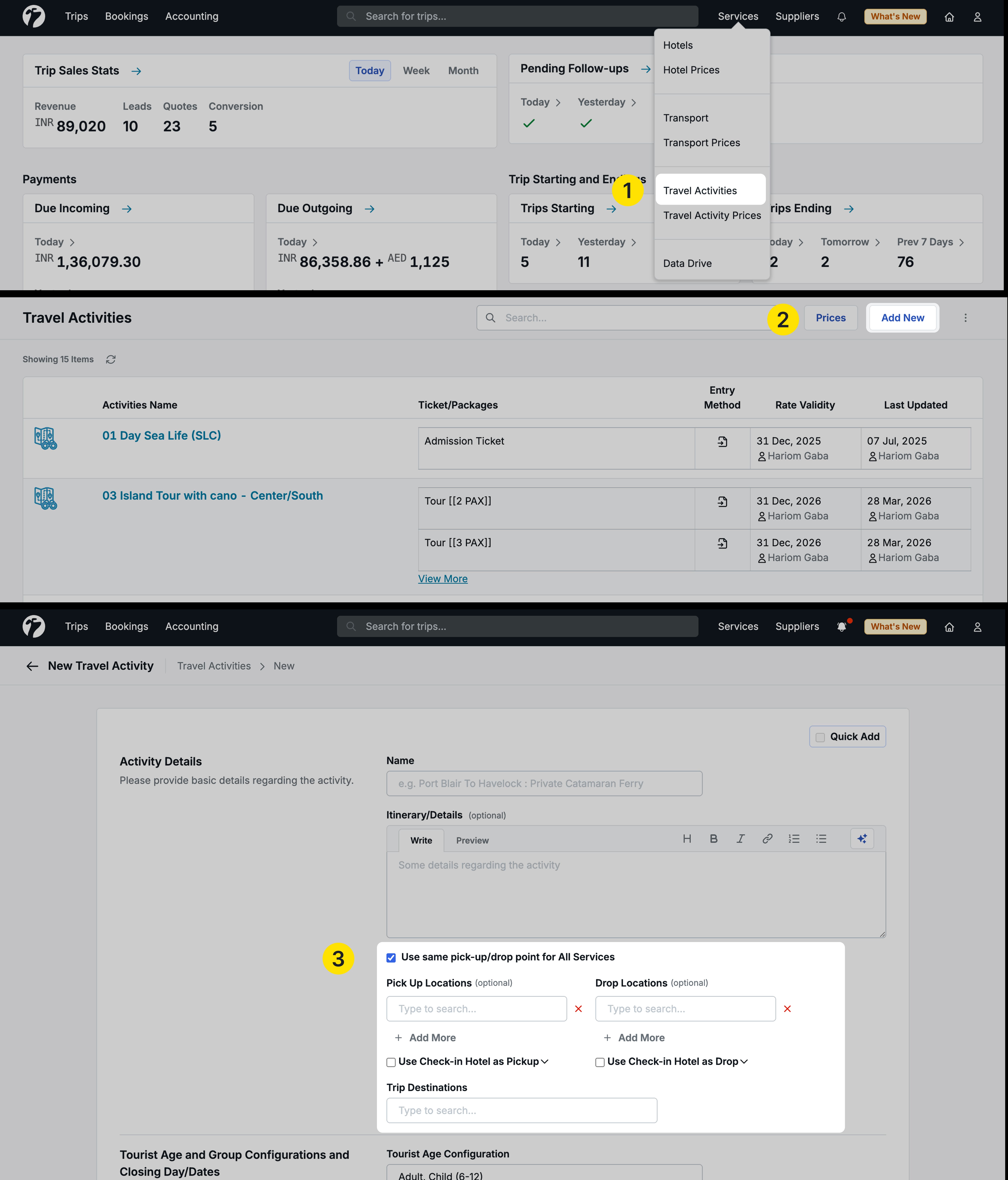
Navigate to Services → Travel Activities → select or edit a travel activity
The same pick-up and drop location functionality is available for travel activities and follows the same structure:
- Activity level: Check “Use same pick-up/drop point for all services” (refers to all ticket types under the activity) to set locations for the entire activity
- Ticket level: Uncheck the checkbox to set pick-up and drop locations per ticket type
- Hotel as pick-up/drop: The same check-in/checkout hotel checkboxes are available
- Service Booking: Same behavior — default selection based on sequence, editable by the user
Where pick-up and drop locations appear
Sharing documents
Pick-up and drop locations are included in the following sharing formats (for both transport services and activities):
- Guest WhatsApp message template
- Service provider WhatsApp message template
- Driver WhatsApp message template
- Booking inquiry for suppliers (WhatsApp and email)
Trip voucher
Pick-up and drop locations are displayed in the Trip Voucher for both transport services and travel activities, including hotel-based locations when the check-in/checkout hotel option is active.
Reports
The following reports now include pick-up and drop location data:
- Trip Operation Service Report
- Operation Calendar Month Report
- Operation Booking Day - All Services Report
- Operation Booking Day - Transporter Report
Benefits
- Maintain precise pick-up and drop locations at the service or ticket level, separate from the high-level start/end city
- Automatically populate pick-up/drop locations in service booking based on your configured defaults
- Dynamically resolve hotel-based pick-up and drop points based on the guest’s actual booking
- Share accurate location details with guests, drivers, and service providers across WhatsApp, email, vouchers, and reports
- Reduce manual communication and ensure consistency across the entire operations workflow
Other Improvements
- Confirmation Details for Transport Cabs: You can now enter a confirmation detail number for each cab in Service Booking, which is displayed in the Trip Voucher at the cab level.
- Start Time and Duration for Transport Service on Quote Page: You can now add the transport service start time and duration at the time of quotation creation, allowing the operations team to work with pre-filled timing details without having to set them later.
- API Integration Enabled for All Tenants: API Integration is now enabled by default for all tenants. The Trip Plan Request feature activates automatically once at least one integration has been configured.
- Package ROE in Trip Check-in/Check-out Report: The package rate of exchange (ROE) is now included in the Trip Check-in/Check-out report for better financial visibility.
- Self-Booked Hotel Details in Departure Transfers: Fixed an issue where self-booked hotel details were not reflecting correctly for departure transfer services.
- Destination Sequence Fix: Fixed an issue with destination sequencing to ensure destinations appear in the correct order.
- Room Type Improvements: New tenants will no longer have default room type data pre-populated. You can now bulk-remove room types that are no longer in use.