





Hotel Booking Calendar View
We have introduced a new Hotel Booking Calendar View that provides a clear visual overview of hotel bookings across upcoming dates. The calendar displays daily check-ins and check-outs while using colour-coded booking statuses, making it easier for reservation and operations teams to monitor future bookings and identify pending actions at a glance.
Accessing the Calendar
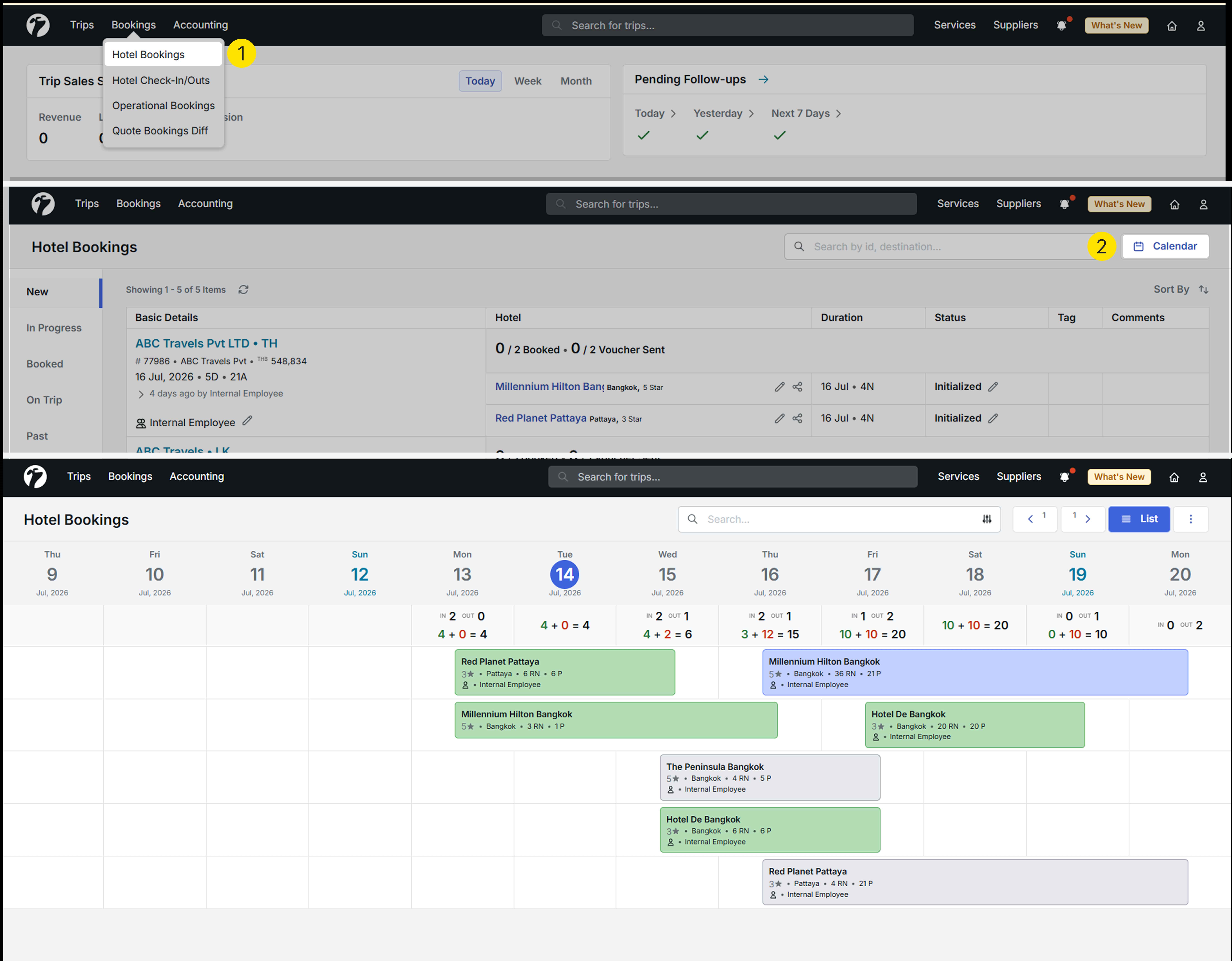
Navigate to Bookings → Hotel Booking → Calendar.
Calendar Overview
The calendar displays hotel bookings based on their scheduled check-in and check-out dates.
Each booking is colour-coded according to its current booking status, allowing your team to quickly identify the progress of every reservation without opening the booking details.
The booking statuses are represented as follows:
- Green – Hotel booking has been completed.
- Blue – Hotel booking is currently In Progress.
- Grey – Hotel booking is in the Initialisation stage.
This visual status system gives your reservations and operations teams an instant overview of upcoming bookings, helping them prioritise tasks, identify pending reservations, and manage daily hotel bookings more efficiently.
Desktop and Mobile Notifications
We have introduced support for Desktop and Mobile Push Notifications, allowing you to receive important updates even when the application is running in the background or is completely closed.
Once enabled, you will receive real-time notifications for important events such as new sales, lead assignments, and other system activities. Additional notification types will be introduced in upcoming releases.
How to Enable
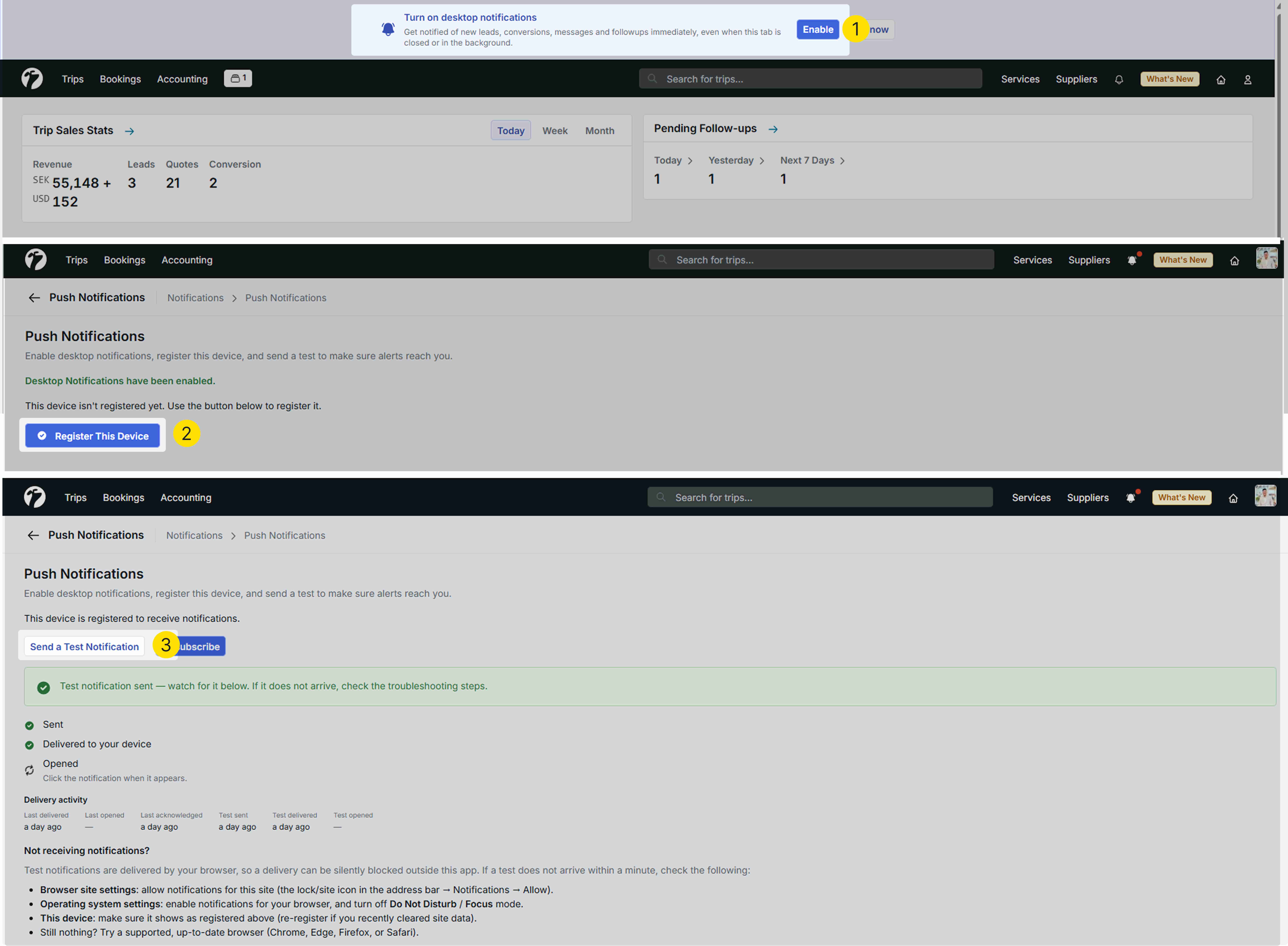
After updating to the latest version, a Notification Setup pop-up will appear at the top of the page. Click Set Up to be redirected to the Push Notifications page, where you can register your device. Once the registration is complete, you will start receiving notifications.
Access via: Notification Icon → Settings → Push Notifications
Supported Notifications
After enabling push notifications, you will receive alerts for:
- Lead Assignment (Trip Plan Requests)
- Email Delivery Failures
- Trip Conversion
More notification categories will be added in future updates.
These notifications help your team stay informed and respond quickly without needing to constantly monitor the application.
Note: By default, the Notification Setup banner remains visible for two weeks after the update to remind users to enable Push Notifications.
If you dismiss or ignore the banner without completing the setup, it will automatically reappear after the two-week period as a reminder to register your device.
You can also enable Push Notifications at any time by navigating to Notification Icon → Settings → Push Notifications, even if the setup banner is no longer visible.
Improved Email AI Leads and Distributions
We have enhanced the Email AI Leads and Distribution system to improve how CC recipients are handled in both outgoing and incoming email communication. You can now include multiple CC recipients when sending quotation or enquiry emails, while incoming emails intelligently ignore CC recipients during lead creation to prevent duplicate Trip Plan Requests.
These improvements make email communication more flexible and ensure that only genuine customer enquiries are converted into leads.
What’s New
Smarter CC Handling for Incoming Emails
Previously, if an incoming email contained one primary recipient and multiple internal team members in the CC field, the system treated every recipient as a separate enquiry. This resulted in multiple Trip Plan Requests (TPRs) being created for the same customer email.
The Email AI now intelligently processes incoming emails by creating a Trip Plan Request only for the primary recipient, while ignoring internal CC recipients. This prevents duplicate lead creation and ensures each customer enquiry is processed only once.
Automatic Lead Distribution
We have enhanced the existing Trip Source-Team Mapping module to automate lead assignment for incoming email enquiries.
You can now map one or more teams to individual Trip Sources. When a new enquiry is received from a particular Trip Source, the system automatically assigns the Trip Plan Request (TPR) to a team member from the mapped team, eliminating the need for manual assignment.
How It Works
Navigate to Profile → Organisation → Trip Source-Team Mapping.
Assign a team to each Trip Source based on your organisation’s workflow.
When an enquiry is received from a mapped Trip Source:
- The system automatically creates a Trip Plan Request (TPR).
- The TPR is assigned to a team member from the mapped team.
- If multiple users belong to the same team, assignments are distributed automatically using a Round Robin method, ensuring enquiries are shared evenly across team members.
- If only one user is assigned to the mapped team, all enquiries from that Trip Source are automatically assigned to that user.
This automation ensures that enquiries are routed to the right team without manual intervention, helping organisations distribute leads fairly and respond to customers more efficiently.
Sending Quotation Emails Directly from the System
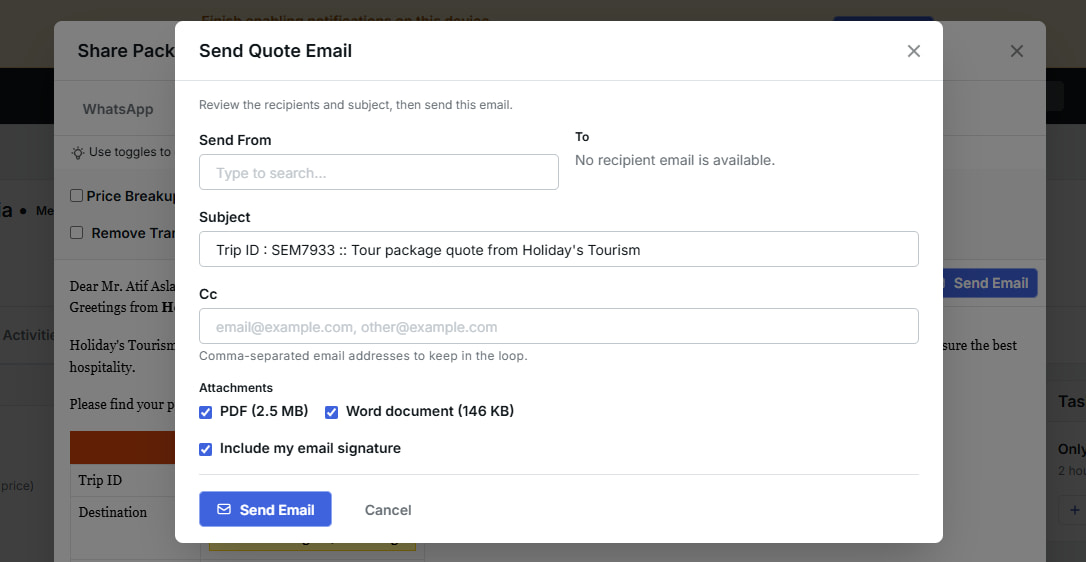
We have enhanced the system email composer to provide greater flexibility when sending quotation emails. You can now customise the email subject, attach quotation files in PDF or Word format, view attachment sizes before sending, and include your configured email signature.
These improvements help you personalise customer communication while ensuring emails are sent with the required documents and branding.
What’s New
Multiple CC Support for Outgoing Emails
You can now add one or more email addresses in the CC field when sending emails from the system.
This allows you to keep additional team members, managers, or stakeholders informed while communicating with your customers, without having to send separate emails.
The email composer supports multiple CC recipients, email signatures, automatic PDF or Word quotation attachments, and custom email subjects, enabling you to send professional quotations in just a few clicks
Email Subject Template Customisation
We have introduced Email Subject Template Customisation, allowing you to define a default subject format for quotation emails while still giving users the flexibility to modify it before sending.
This helps maintain a consistent email subject across your organisation while allowing customisation whenever required.
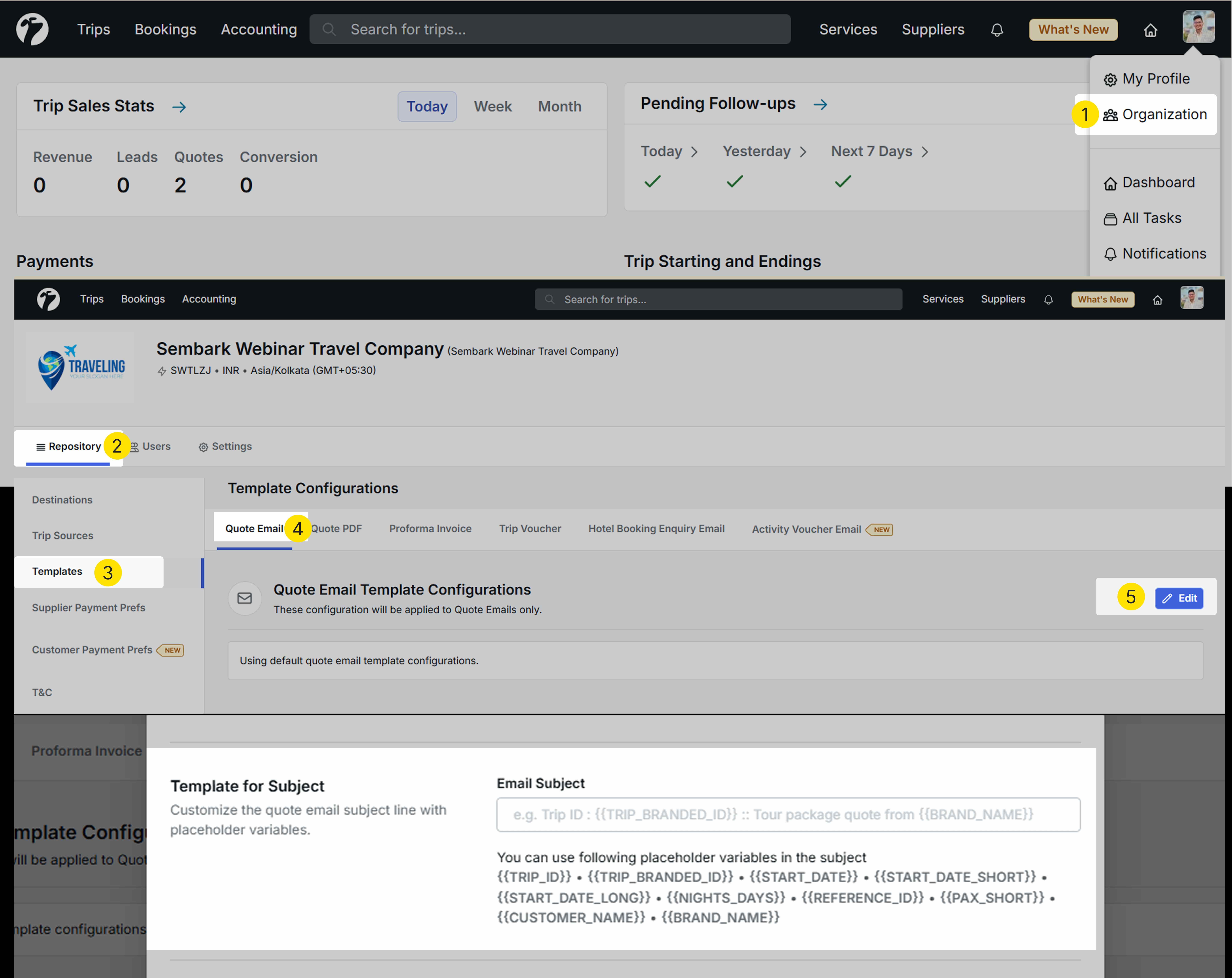
How to Configure
Navigate to Profile → Organisation → Templates → Email Templates → Subject Template.
Here, you can create a default email subject using the supported placeholder variables provided by the system.
Once the template is saved, the configured subject is automatically populated whenever you send a quotation email. You can review and edit the subject before sending, if required.
Note: Changing the email subject may break the existing email conversation thread, causing future replies to appear as a separate conversation.
Attachment Support
The email composer now supports attaching quotation documents in both PDF and Word formats.
The attachment size is displayed before the email is sent, making it easy to verify the total file size.
Note: If the combined attachment size exceeds 18 MB, the system displays a Too Large to Attach message, and the email cannot be sent until the attachment size is reduced.
Automatic Email Signature
The email composer now automatically includes the email signature configured in your profile.
This ensures every quotation email is sent with a consistent and professional signature without requiring you to add it manually each time.
Setting Up Your Email Signature
Setting up your email signature is quick and easy. Navigate to Profile → My Profile → Email Signature.
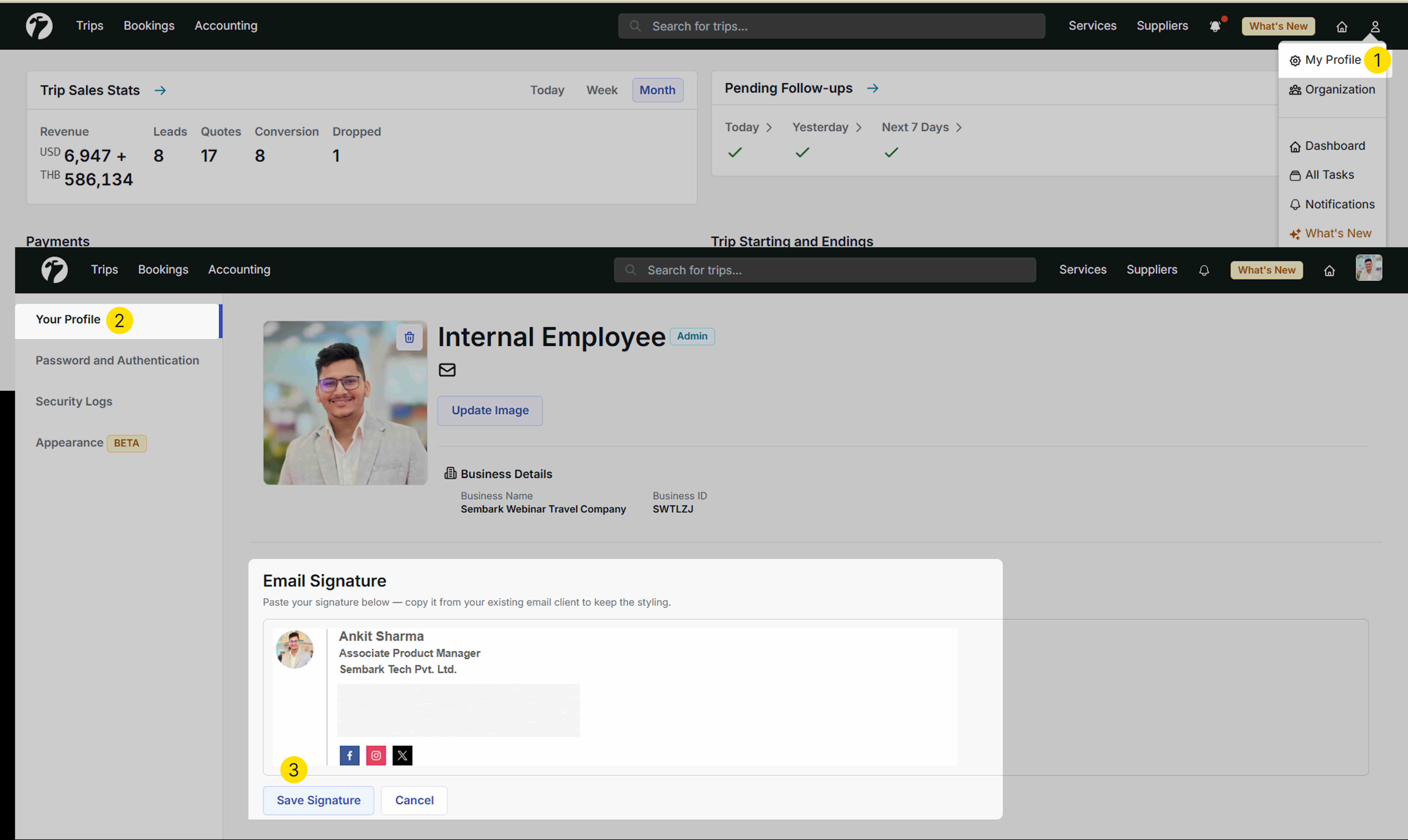
You can create a personalised email signature using formatted text, images, company logos, hyperlinks, and other rich-text formatting options. Once configured, your email signature is automatically included in quotation emails sent from the system, helping maintain a professional and consistent brand identity across all customer communications.
This enhancement reduces the number of steps required to share quotations and enables your team to respond to enquiries more efficiently from a single screen.