







In release 1.183 we brought WhatsApp into your Sembark dashboard. Until now, connecting a number meant deleting it from the WhatsApp Business app on your phone first. Many of you told us that was the one thing stopping you, because your team and your customers rely on the app every day.
With this release you can keep your number in the WhatsApp Business app and use it in Sembark at the same time. Chats stay on your phone and also show in Sembark. Messages sent from either side show up in both.
Let’s dive into more details.
1. One Number, in the WhatsApp Business App and in Sembark
When you connect a number, Sembark now asks how you will use it:
-
Only with Sembark — a new number, or one moving from another provider or from the WhatsApp Business app. This works as it did before.
-
Keep using it in the WhatsApp Business app too (Beta) — chats stay on your phone and also show in Sembark.
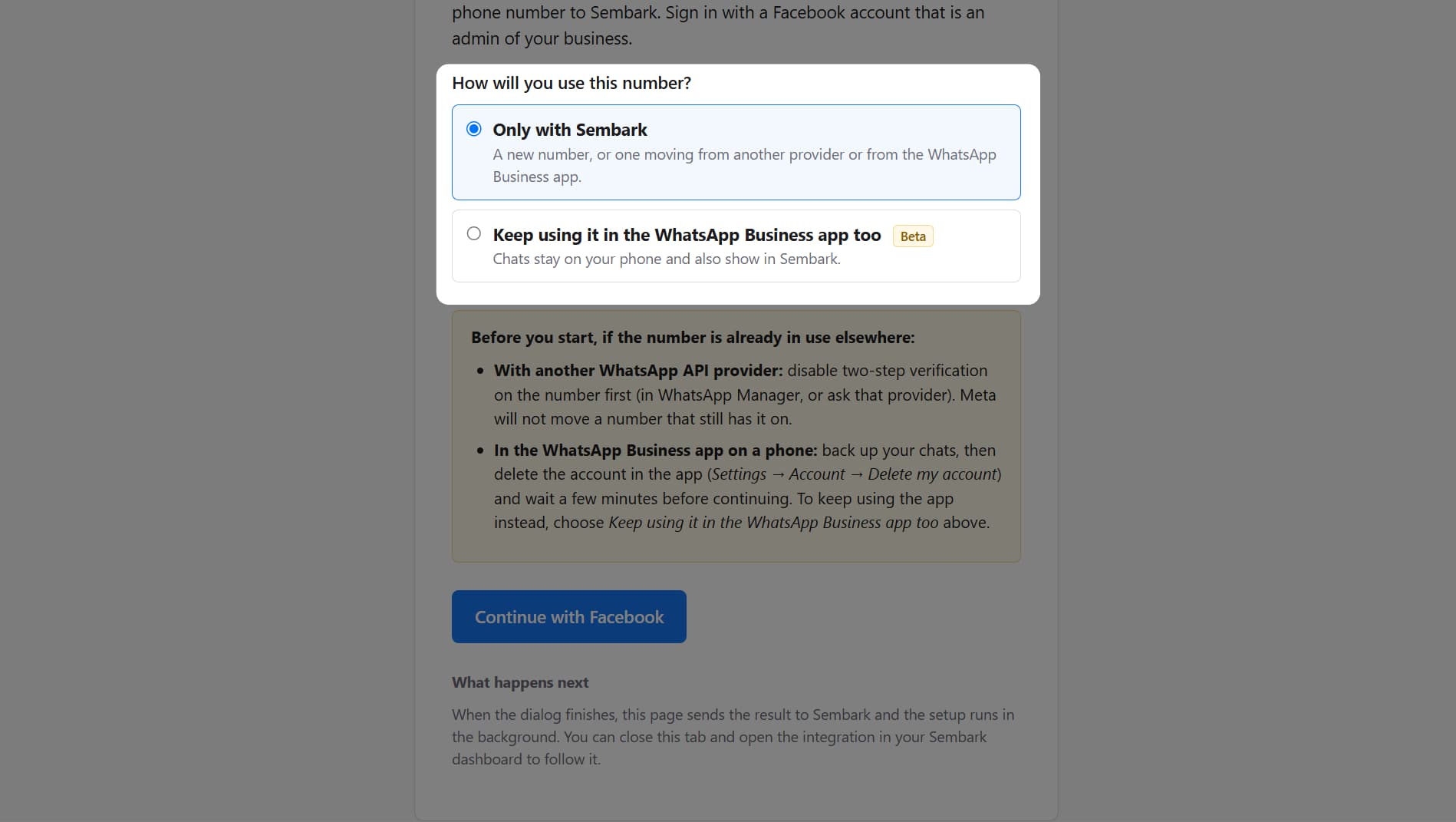
Highlights
- No need to delete your WhatsApp account — have the phone with an up-to-date WhatsApp Business app at hand. Meta shows a code to enter in the app, and you’re connected. Your number, display name and chats stay where they are. Follow the setup steps.
- Past chats come into Sembark — during setup, the app asks whether to share your past chats with Sembark. If you agree, chats from the last 6 months show up in the WhatsApp Inbox at their original times, in the right order. Imported messages don’t count as unread and don’t trigger notifications or automations, so nobody gets messaged again about an old chat.
- Your saved contacts come along — Sembark imports the names you saved in the app’s address book. Each conversation shows your saved name first, then the customer’s WhatsApp profile name, and Search by name or number finds either.
- Messages from both sides, in both places — a message your team sends from the phone shows up in Sembark, marked Sent from WhatsApp Business app. Messages sent from Sembark — quotes, templates, Quick Sends and automations — show up in the app too.
- Reactions from both sides — reactions your team adds in the app show in Sembark next to the customer’s.
- Easy to spot — in Organization > Settings > Integrations, a number connected this way is labelled Business app, and Check Connection Health confirms its contacts and chat history were requested and that it’s still connected.
Learn how the WhatsApp Business app works with Sembark.
Limits of using the WhatsApp Business app with Sembark
- Open the WhatsApp Business app every 14 days. If the WhatsApp Business app isn’t opened on the phone for 14 days, Meta disconnects the number from Sembark. The integration shows a warning, and you can connect the number again with Connect WhatsApp Business.
- Past chats must be imported within 24 hours. Meta lets Sembark import contacts and past chats only within 24 hours of connecting. If the integration says they could not be requested, use ⋮ > Sync with Meta within that time.
- Only the last 6 months of chats come in. Photos, videos and documents older than 14 days show as unavailable.
- Sending is capped at 20 messages a second. Meta fixes this limit for a number shared with the WhatsApp Business app. A number used only with Sembark can send up to 80 messages a second, and Meta raises eligible numbers to as many as 1,000. When many automations fire at once, such as a batch of payment reminders, the messages over the limit wait and go out shortly after. A message your team sends during such a burst may fail and need sending again.
- Sembark’s messages can’t be edited in the app. The WhatsApp Business app can only edit messages sent from the app.
- Some chats don’t sync. Groups, view-once and disappearing messages, live location and calls stay in the app and don’t show in Sembark.
- It’s in Beta. If anything looks off, tell us and we’ll fix it quickly.
Edits and Deletes Stay in Sync
Conversations in Sembark now match what you and your customer see on WhatsApp.
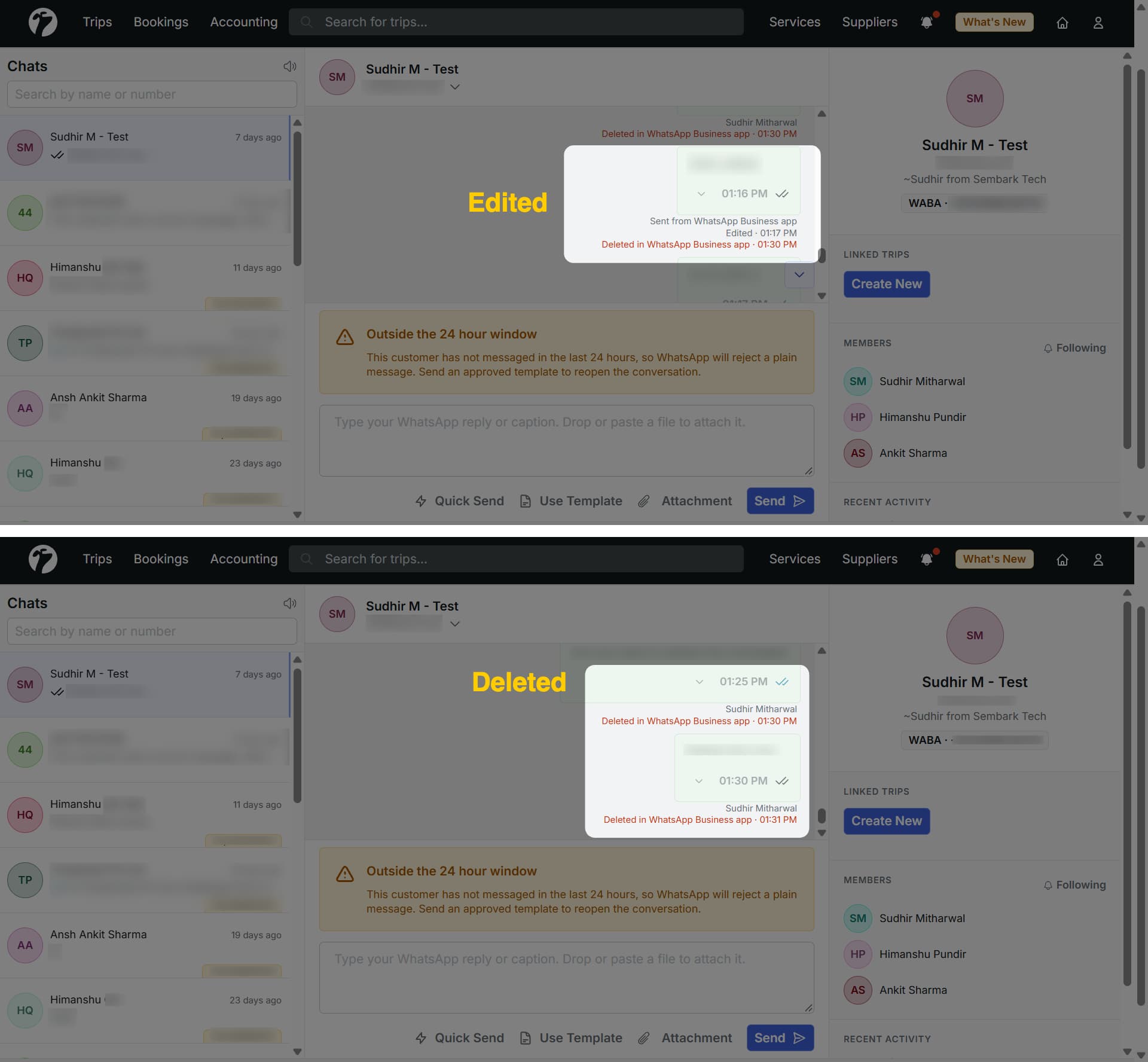
- Edits: when a customer edits a message on their phone, or your team edits one in the WhatsApp Business app, Sembark updates the message where it is. It’s marked Edited; click it to see earlier versions.
- Deletes: a message the customer deletes for everyone is marked Deleted by the customer, and one your team deletes in the app is marked Deleted in WhatsApp Business app. Your team can still read the original text.
See how edited and deleted messages are shown.
Reply to a Specific Message
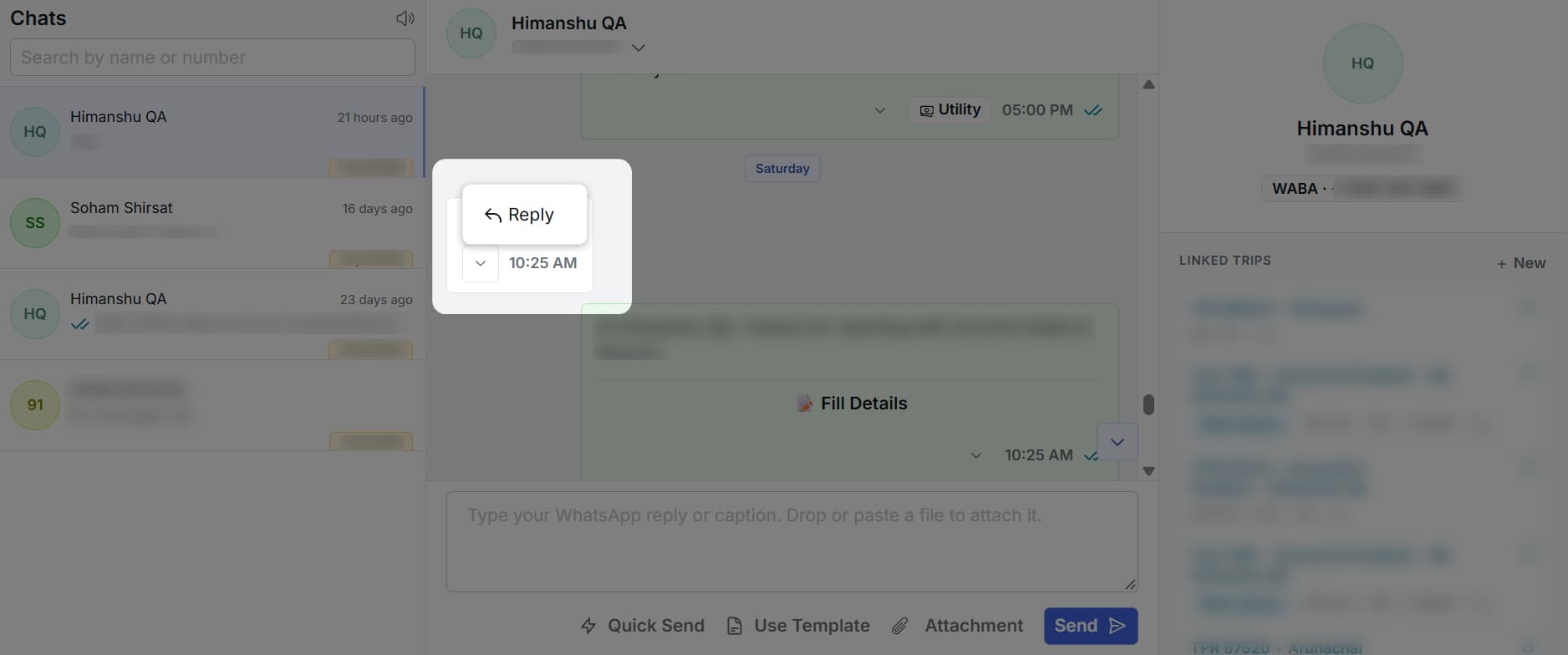
Answer a particular message in a conversation, just like on WhatsApp. Open the arrow beside a message’s time and click Reply — the message is quoted above the box you type in. The customer sees your reply with their message quoted. It works in the WhatsApp Inbox and in a trip’s WhatsApp tab, including when you send a file.
Learn how to reply to a message.
2. Visa services improvements
In release 1.185, we brought Visa Booking Management into your Sembark dashboard. This update includes several improvements and fixes that have been made to Visa Services as per your reportings and our findings. For an overview of the module, visit the Visa Management feature page.
-
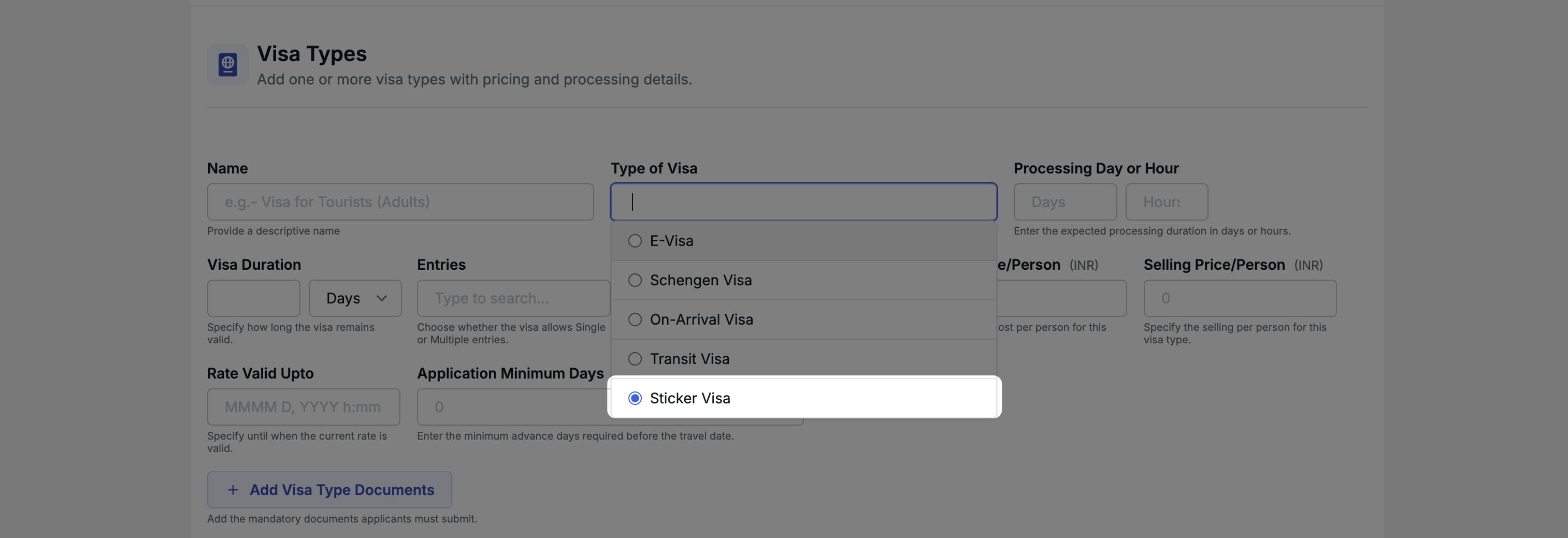
New Visa Type — Sticker Visa: Support for Sticker Visa has been added as a type of visa option.
-
Supplier Assignment: Supplier assignment now excludes bookings with Rejected and Dropped statuses.
-
No Services Found Message: A No services found message is now displayed and the action button is disabled when no services are available.
-
Document Section Layout: The Document Required section has been moved above the Description section for a more logical flow.
-
Loading State Improvement: The loading state for the Update Visa Booking Stage action has been improved for a smoother experience.
3. Other Improvements
- Prevent Conversion or Hold of Cancelled Trips: When a trip is open in two browser tabs and is cancelled in one tab, attempting to convert or place it on hold from the other tab now correctly shows a validation error, preventing any action on a cancelled trip.
- Airport and Airline Detail Changes: The IATA code field is now optional when adding an airport. City, State, and Country fields have been added to the airport form. For airlines, the IATA code is now limited to 2 or 3 characters.
- Fix for Special Inclusions in Hotels: Quote validation has been updated to allow either hotels or hotel extras to satisfy the selection requirement. The validation error message now clearly states that either hotels or hotel extras must be selected.
- Trip End Date on Trip Voucher: The trip end date is now displayed on the trip voucher.
- Total, Paid, and Remaining Balance in Payment Receipt PDF: The payment receipt PDF now displays the Total Amount, Paid Amount, and Remaining Balance for clearer payment tracking.
- HSN Code Hidden When Tax Breakup is Hidden in Proforma Invoice: The HSN/SAC code in the proforma invoice is now only displayed when the selected option shows item and tax details — specifically Display Price Breakup With Tax or Display Price Breakup, Hide Itemized Breakup (with the Tax Breakup checkbox unchecked). It is no longer shown when options such as Hide Tax Breakup or Hide Itemized Breakup are selected.