




This release makes lead and source management faster and more controlled. Admins can assign multiple B2B trip sources to a team or a tag in one go, and decide which active users and device types receive new leads. You can add missing hotel meal plans and room types without leaving the quotation page, and share quotations on WhatsApp and email with two new price breakup options. Team managers now see all their team’s TPR leads, tag descriptions appear in dropdowns, and activity descriptions can be hidden when sharing vouchers.
Let’s dive into more details.
1. Bulk Assignment of Trip Sources to Teams
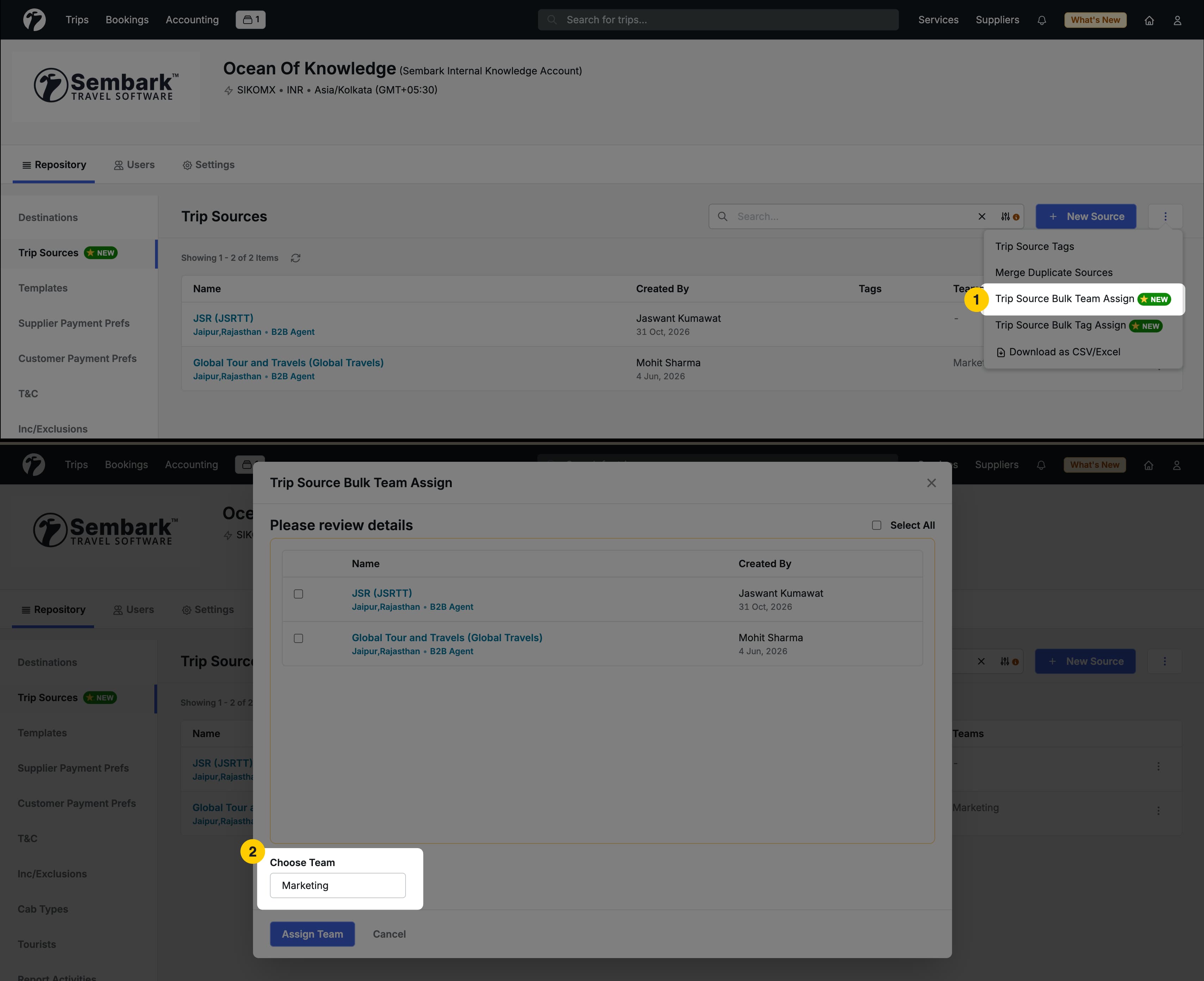
We have introduced Bulk Assignment of Trip Sources to Teams, which lets Admins assign multiple B2B trip sources to a team in one step. This is useful when you want a specific team to handle all enquiries that come from particular trip sources.
Why this feature matters
Previously, trip sources had to be assigned to a team one at a time. For organisations with many trip sources, this was slow and made manual errors more likely. Bulk assignment lets you move a whole group of sources to a team in a single action.
How to Use It
- Open the Trip Sources list.
- Select the B2B trip sources you want to assign.
- Choose the option to assign them to a team.
- Select the team and confirm.
Example: Your Dubai sales team should handle all enquiries from your Dubai-based B2B agents. Select all those agent sources together and assign them to the Dubai team in one step.
Rules
- Bulk assignment works for B2B trip sources only.
- This feature is available to Admin users only.
Benefits
- Assign many trip sources to a team in one action instead of one by one.
- Reduce manual errors when reorganising how enquiries are handled.
- Route enquiries from specific sources to the right team quickly.
2. Bulk Assignment of Trip Sources to a Tag
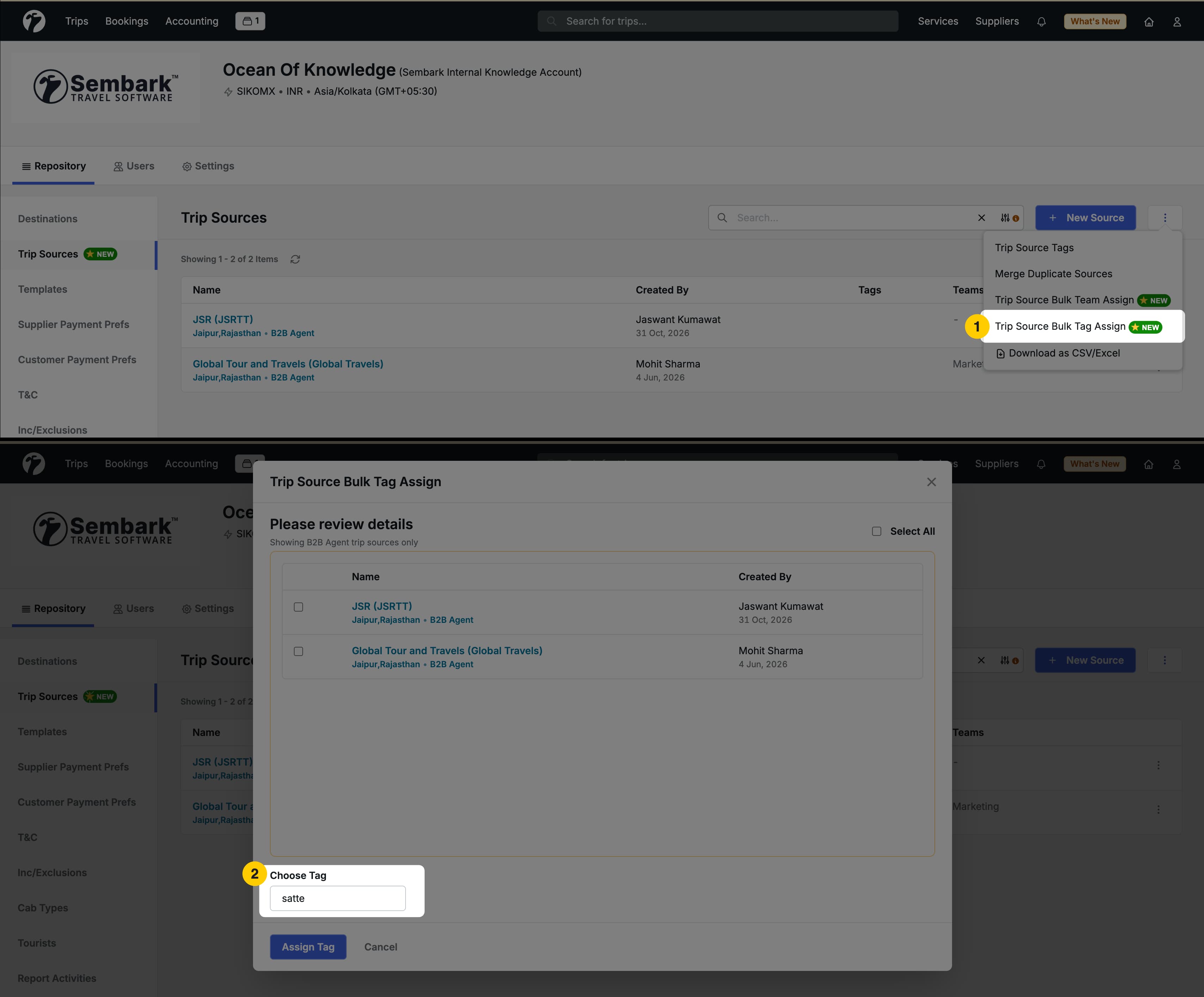
You can now assign multiple trip sources to a single tag in one step. Tags help you group and identify lead sources, and bulk assignment makes that grouping much faster.
Why this feature matters
Earlier, a tag had to be added to each trip source individually. If you receive enquiries from many B2B sources across events, campaigns, or locations, this took a lot of time. Now Admins can select several sources and apply one tag together.
Use Cases
- Event-based leads: Several trip sources bring leads from the same event. Assign a common tag such as Event Leads or the event name to all of them.
- Location-based leads: A trip source regularly sends leads from Dubai. Tag it as Dubai Leads so it is easy to identify.
- Lead-quality-based grouping: Tag sources that consistently send high-quality enquiries as Hot Leads, so your team knows which sources to prioritise.
How to Use It
- Open the Trip Sources list.
- Select the trip sources you want to tag.
- Choose the option to assign a tag.
- Select the tag and confirm.
Note: This feature is available to Admin users only.
Benefits
- Categorise many trip sources in a single step.
- Keep lead sources organised by event, location, or lead quality.
- Spot high-value sources quickly.
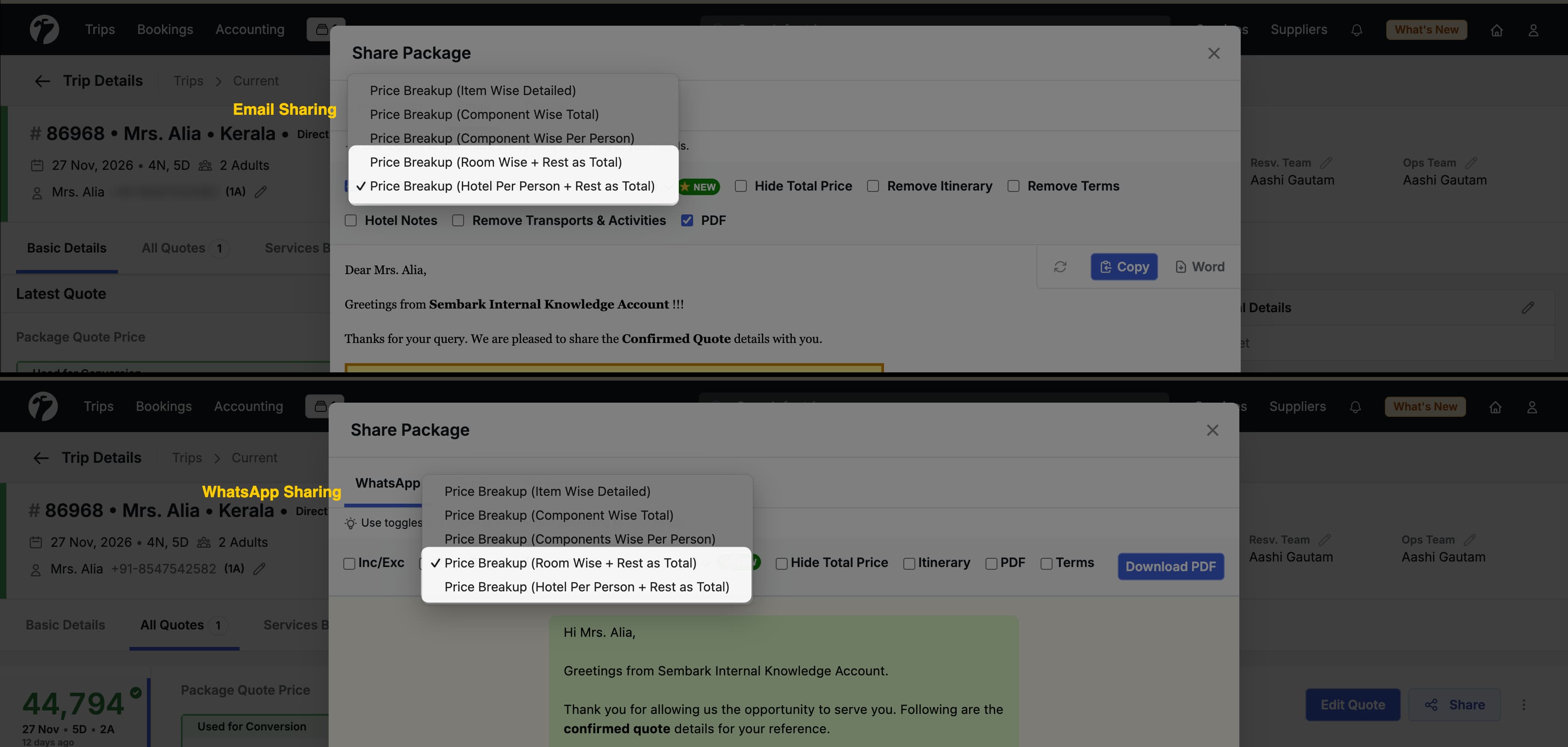
3. Quotation WhatsApp & Email Sharing – New Price Breakup Options
This update introduces two new Price Breakup options in Quotation WhatsApp and Email Sharing, allowing users to customise how package prices are displayed while sharing quotations with clients.
3.1. Hotel Per Person + Rest of Components as Total
Users can now display the combined total hotel price on a per-person basis, while all other components, such as Transport, Activities, Visa, Flights, and Add-ons, will be displayed as their respective total prices.
3.2. Every Component Per Person
Users can display the prices of all components on a per-person basis, including Hotels, Transport, Activities, Visa, etc. The combined package price will also be displayed as the Grand Total Per Person.
Benefits:
- Flexible pricing presentation based on client requirements.
- Better visibility of component-wise prices.
- Improved transparency in package cost breakdown.
- Consistent pricing display across WhatsApp and Email sharing.
Note: These options only affect the price display format. Actual quotation calculations and selling prices remain unchanged.
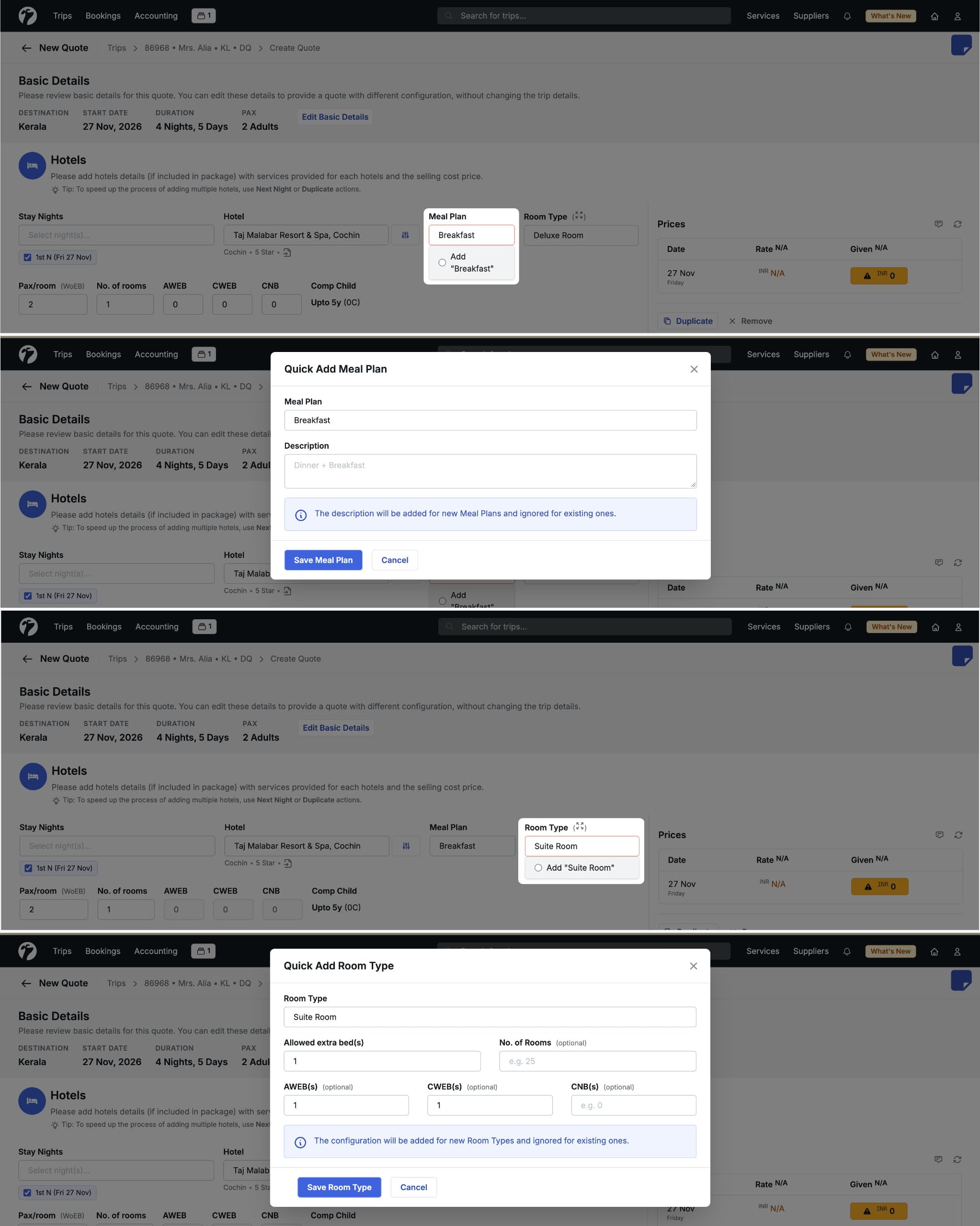
4. Quick Addition of Hotel Meal Plans and Rooms
You can now add new meal plans and room types directly from the Quotation page while creating or editing a quotation. There is no need to leave the quotation and follow a long process in settings.
Why this feature matters
Hotels often have meal plans or room types that are not yet in the system. Earlier, you had to leave the quotation, add the missing option through a lengthy process, and then return. This interrupted your work, especially when you were building a quotation under time pressure.
Where It Helps
While creating a quotation or parsing hotel details
You may come across a meal plan or room type that does not exist in the system. Add it right there on the quotation page and continue working.
Example: You are quoting a hotel and the supplier offers a Half Board with Dinner Buffet plan that is not available in your list. Add it on the spot and select it for the quotation.
When working with preloaded hotel data
The preloaded hotel database may include only a limited set of meal plans and room types. If you need more options for a hotel from this data, you can add the missing ones as you go.
Benefits
- Add missing meal plans and room types without leaving the quotation.
- Save time and avoid interrupting your workflow.
- Work more flexibly with preloaded hotel data.
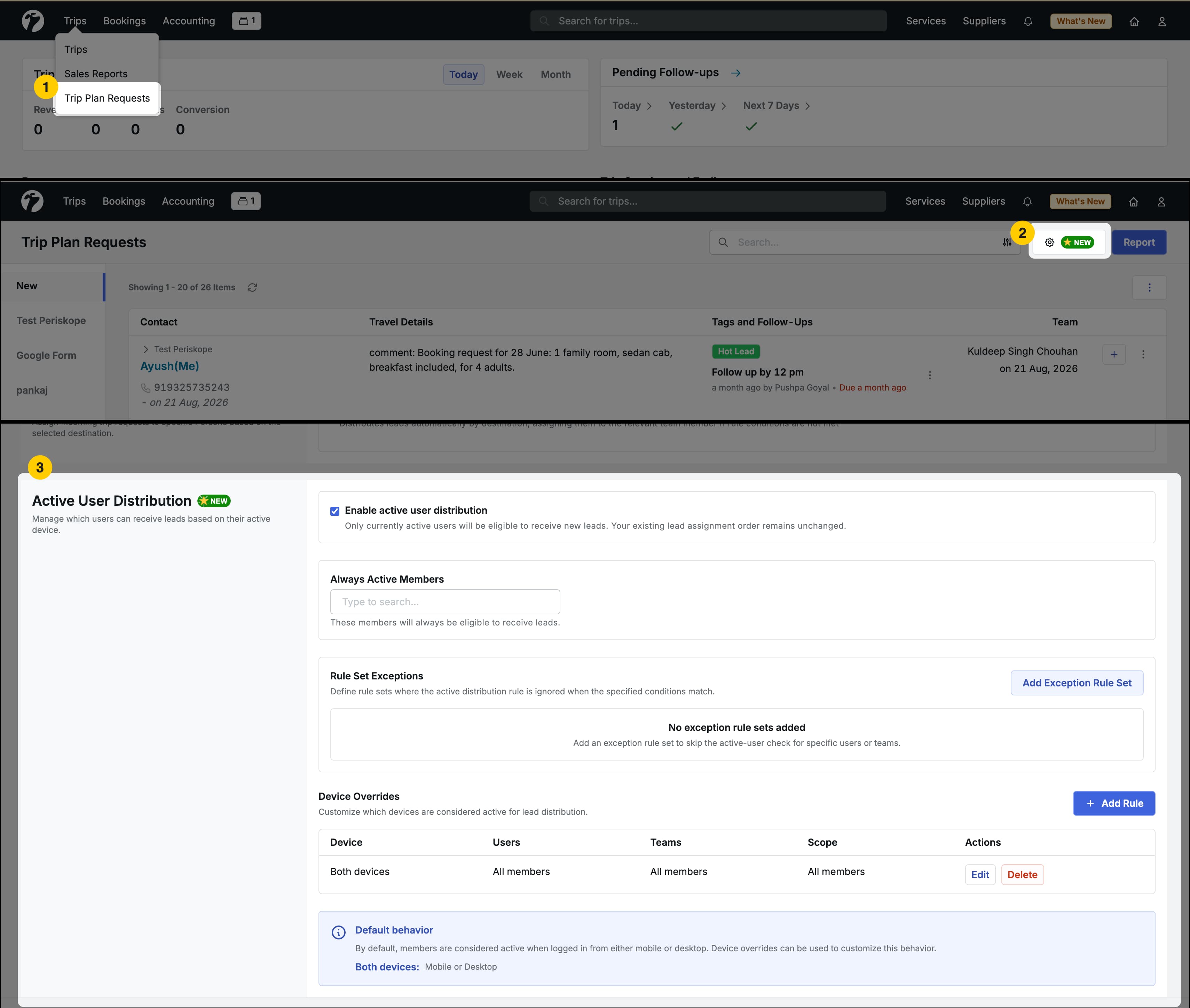
5. Trip Plan Request – Active User Distribution
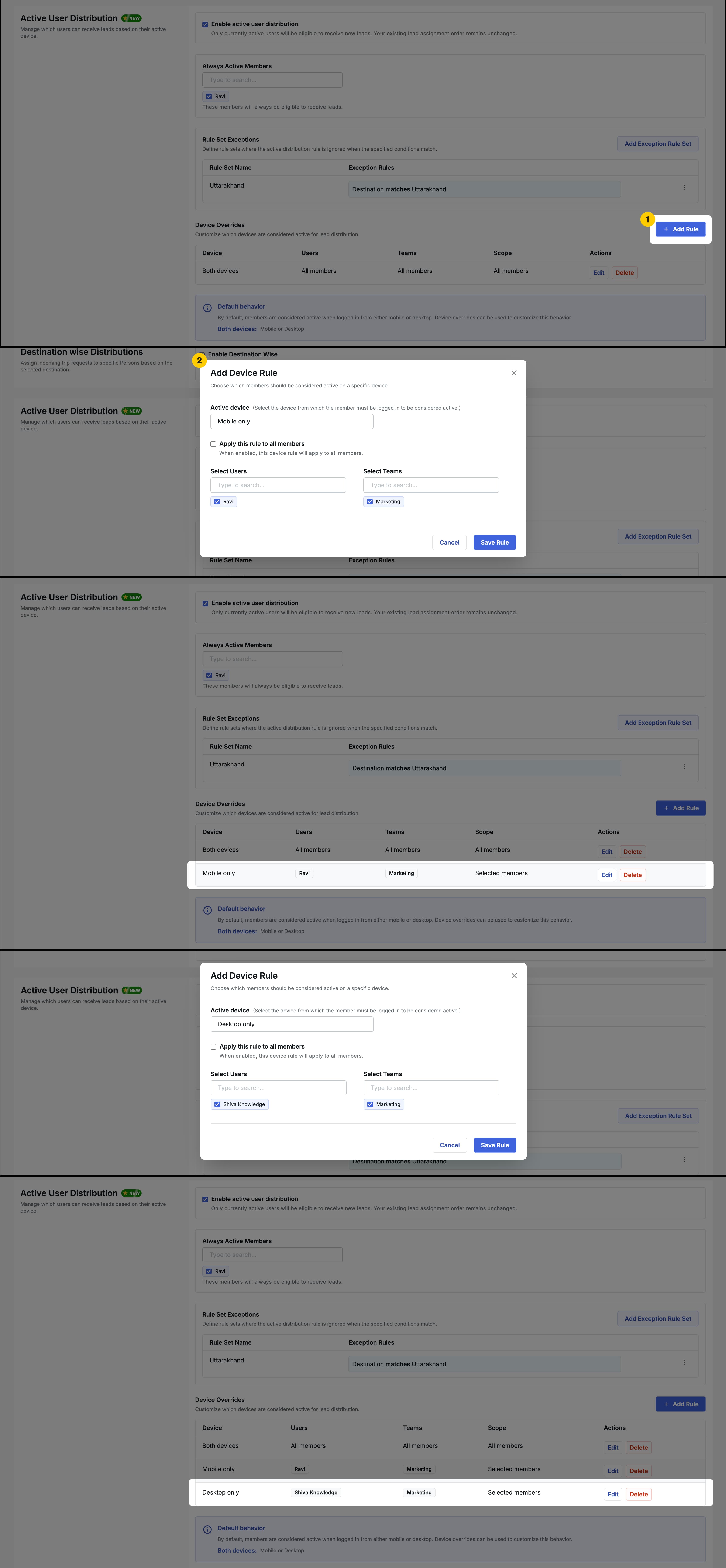
We have added Active User Distribution under Trip Plan Request. Admins can now control which users receive new leads, based on whether they are active and on the device they are using.
Why this feature matters
Previously, there was no way to decide whether leads should go only to active users. Some leads were assigned to team members who were not available, which delayed follow-ups. With this setting, leads go to the people who can act on them.
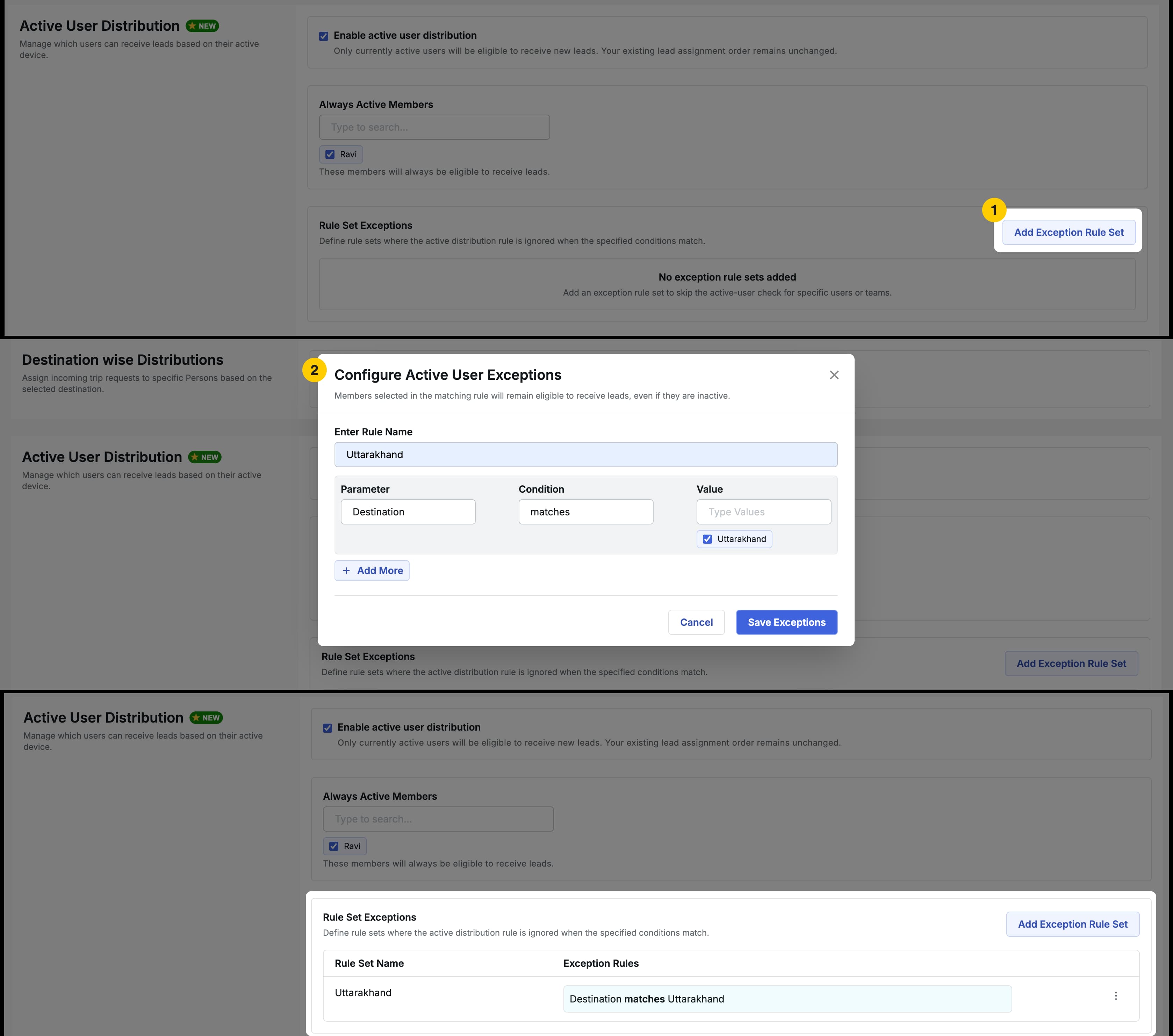
5.1. Distribution Based on Active Users
Admins can choose which active users receive leads. This keeps leads with available team members, so follow-ups happen sooner and the chances of conversion improve.
5.2. Distribution Based on Device Type
Admins can also choose which device types are eligible to receive leads:
- Mobile: Leads go only to users accessing the system on mobile devices.
- Tablet: Leads go to users accessing the system on tablets.
- Desktop: Leads go only to desktop users.
- Multiple devices: Select more than one type, such as Mobile and Desktop, to distribute leads across both.
Example: Your sales team responds fastest on mobile. Select Mobile so new leads reach team members who are likely to see and act on them right away.
Benefits
- Keep leads away from team members who are not active.
- Speed up follow-ups and improve conversion chances.
- Control lead distribution by device type.
6. Team Managers Can View All Team TPR Leads
Team Managers can now see all TPR leads that belong to their team. Previously, lead visibility was limited, which made it hard for managers to get a full picture of their team’s enquiries.
Why this feature matters
A manager needs the complete view to monitor enquiries, check follow-ups, and balance workload. With full team visibility, managers no longer depend on individual team members to know what is in the pipeline.
Benefits
- See every lead assigned to your team in one place.
- Monitor team enquiries and follow-ups more easily.
- Track and manage team-level leads with less effort.
7. Tag Description in Dropdowns
Tag descriptions now appear below the tag name in every dropdown where tags are used. When an Admin creates or edits a tag, they can add a description explaining what the tag is for and when to use it. That description is now visible to everyone choosing a tag.
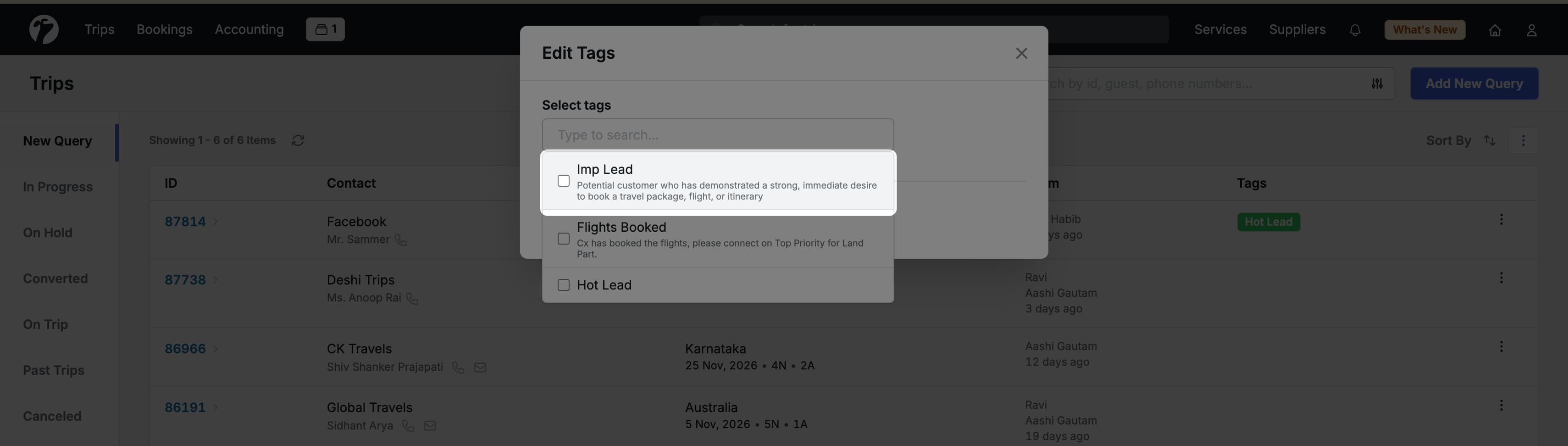
Example: An Admin creates a tag named Interested with the description Use this tag when a guest or lead shows interest in a particular package or service. When any user opens the tag dropdown, this description appears under Interested.
Why this feature matters
When several tags have similar names, it is easy to pick the wrong one. Showing the description right in the dropdown helps your team choose the correct tag and apply tags the same way across the system.
8. Hide Activity Description in Activity Voucher Sharing
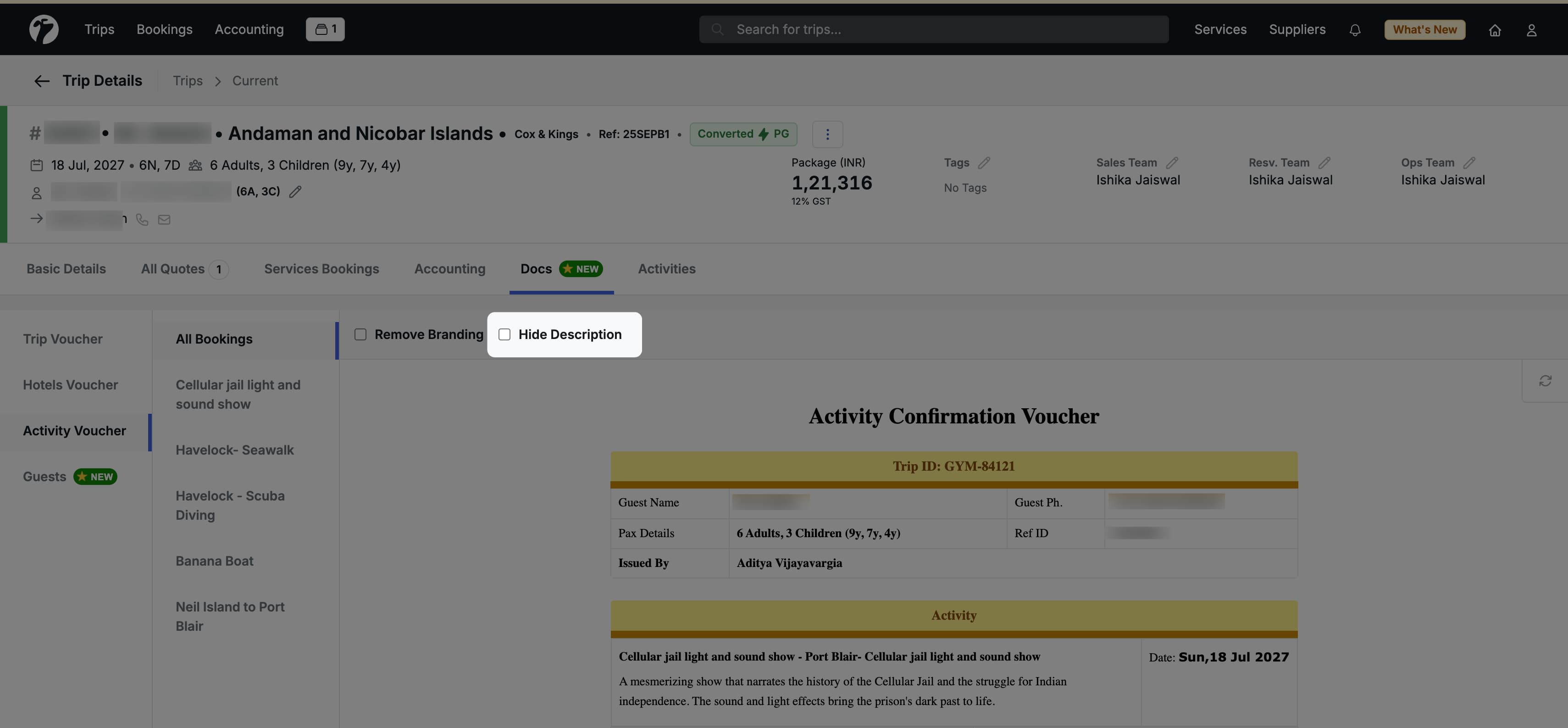
We have added a new checkbox, Hide Description in Sharing, under Activity Options. It lets you choose whether the activity description appears when you share an Activity Voucher with customers or suppliers.
How to Use It
- Open the activity and go to Activity Options.
- Select the Hide Description in Sharing checkbox.
- Share the Activity Voucher as usual.
The shared voucher will not include the activity description.
Example: You want to send a voucher to a supplier with only the booking details and without the long marketing description written for customers. Enable the checkbox and share.
Why this feature matters
Sometimes a shorter voucher is the better choice. This option gives you control over what information appears in the voucher you share.
9. Trip Day Plan Template in WhatsApp Automation
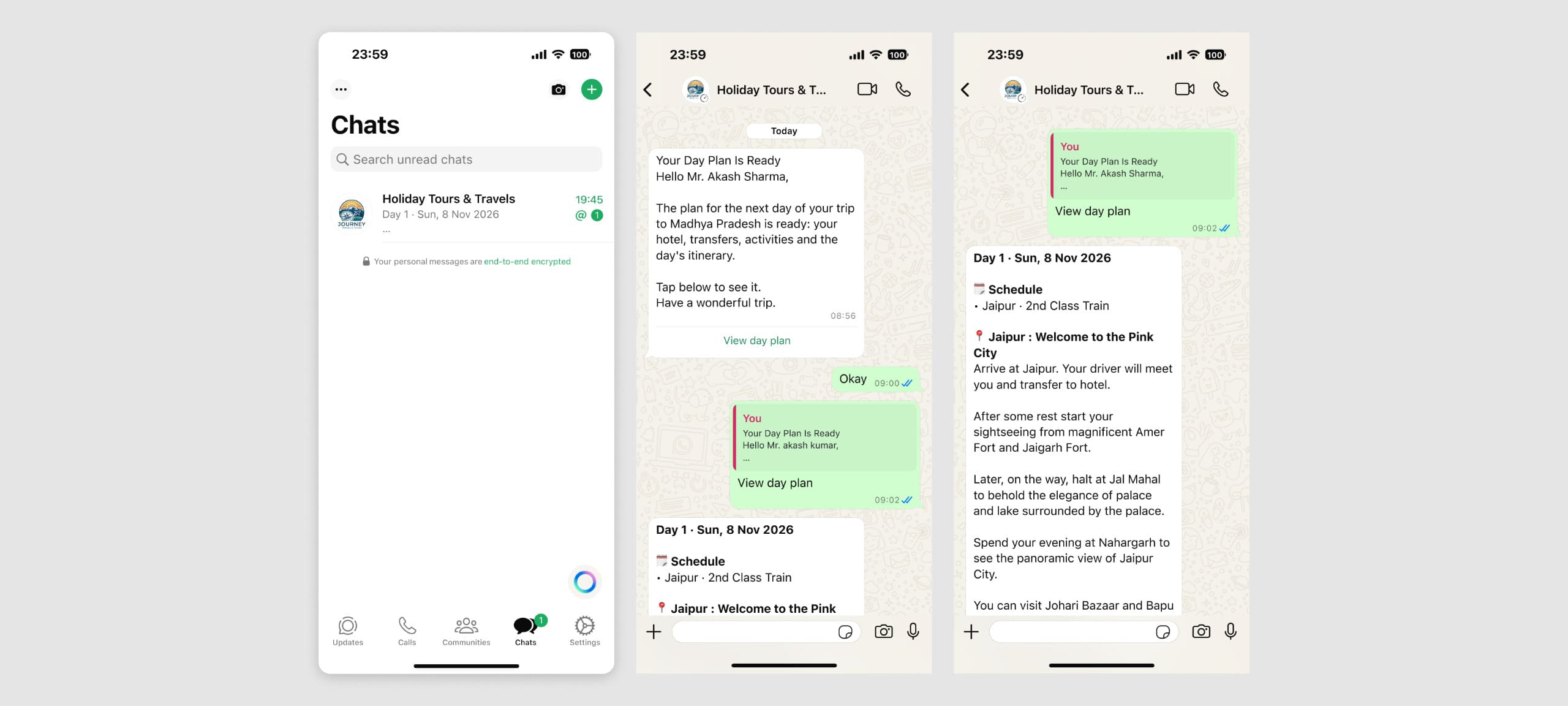
We have added a new Trip Day Plan to Customer template in WhatsApp Automation. It sends your customers a day-wise plan for their converted trip, so they can see everything planned for the day in one place.
Why this feature matters
On the day of travel, customers often have to ask where they are staying, when the cab will arrive, or what is planned next. Your team ends up answering the same questions over and over. This template sends the day’s plan automatically, so customers have the details before they need to ask.
What the Customer Receives
The message includes the plan for that day of the trip:
- Hotel details
- Cab arrangements
- Activities
- The day’s itinerary
The customer taps the message to view their complete daily plan.
When It Is Sent
You can choose when the template goes out:
- On the scheduled day: the customer receives the plan on the day of travel.
- A day in advance: the customer receives the plan the day before, so they can prepare.
Note: This template is available for converted trips.
Example: A customer has a Jaipur trip with a city tour on Day 2. With the day-in-advance option, they receive Day 2’s hotel details, cab pickup arrangement, activities, and itinerary on the evening of Day 1, without anyone on your team sending a message.
Benefits
- Customers get their daily plan automatically, without waiting for a reply from your team.
- Fewer repeated questions about hotels, cabs, and timings during the trip.
- Hotel, cab, activities, and itinerary details arrive together in one message.
- Choose between same-day and day-before delivery to suit your customers.
10. Other Improvements
- SWIFT Code Search Removed from Bank Account Form: The SWIFT Code search field has been removed when adding a bank account, as there is no database to fetch bank details from SWIFT codes, unlike IFSC codes.