






This release introduces Visa Services, a complete workflow for creating, managing, and tracking visa bookings inside Sembark, from setting up visa types to collecting guest documents and tracking application status. It also adds a new Line Item / Price Breakup option to the Proforma Invoice Template, so you can list each service individually and choose how pricing and tax are displayed. Fixes for trip code parsing, AI parser inclusions and exclusions, and duplicate tab types are included.
Let’s dive into more details.
1. Visa Services
We have added a new Visa Services component that lets you set up country-specific visa services, configure multiple visa types with their own pricing and document requirements, include visa services in quotations, collect customer documents through a shared upload link, and track the visa booking through every stage of the application process — all within Sembark.
Why this feature matters
Previously, visa services were managed in Sembark, but the process was not handled appropriately. Coordinating documents, tracking application status, and maintaining supplier payment records for multiple guests across multiple trips was fragmented and manual. Visa Services brings all of this into one place, connected directly to the trip and its guests.
Setting Up a Visa Service
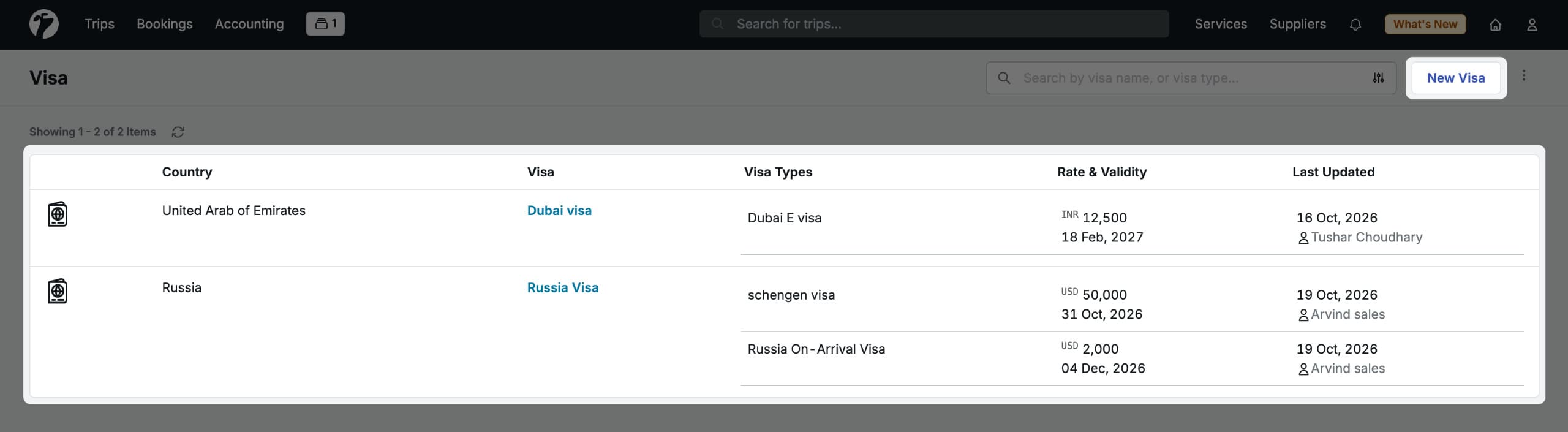
Navigate to Services → Visa in the navigation bar.
The Visa page displays a table of all existing visa services. Click New Visa to create a new one.
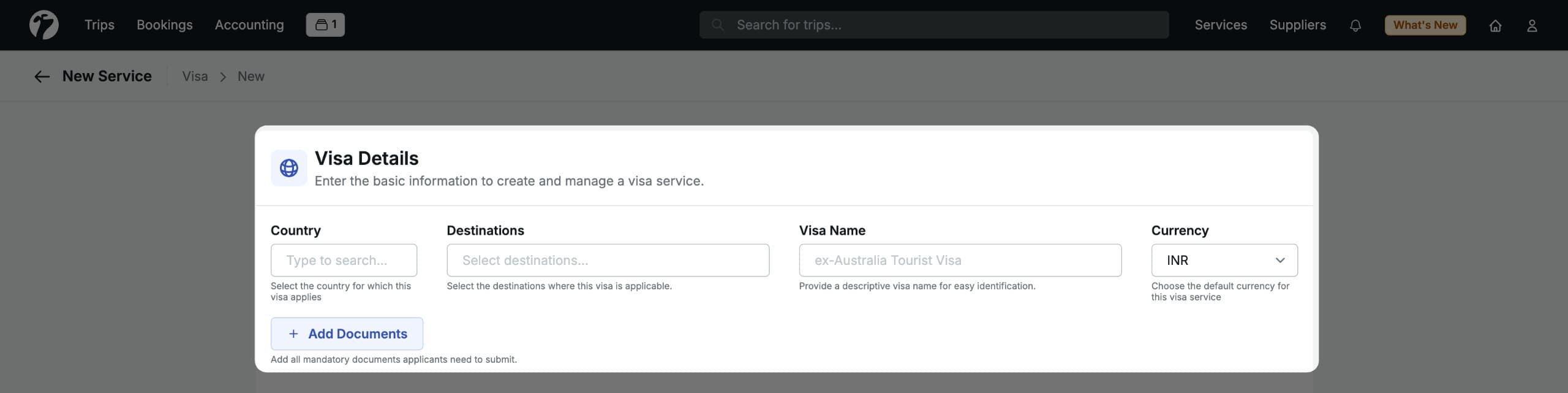
Under Visa Details, fill in the following:
- Country — the country for which the visa is applicable
- Destination — the destination where the visa is used
- Visa Name — a descriptive name for easy identification across the system
- Currency — the default currency for this visa service
Configuring Required Documents
At the service level, you can define which documents applicants must submit. Two options are available:
- Document Group — select a predefined group created under
Profile → Organisation → Document Types (e.g., a group called “Schengen Visa Documents” that bundles passport, photo, and bank statements)
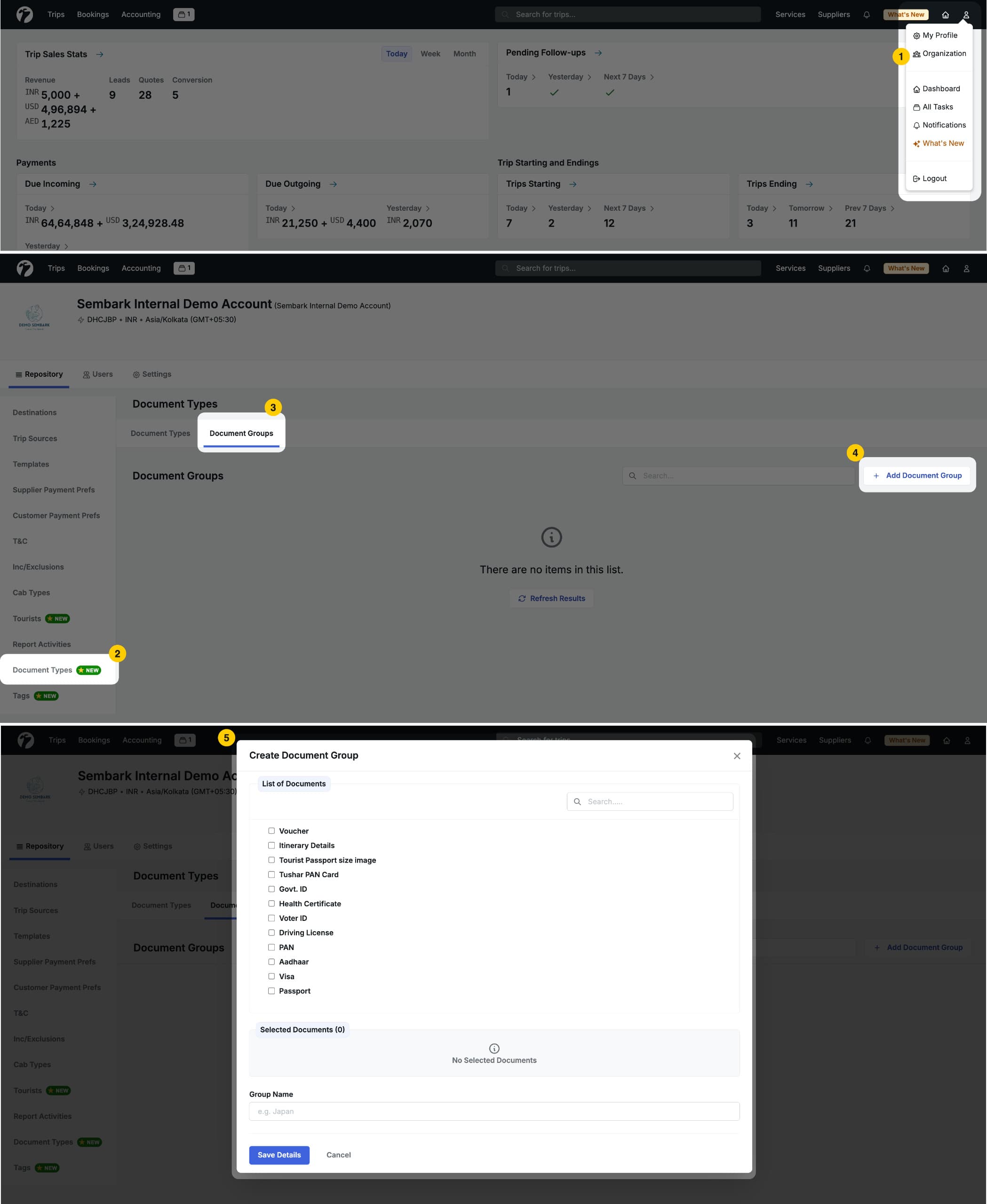
- Custom Document — Select individual documents for cases where an existing group does not cover the exact requirement
Configuring Visa Types
A single visa service can have multiple visa types — for example, a UAE visa service might include a 30-day single entry, a 60-day multiple entry, and a transit visa, each with different pricing and processing details.
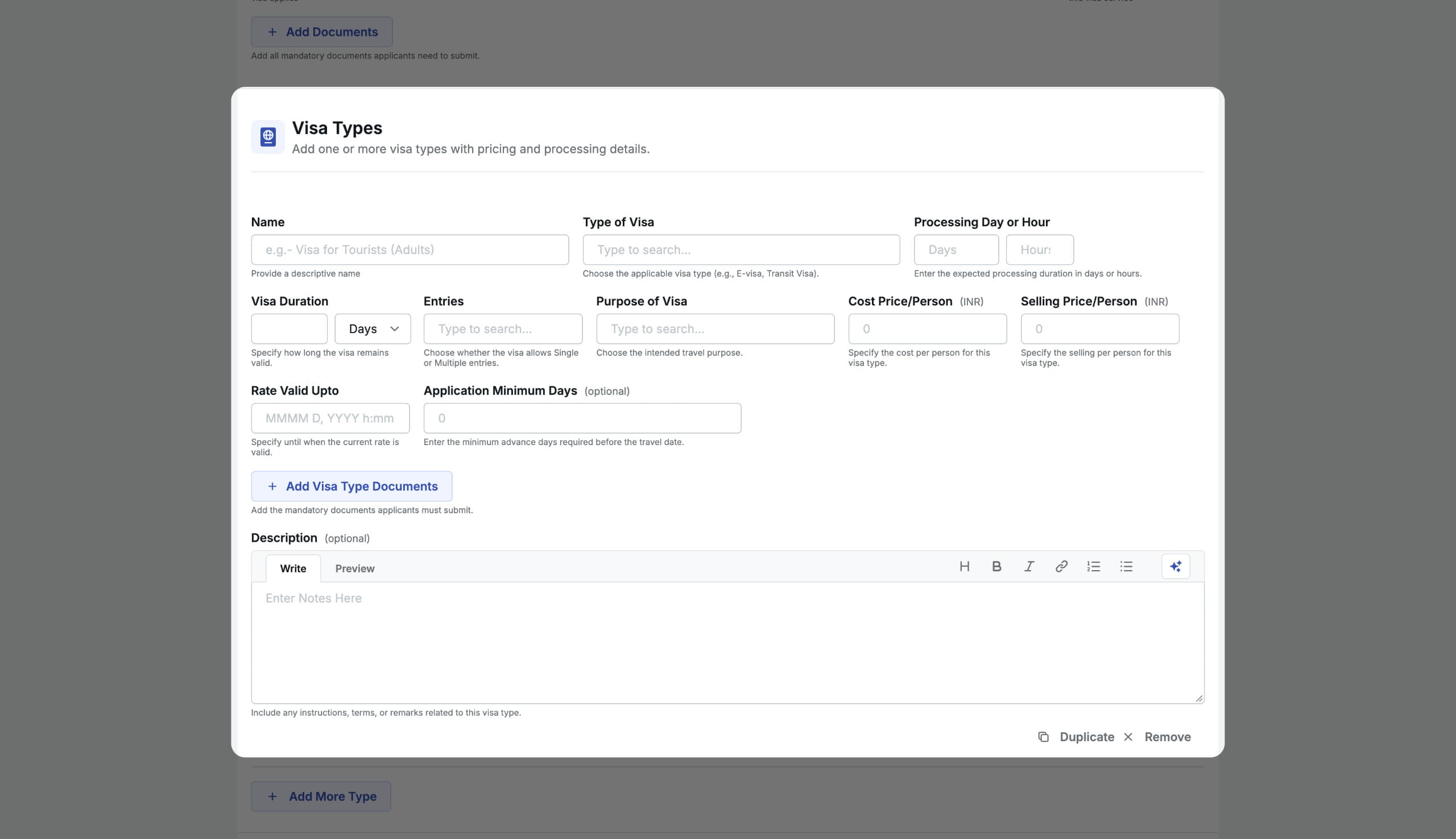
You can add as many visa types as needed under a single visa service.
Adding Visa Services to a Quotation
Once visa services are configured, they can be included in any trip quotation.
SeeVisa Booking for the rest of the workflow. The visa service is now part of the quotation alongside hotels, transport, and activities.
Sharing Visa Details with the Customer
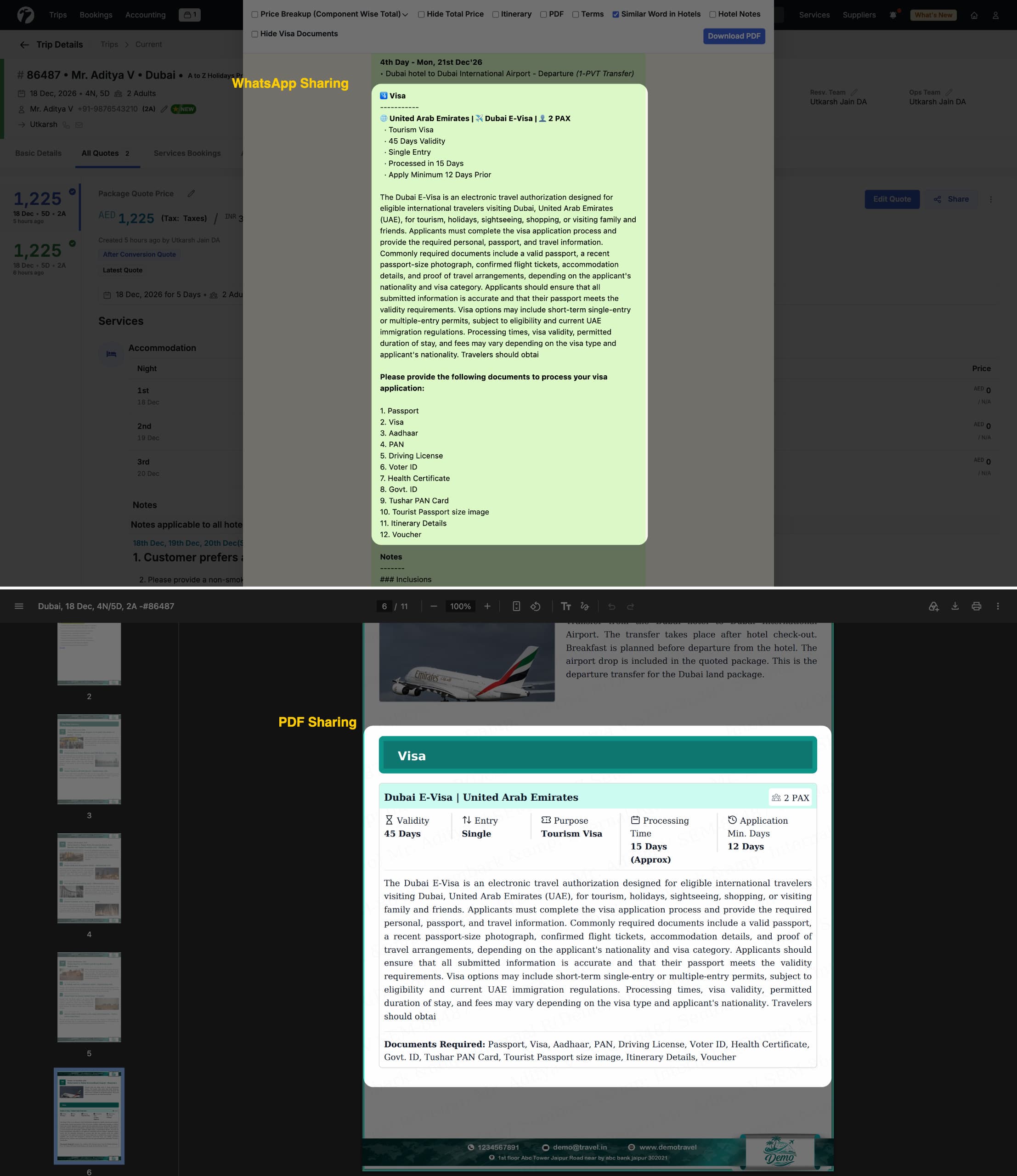
You can share the quotation along with the list of mandatory documents required for the selected visa type. This gives the customer a clear picture of what documents they need to arrange for their visa application — directly from the quotation, without a separate communication.
Managing Visa Services After Quotation Conversion
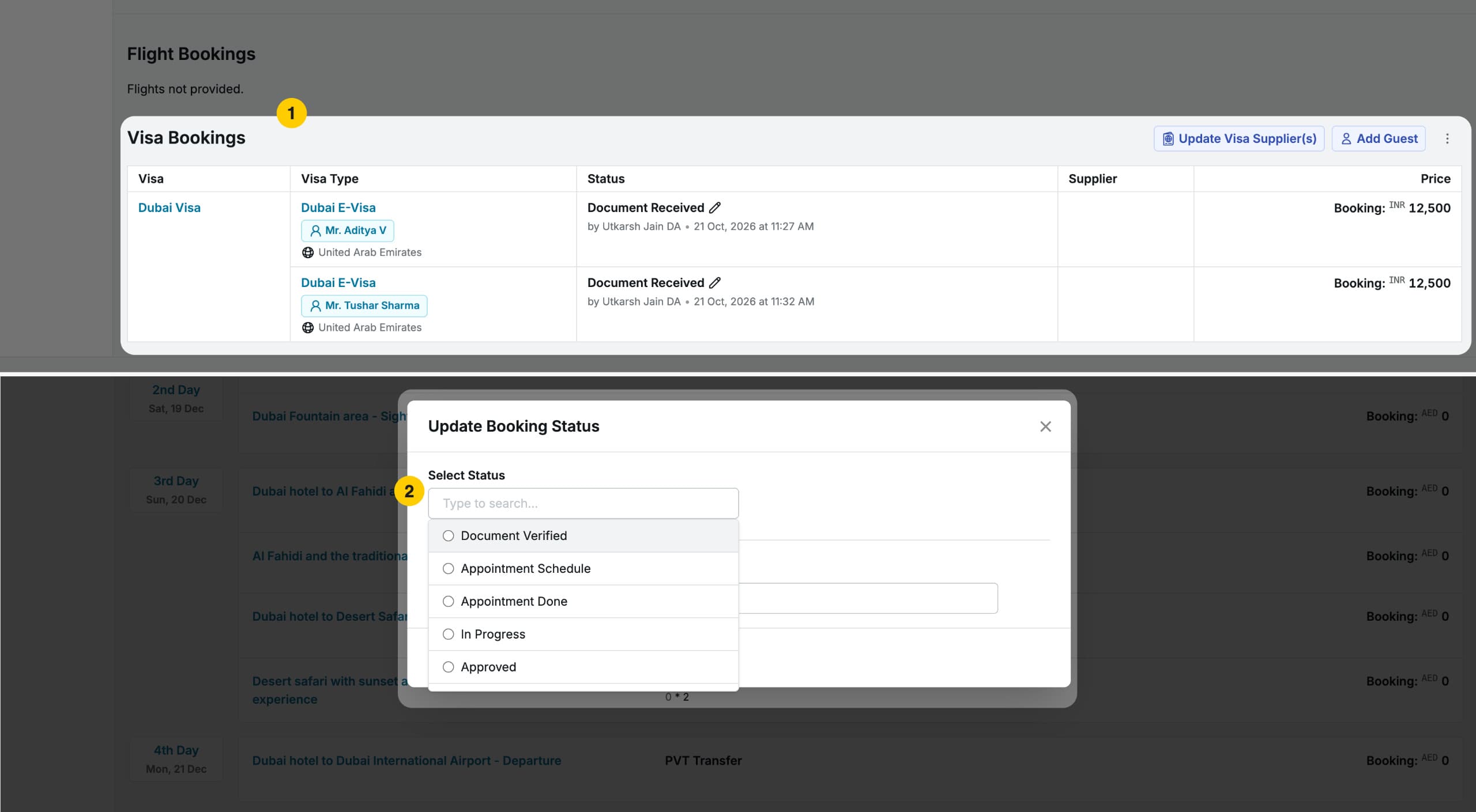
Once the quotation is converted into a trip, visa details become accessible from the Service Booking page. This is where your team manages the operational side of the visa booking.
Guest Assignment
Assign the relevant guests to the appropriate visa type. Different guests in the same trip can be assigned to different visa types if needed.
Document Collection via Upload Link
- Navigate to the Documents section on the Service Booking page. For more information on documents, please refer the release notes in 1.180
Reviewing Documents and Proceeding
After documents are received, review them in the system and proceed to the next stages of the visa booking process.
Visa Booking Status Management
You can update the visa booking status at each stage of the application. The available statuses are:
- Document Received- Required documents have been received from the guest
- Document verified- Requested documents have been verified
- Appointment Scheduled- An appointment has been set for the guest
- Appointment Done- An appointment has been Done on the set date & location.
- In Progress- Application is being processed
- Approved- Visa has been approved
- Rejected- VisaApplication has been rejected
- Dropped- Visa booking is no longer proceeding
- Reinitialized stage- VisaApplication has been re-initiated.
Status updates give you and your team a clear audit trail of where each guest’s visa application stands at any point.
Benefits
- Manage the complete visa process — setup, quotation, document collection, and status tracking — without leaving Sembark.
- Document upload links connect directly to the guest’s profile, so documents are always linked to the right applicant.
- Status management gives your team a clear, auditable view of every visa application across all trips.
- Supplier and payment details are recorded against the booking, keeping financial tracking centralised.
- Sharing mandatory document lists with customers from the quotation stage reduces back-and-forth at the application stage.
2. Proforma Invoice – Line Item & Price Breakup
We have added a new Add Line Item / Price Breakup section in the Proforma Invoice Template, giving users greater flexibility and control over how service details and pricing information are displayed in the Proforma Invoice.
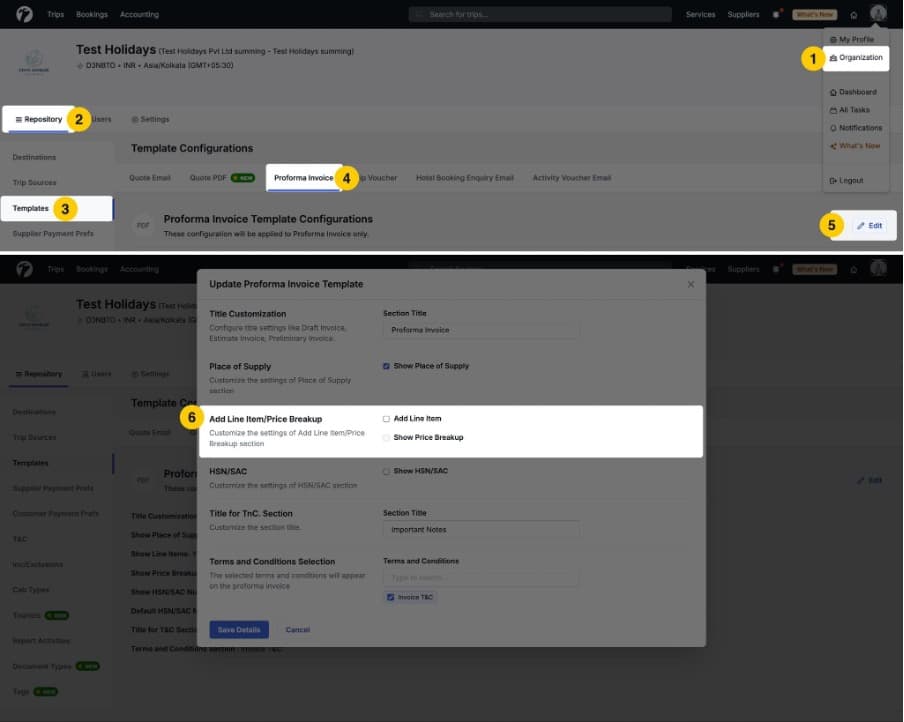
How to Enable This Feature
Navigate to:
Organization > Template > Proforma Invoice Template > Edit > Add Line Item / Price Breakup
Enable the required options based on your preferences and save the changes.
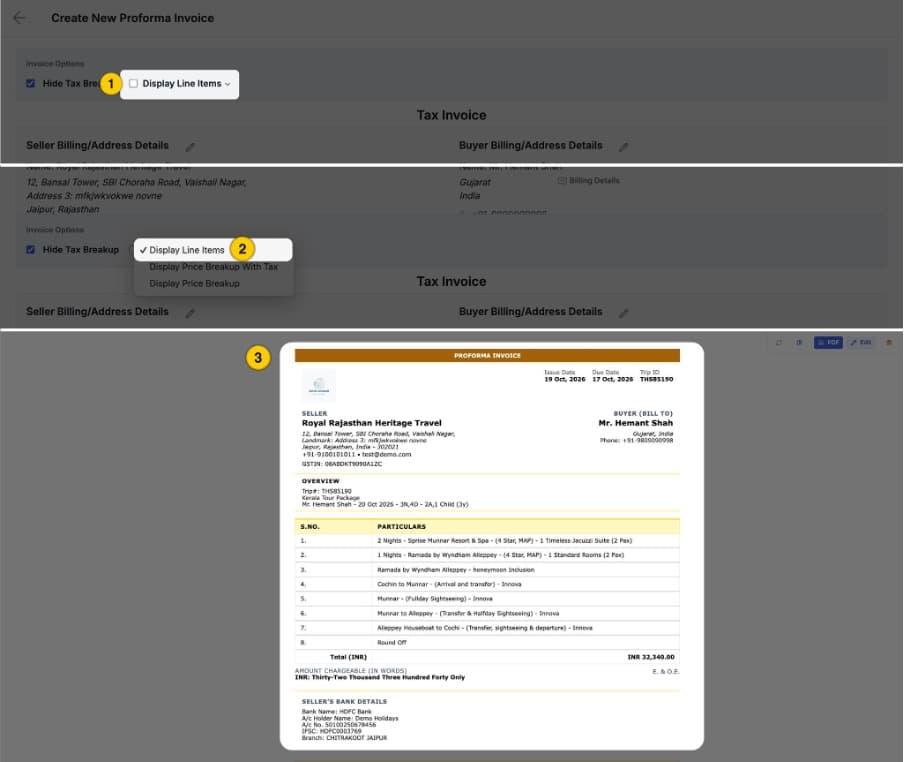
2.1. Add Line Item
Enable this option to display all services included in the quotation as individual line items under the Particulars section of the Proforma Invoice.
This option displays service details such as: Hotels, Transport, Activities, Flights, Visa, Add-ons, Other services included in the quotation.
2.2. Show Price Breakup
Enable this option to display detailed pricing information for individual line items in the Proforma Invoice.
Users can choose from the following display options:
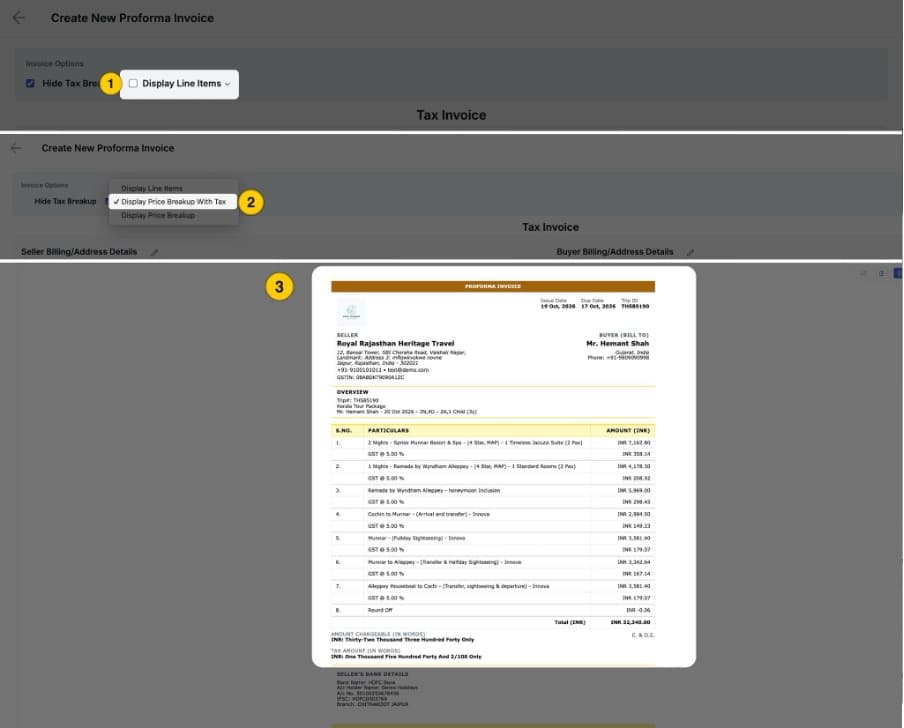
2.2.1. Show Price Breakup with Tax
Displays the quoted amount and the applicable tax amount separately for each individual line item, providing greater transparency in the pricing details. In this case every item tax details will be displayed separately.
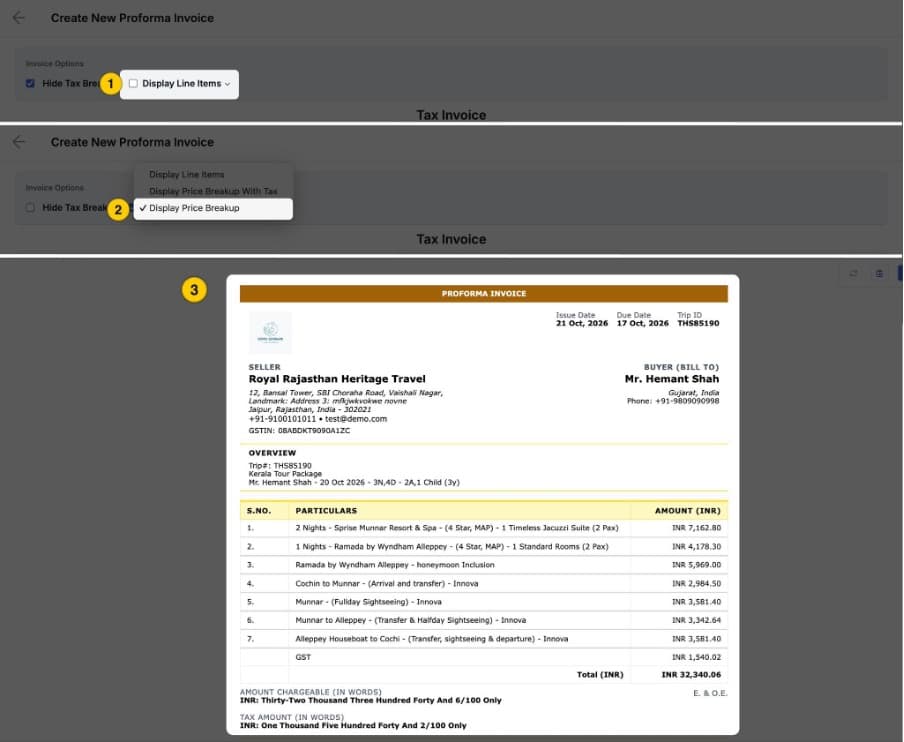
2.2.2. Show Price Breakup
Displays the price breakup for each individual line item, with the applicable tax shown at the end of the particular section.
Important Notes
- The Show Price Breakup option is available only when Add Line Item is enabled. Users must enable Add Line Item first to access and select their preferred price breakup display option.
- Tax Display: To show or hide tax details, use the separate tax display option available in the template settings. This allows users to choose whether to include or exclude tax details in the Proforma Invoice.