





This release brings WhatsApp, phone calls and automated workflows into your Sembark dashboard. Connect your WhatsApp Business number and chat with customers from a shared inbox, send quotes and bookings on WhatsApp, and collect trip details through WhatsApp forms. With TeleCalling, every incoming call becomes a lead, calls are logged with recordings, and your team can call customers with a single click. And Automations send the right message at the right moment — welcomes, quotation follow-ups, payment reminders, vouchers and trip check-ins.
Let’s dive into more details.
1. WhatsApp Integration — Your Official WhatsApp Business Number, Inside Sembark
Connect your WhatsApp Business number through Meta’s official WhatsApp Cloud API and run every customer conversation from the dashboard. No shared phones and no copy-pasting between WhatsApp and Sembark.
Highlights
- Connect in minutes — go to Organization > Settings > Integrations > New Integration > Whatsapp Cloud API, click Connect WhatsApp Business and finish Meta’s sign-up. Your business accounts, phone numbers and approved templates are pulled in automatically, and Check Connection Health confirms at any time that messages are reaching Sembark. Follow the step-by-step setup guide.
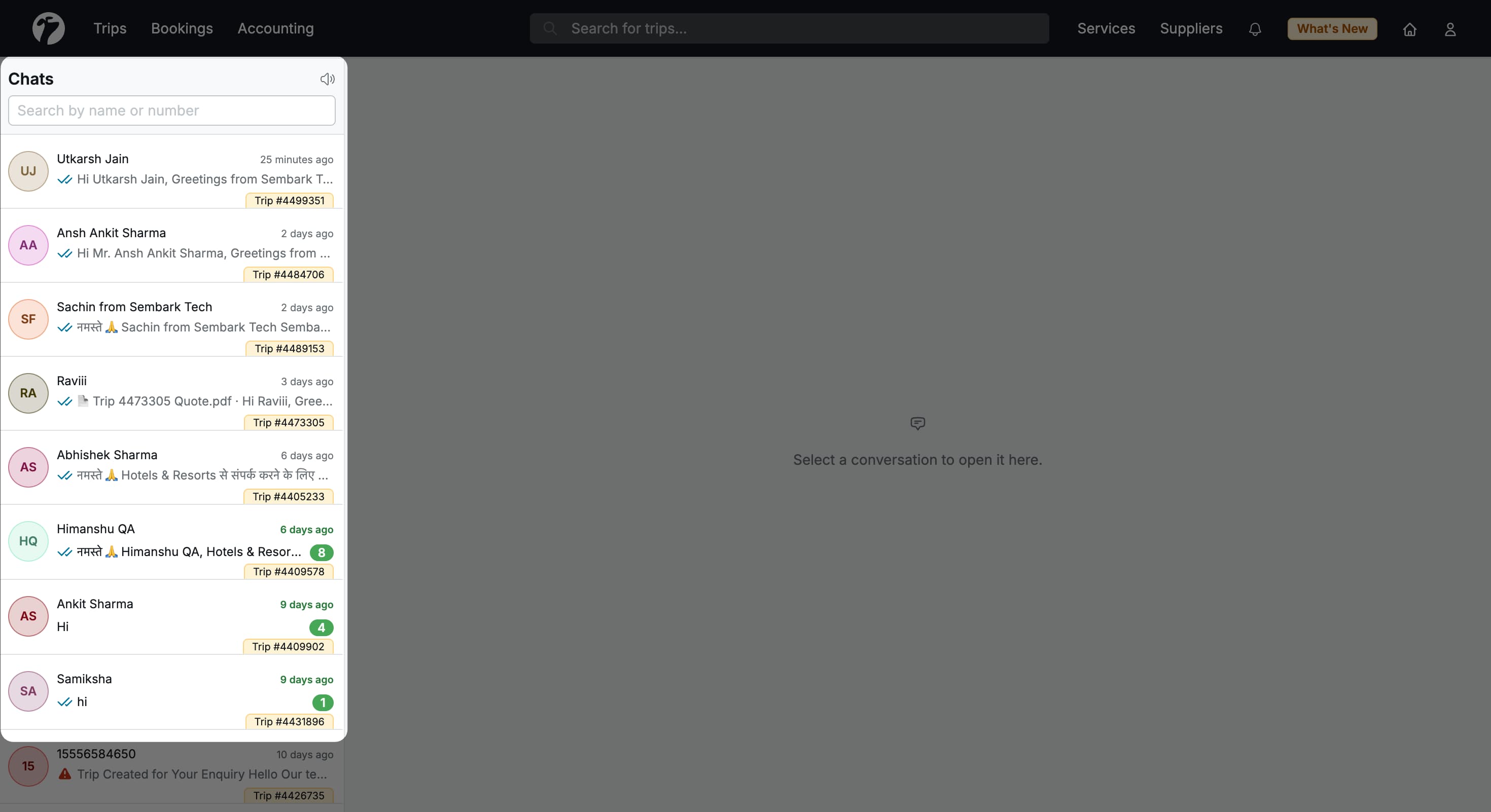
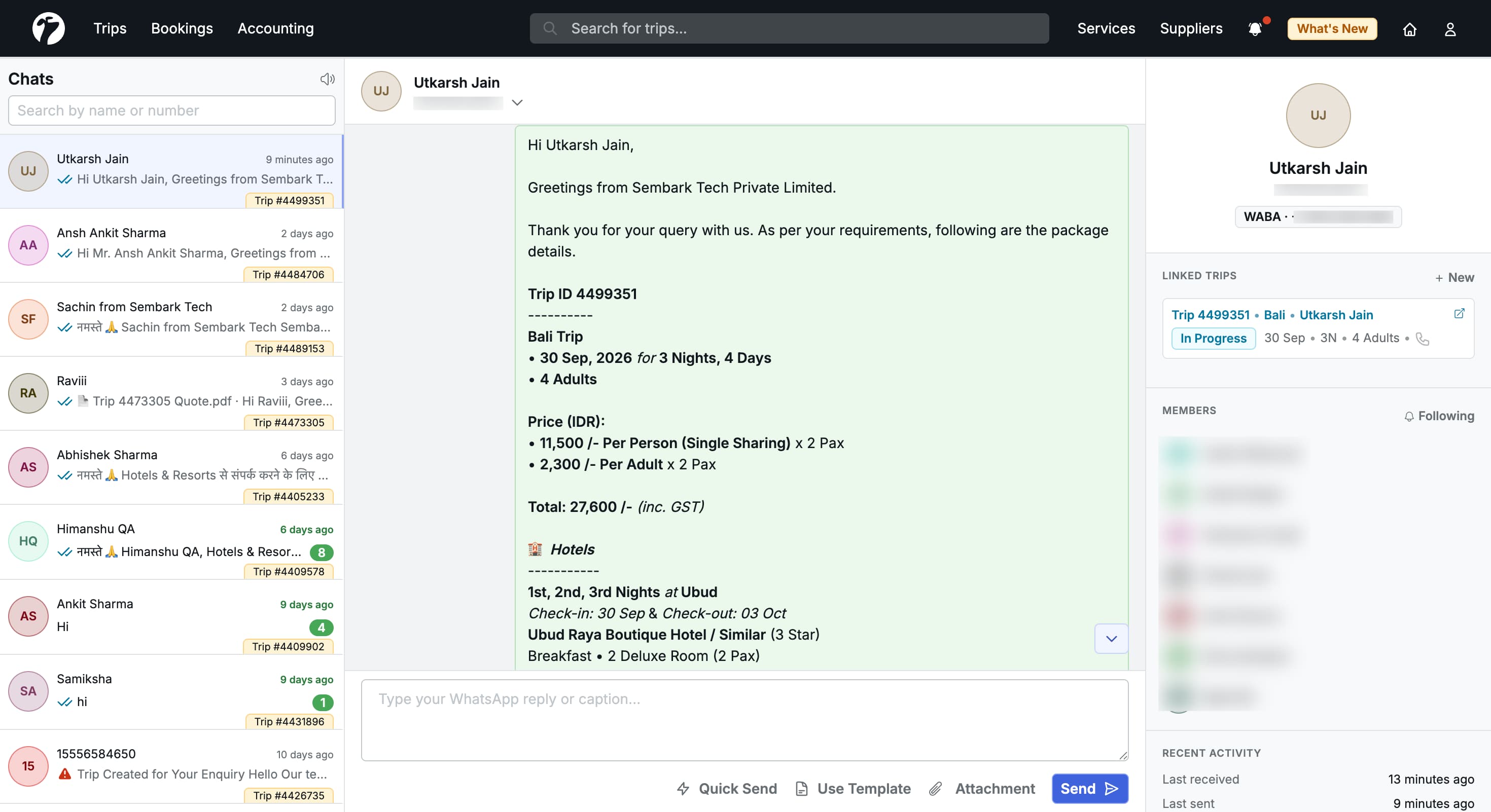
- Shared WhatsApp Inbox — open Trips > WhatsApp Inbox to see every conversation, with live updates, unread counts, delivery ticks (sent, delivered, read), reactions and replies. Send text, images, videos, documents and audio — the composer shows the allowed file types and sizes, and a message that isn’t delivered says why. New conversations go to a default team you pick, and anyone can Follow a conversation to get notified. Learn how the inbox works.
- Conversations linked to trips — create a trip straight from a conversation, and see a trip’s chats in its own WhatsApp tab. Leads show a WhatsApp badge that opens their conversations. See WhatsApp on trips and leads.
- Know where a lead came from — conversations started from a Click-to-WhatsApp ad show a From ad badge with the ad’s headline. Turn on Welcome messages for a number, and customers who open your chat from an ad reach you — and can be greeted — even before they type.
- Send quotes and bookings on WhatsApp — the quote Share dialog and operational bookings now have Send via WhatsApp, which sends an optional template, the Quote PDF and your message from your business number. See how to share on WhatsApp.
- Message templates, built in Sembark — create and edit WhatsApp templates with text, image, video or document headers, variables that fill in from the trip, and Quick Reply, URL, Phone and Form buttons. Templates are sent to Meta for approval when you save. Create your first template.
- Quick Sends — save ready-to-send replies such as your bank details or a visa checklist, and send one into any conversation in a single click. Create as many as you need; each can hold up to 10 messages — text, images, videos or documents — that go out in order. Set up Quick Sends.
- WhatsApp Forms (Flows) — collect trip details or trip feedback inside WhatsApp using ready-made presets. A submitted trip form can create a trip plan request automatically. Create a WhatsApp form.
- Test mode — send every message to a number on your team while you set things up, so no customer gets a test message. Learn about test mode.
NOTE
The WhatsApp Integration is an add-on and needs a WhatsApp Business number that is not in use on the WhatsApp Business app. See the WhatsApp Integration docs and the integration guide to get started.
2. TeleCalling — Every Call Logged, Every Caller a Lead
Connect your Tata Tele Business (Smartflo) account and bring your phone calls into Sembark. Follow the Tata Tele setup guide to connect it in a few minutes.
Highlights
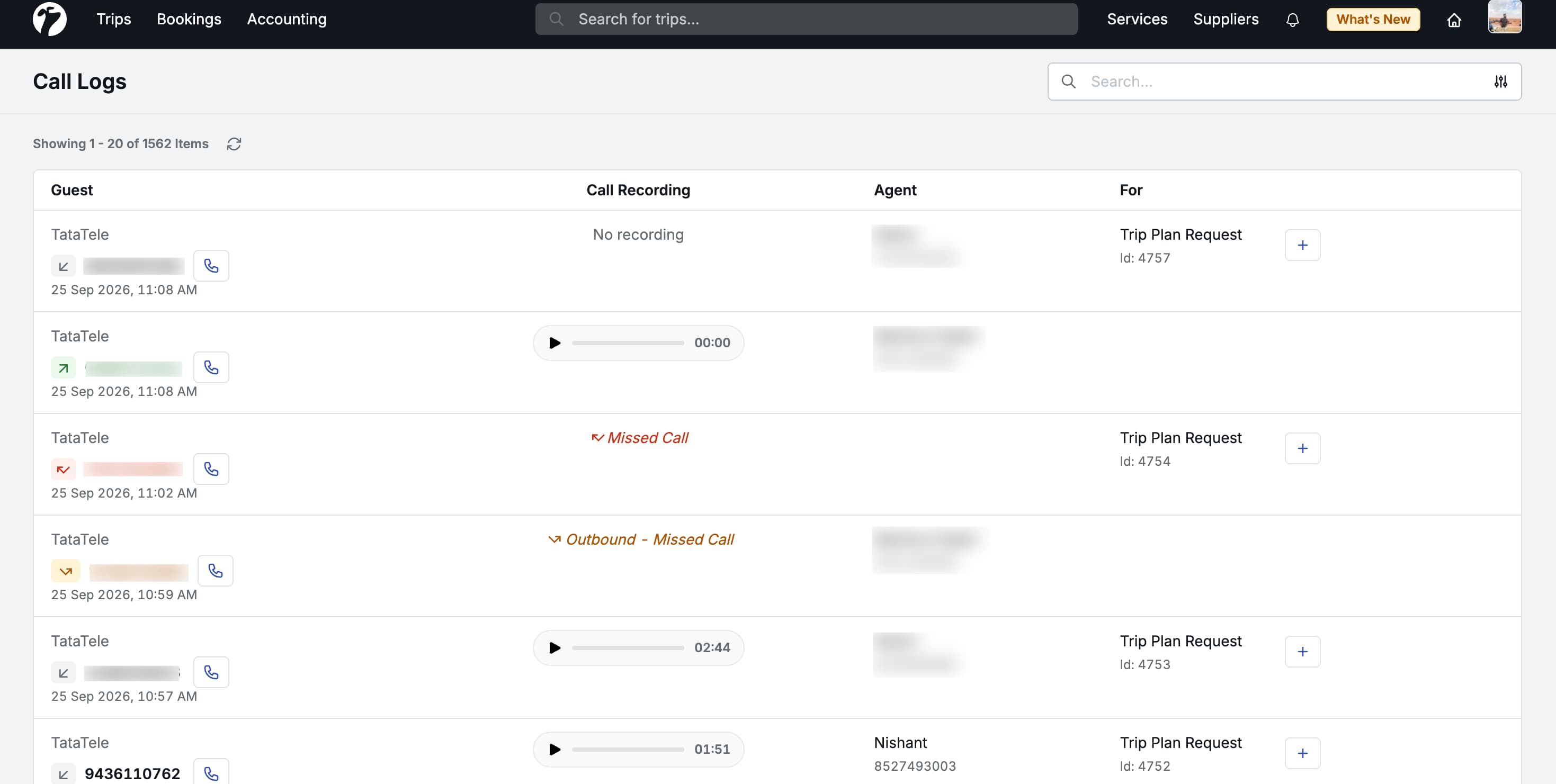
- Incoming calls become leads — every new incoming call creates a trip plan request with the caller’s number, and the agent who answered is assigned to it automatically. Missed calls go through your usual lead assignment. See how call leads work.
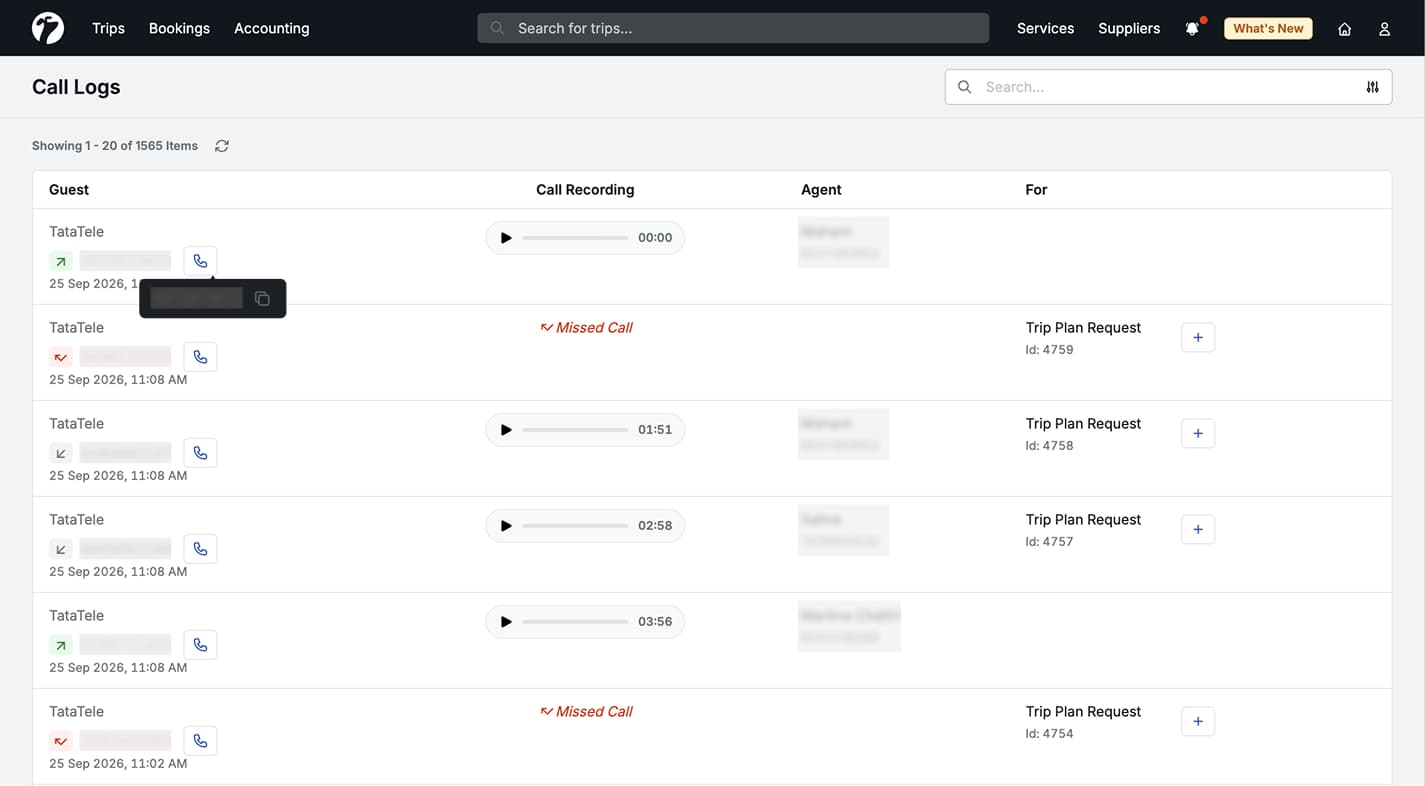
- Click to Call — click the phone icon next to a customer’s number on leads, trips and trip sources. Sembark rings your phone first and then connects the customer. Learn about Click to Call.
- Call Logs with recordings — see every call in Trips > Call Logs, on each trip’s Call Logs tab and on each trip source’s Calls tab, with direction, agent, missed status and the call recording to play in the browser. Explore Call Logs.
- Past Interactions — see every earlier call from the same number right from the leads list, before you pick up the conversation. See Past Interactions.
- Calls follow the lead — when a lead is converted into a trip, its calls move with it. A lead from an existing customer can be linked to their existing trip. Read more.
NOTE
Click to Call and call assignment match your team by phone number. Add each user’s Tata Tele number to their profile before you start.
3. Automations — The Right Message at the Right Time, Automatically
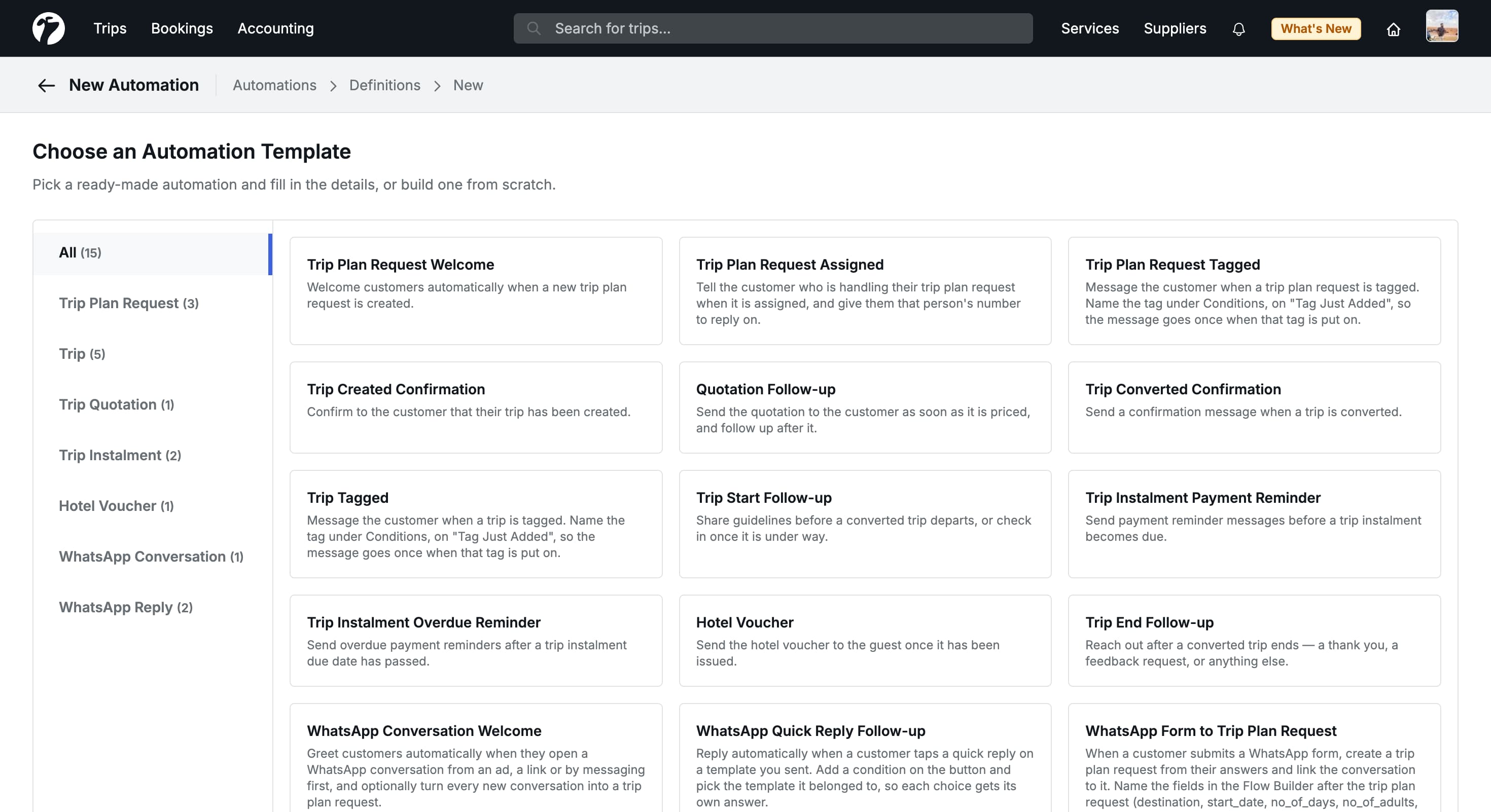
Automations do the repetitive customer communication for you. Pick a ready-made template, choose the WhatsApp message, and Sembark sends it when something happens — a lead arrives, a quotation is ready, a payment is due or a trip ends.
Highlights
-
15+ ready-made automation templates for every stage of a trip — from the first enquiry to the feedback after the trip, including:
- Trip Plan Request Welcome and Trip Plan Request Assigned — greet new leads and introduce the person handling them.
- Quotation Follow-up — send the Quote PDF as soon as it is priced, and follow up after it.
- Trip Converted Confirmation and Hotel Voucher — confirm bookings and deliver vouchers without lifting a finger.
- Payment Reminder and Overdue Reminder — remind customers before and after a payment falls due.
- Trip Start and Trip End Follow-up — share guidelines before departure and ask for feedback after the trip.
- WhatsApp Conversation Welcome — greet customers who message you or come from an ad, and turn every new conversation into a trip plan request.
- WhatsApp Form to Trip Plan Request — turn every submitted WhatsApp trip form into a lead with the customer’s answers.
-
Message sequences — send several messages with waits in between, e.g. the quotation now and a follow-up two days later. See the template form.
-
Conditions — run only for the records you want: a tag just added, B2B or B2C trips, a particular destination and more.
-
Send window — scheduled messages are sent between 9 AM and 9 PM by default, so nobody is woken up by a reminder.
-
Full visibility — every run is recorded step by step. Try an automation with a Dry Run before it goes live, and Retry a failed run without sending messages twice.
-
Custom automations — for anything the templates don’t cover, build your own. Learn more.
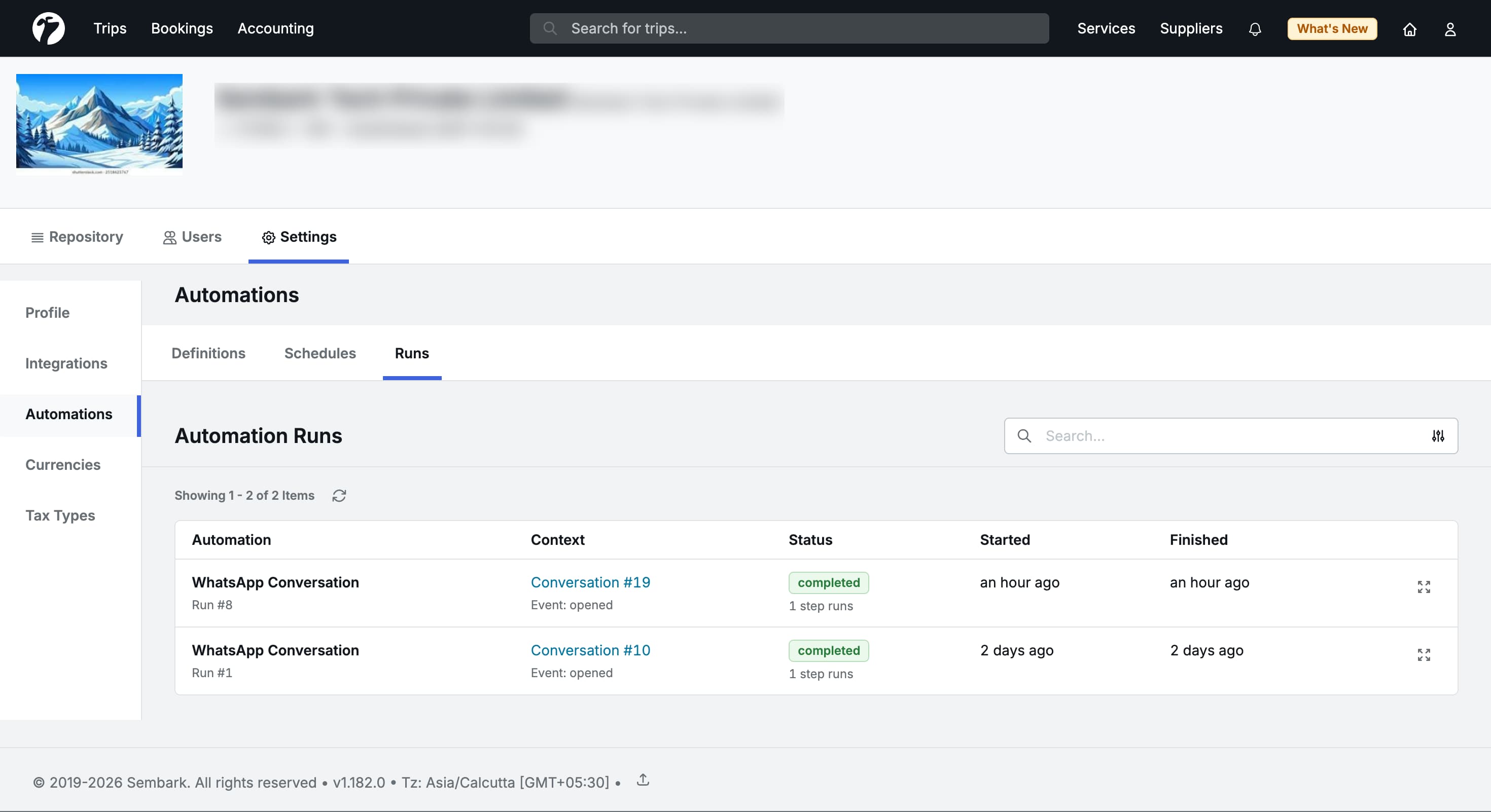
Read the Automations docs for every template and its settings.
4. WhatsApp Messages on Follow-ups and Tasks
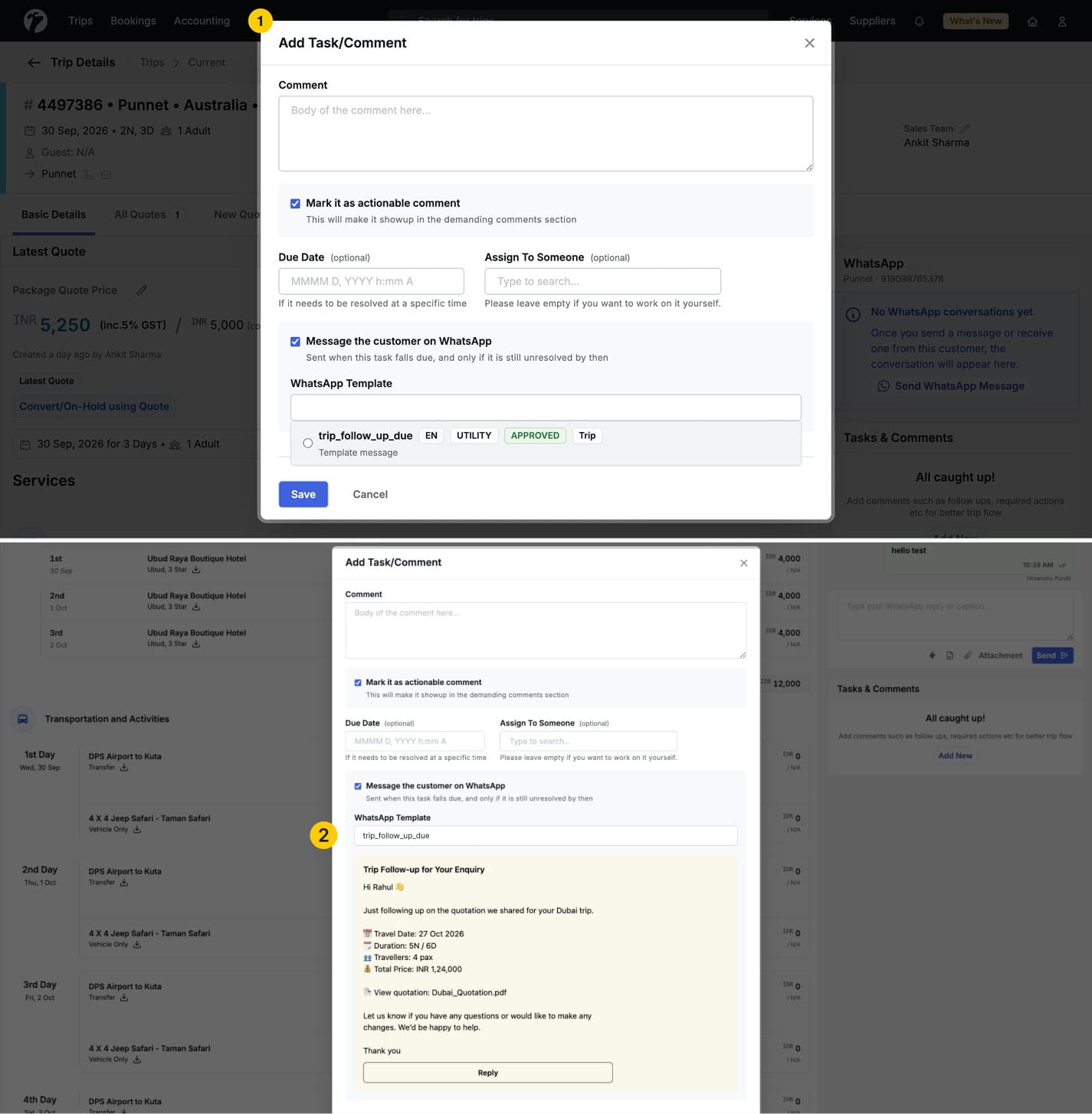
When you add a follow-up or task with a due date on a trip, a trip plan request or an instalment, you can now switch on Message the customer on WhatsApp and pick a template. The message goes out automatically when the task falls due — and only if the task is still unresolved by then. A preview shows exactly what the customer will receive.