






TeleCalling connects your cloud telephony account to Sembark. Every incoming call becomes a lead, every call is logged against the right lead, trip or trip source with its recording, and your team can call customers with a single click from the dashboard.
Connect Tata Tele Business
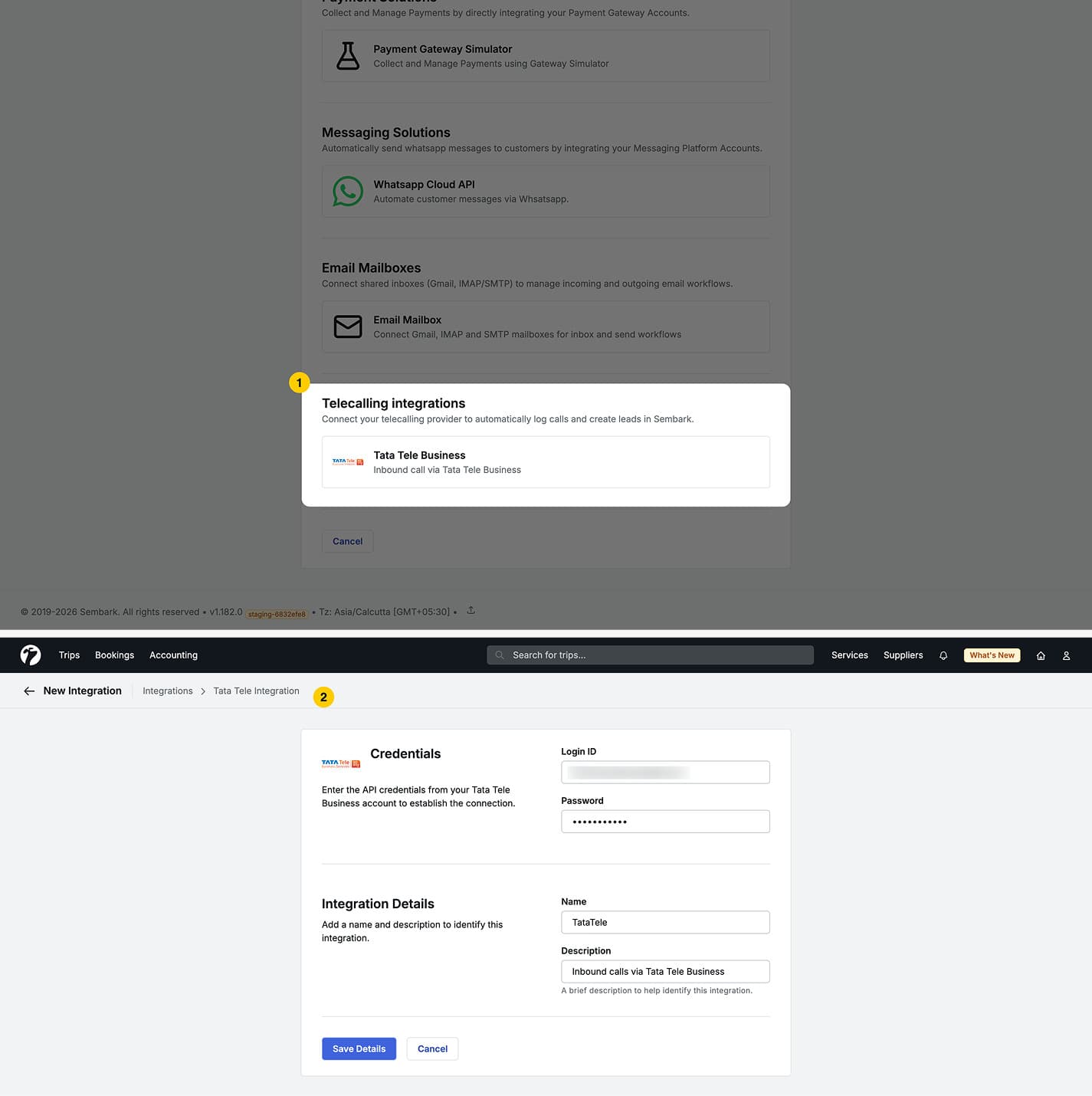
- Go to Organization > Settings > Integrations and click New Integration.
- Under Telecalling integrations, pick Tata Tele Business.
- Enter the Login ID and Password of your Tata Tele Business account.
- Enter a Name (e.g. “Tata Tele Head Office”) and a Description. The name is used as the Trip Source of leads created from calls.
- Click Save Details.
Next, add the webhooks in Tata Tele so calls reach Sembark: the integration page shows the Webhook URL and X-Api-Key to copy, with a step-by-step guide. The full walkthrough is in the Tata Tele Business integration guide.
Setting up the integration needs the Manage Integrations permission.
Link Your Team’s Phone Numbers
Sembark matches calls to your users by phone number. For each user who takes or makes calls, add the number they use in Tata Tele (their agent’s “follow me” number) to their Contact Number(s) in Users and Teams. No other mapping is needed.
Update Credentials, Pause or Delete
From the integration’s ⋮ menu, click Edit to update the Login ID and Password, or Pause, Resume and Delete the integration. A paused integration ignores incoming calls.
If Tata Tele stops accepting the saved credentials (for example after a password change), owners and users with Manage Integrations receive an email titled “Action Required: … Credentials Expired”. Update the credentials to resume the integration.
Leads from Incoming Calls
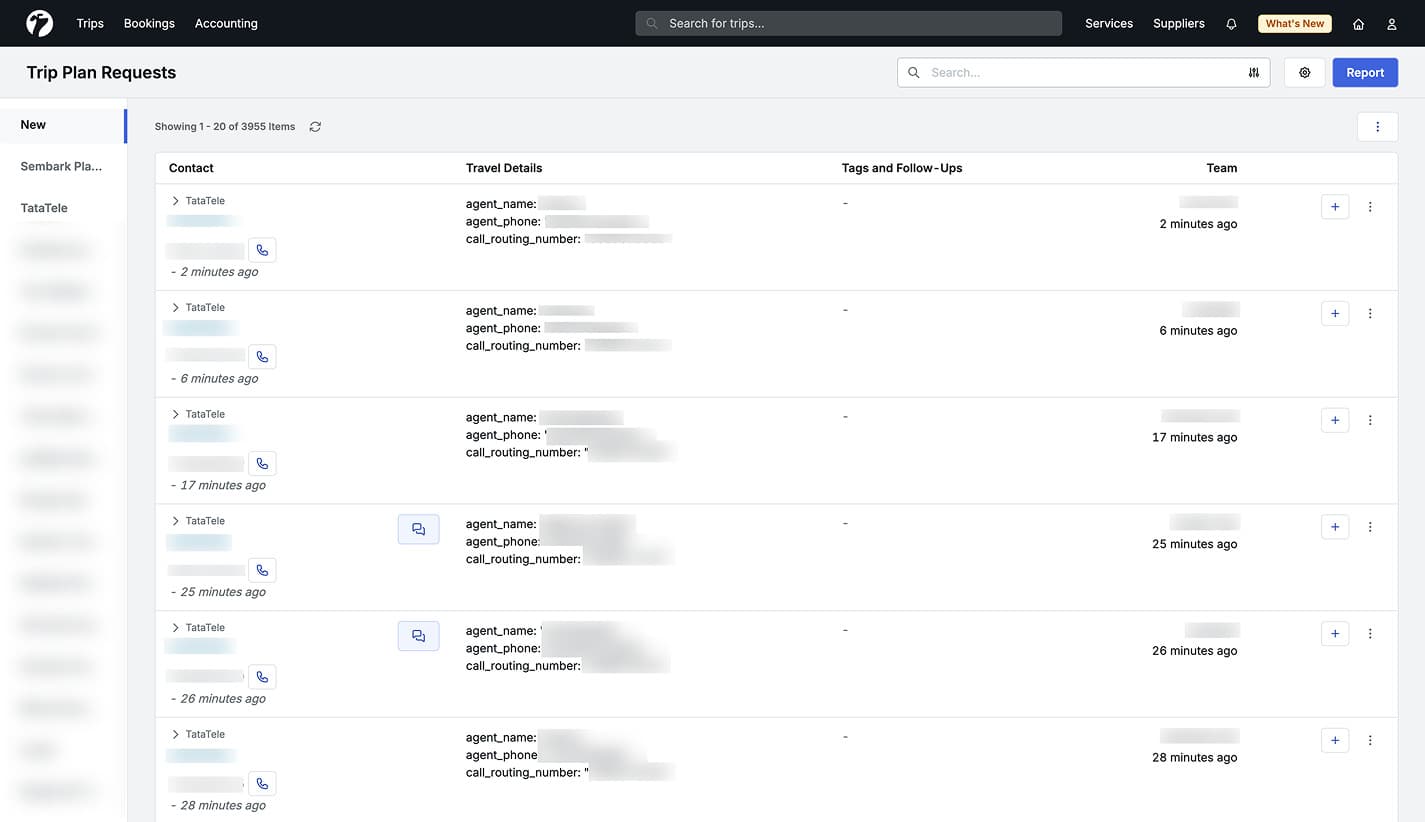
Every new incoming call creates a Trip Plan Request with the caller’s phone number. The integration’s name is set as the trip source, and the agent and the number the customer dialled are saved on the lead.
- Answered call — the user whose number matches the answering agent is added as the lead’s owner and notified.
- Missed call — the lead goes through your usual lead assignment.
Outgoing calls never create leads.
Past Interactions
A repeat caller creates a new lead for each call. To see earlier calls from the same number, click the interactions icon on the lead in the Trip Plan Requests list and open the Calls tab of Past Interactions. The current call is highlighted.
Converting a Call Lead
When a lead from a call is converted, its call logs move to the trip. If trips already exist for the same phone number, the conversion dialog offers Link to Existing Trip — attach the request to that trip instead of creating a new one — or Create New Lead. See Query Conversion.
Click to Call
Click the phone icon next to a phone number to call the customer. It appears on:
- the Trip Plan Requests list,
- trip details (guest and trip source contact numbers),
- trip source details (contact numbers),
- call logs (to call back).
Confirm the number in the Confirm Call dialog and click Call. Tata Tele rings your phone first, then connects the customer. The call is logged on the lead, trip or trip source you called from, and the activity log records it.
If the button is disabled, your account has no phone number that matches a Tata Tele agent — add your number to your profile.
Call Logs
Calls are listed in three places:
-
Trips > Call Logs — all calls.
-
A trip’s Call Logs tab — calls for that trip.
-
A trip source’s Calls tab — calls on its trips, calls made from the trip source, and calls from its contacts’ numbers.
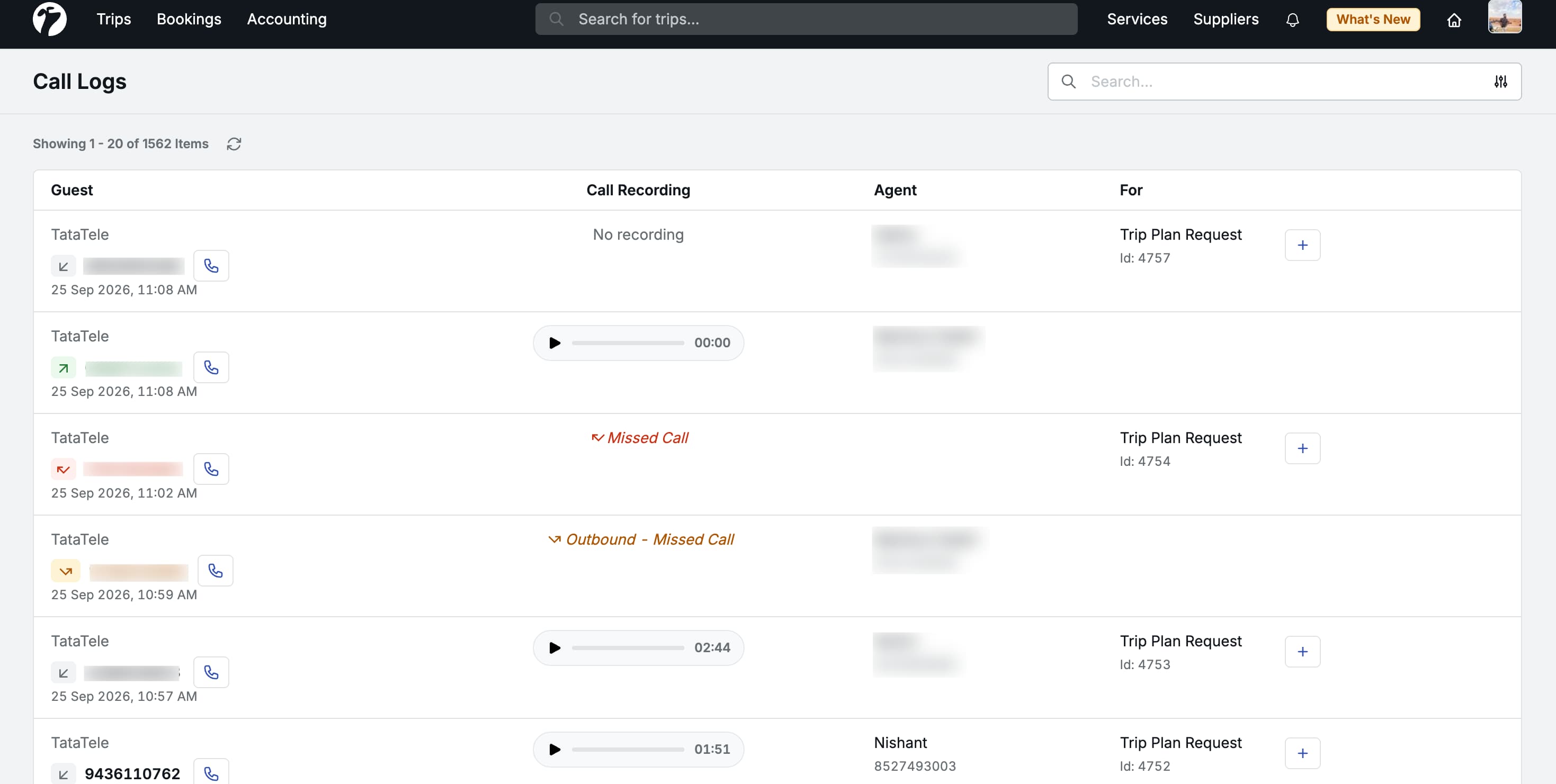
Each call shows:
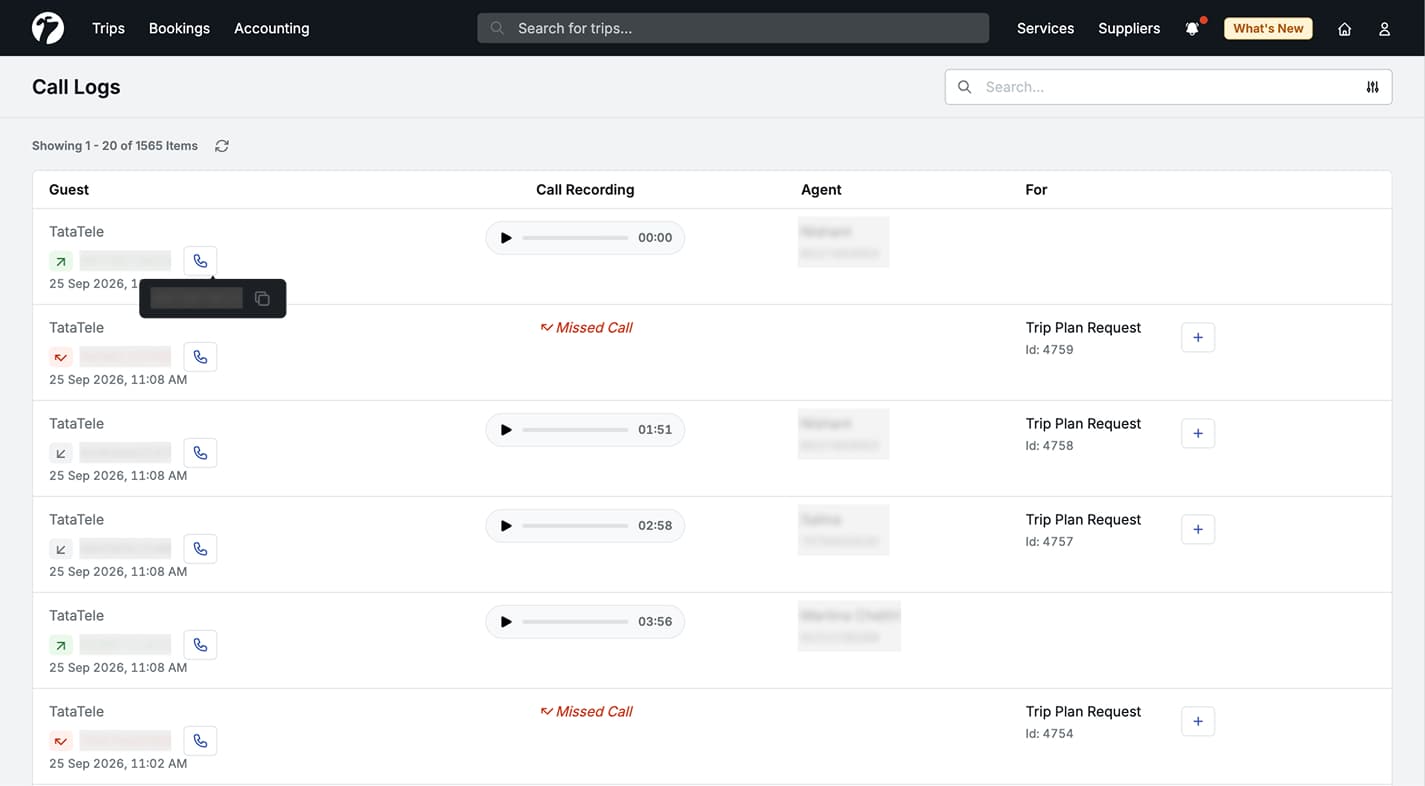
- Guest — the integration, call direction (incoming or outgoing), the customer’s name and number, a call-back button, and the date and time.
- Call Recording — play the recording in the browser. Missed calls show Missed Call or Outbound - Missed Call.
- Agent — the agent’s name and number.
- For — the trip, trip plan request or trip source the call belongs to. For a trip plan request, Create New Query creates a new query from the call.
Missed incoming calls are highlighted in red and missed outgoing calls in amber.
Filters
Search by phone number, and filter by Agent, Call Direction (In-bound or Out-bound), Call Made At (Today, Yesterday, This Month, Last Month or a date range), For (Trips or Trip Plan Requests), and Missed calls only.
Who Can See Call Logs
- Users who can manage trip plan requests (admins and sales heads) see every call.
- Salespersons see calls they took or made — matched by their phone number — and all calls on a trip’s Call Logs tab.
Phone numbers
Phone numbers are matched after removing spaces, symbols, leading zeros and the Indian country code (+91). Save your team’s numbers in the same format they have in Tata Tele.