





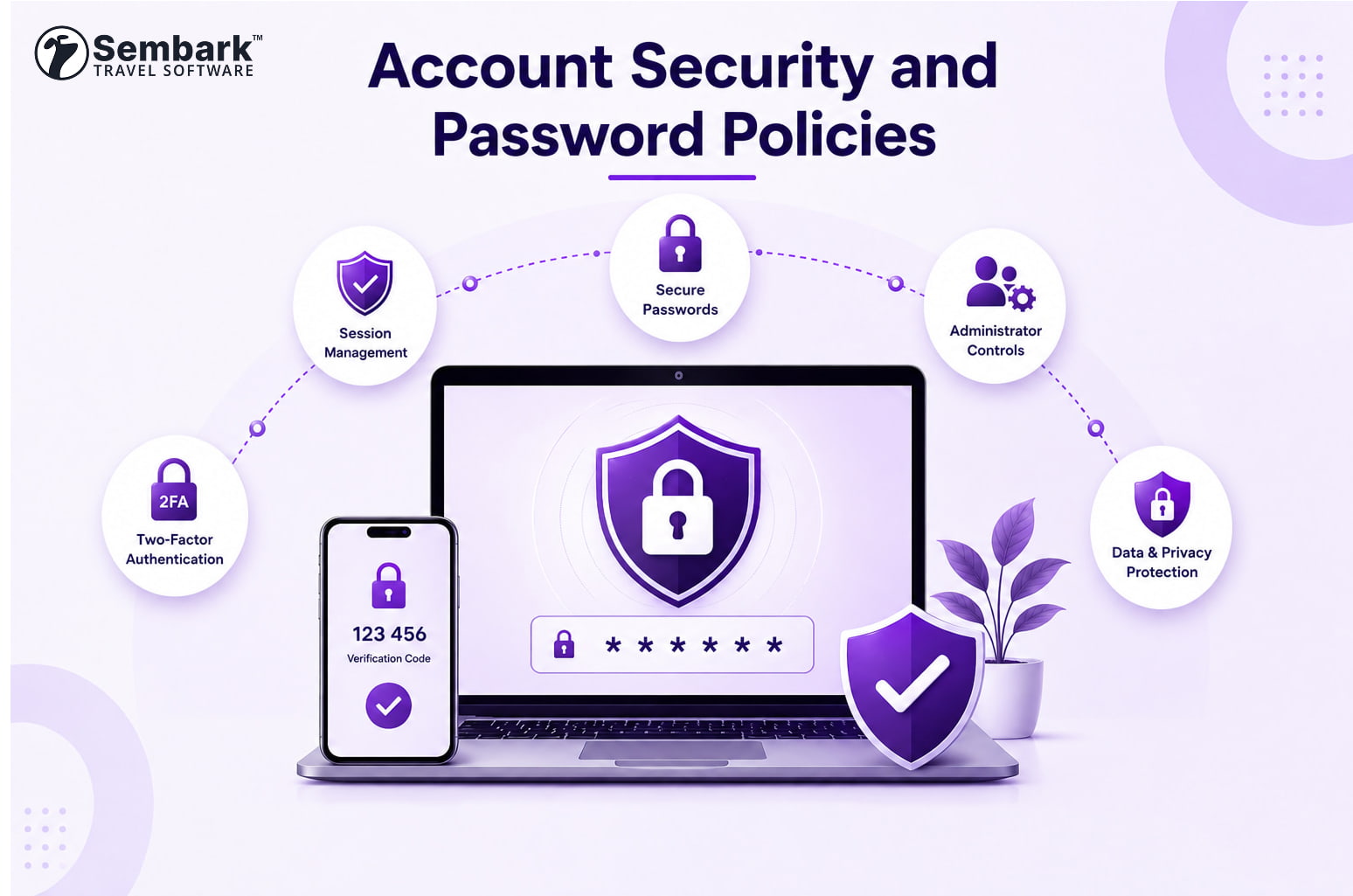
Sembark enforces a set of security policies on every account to keep your business data safe. This page explains these policies so that you are not surprised when the software asks you to update your password or logs you out.
Password Requirements
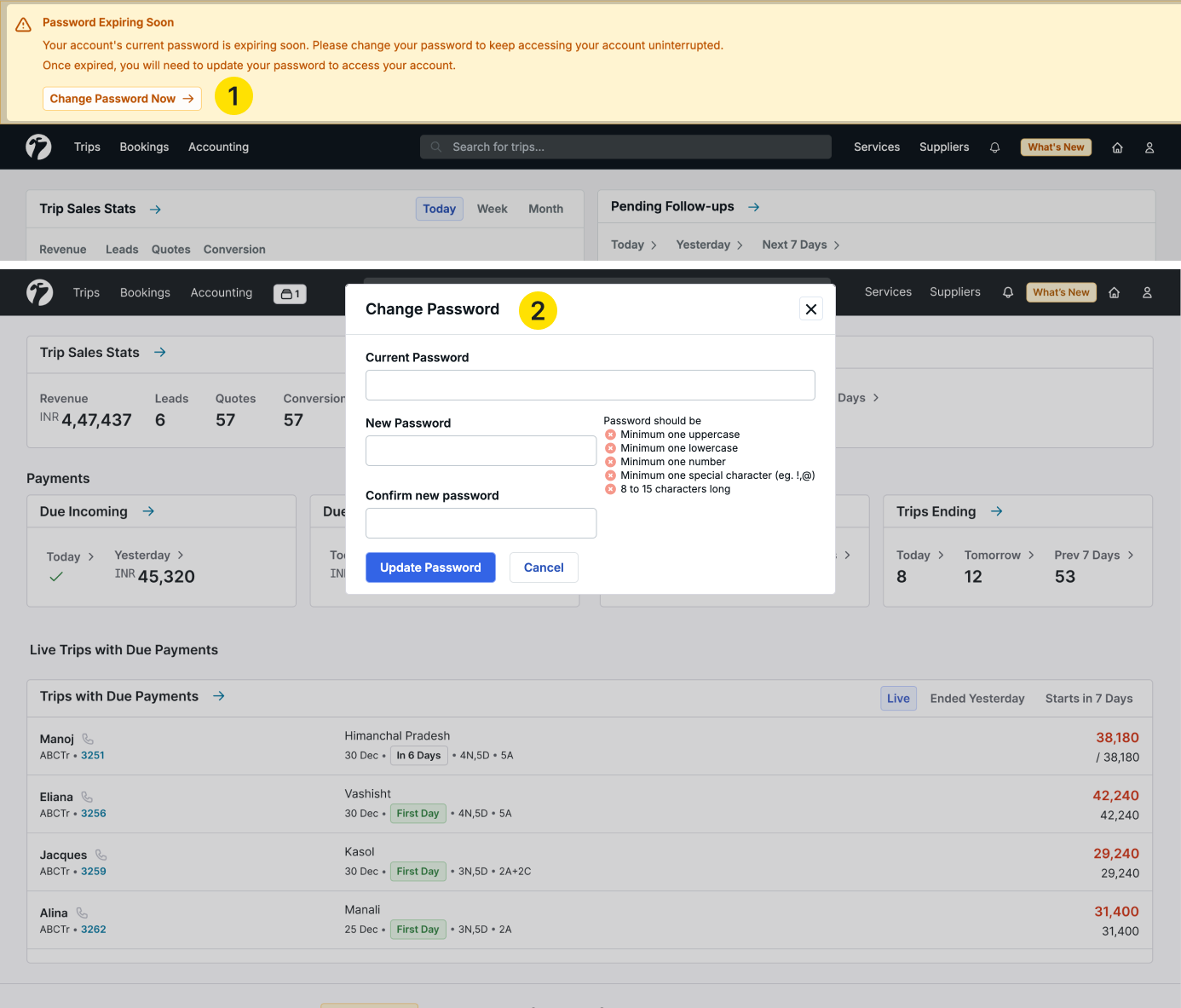
When creating or updating your password, the following security policies apply:
Password Complexity Requirements
Your password must contain:
- At least one uppercase letter
- At least one lowercase letter
- At least one number
- At least one special character (e.g. !, @, #, $, %)
- Minimum 8 characters and maximum 15 characters
Password History
To improve account security, Sembark does not allow users to reuse any of their last three passwords.
Password Expiry
Passwords expire every 180 days.
To avoid disruption, users will receive notifications beginning 7 days before password expiry, allowing sufficient time to update their password.
TIP
Instead of remembering complex passwords, consider setting up Passwordless Login with Passkeys or Two-Factor Authentication for stronger and easier login.
Session Management
Sembark automatically manages user sessions to maintain account security.
Password Change Behavior
Whenever you change your password:
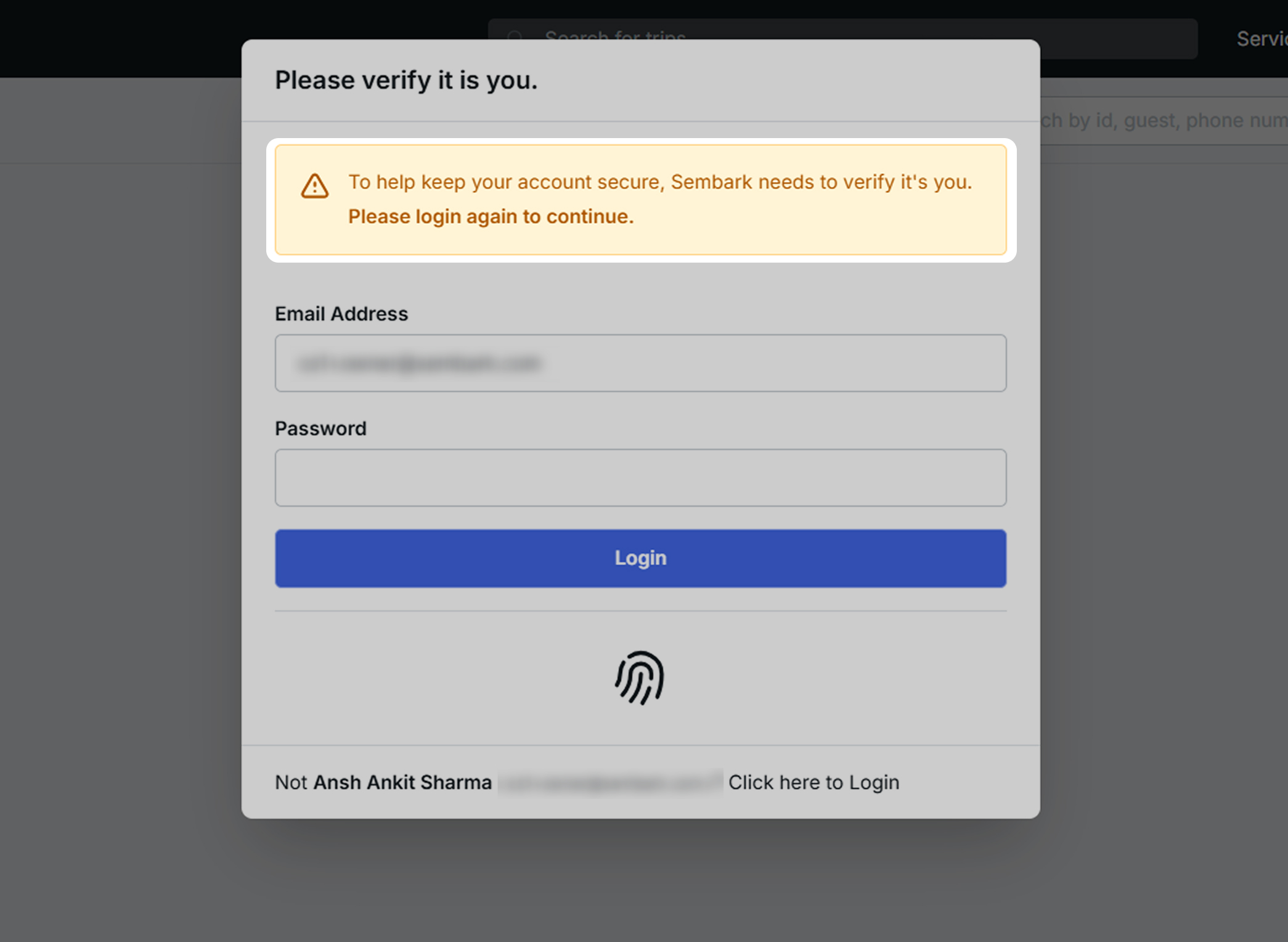
- All active sessions will be logged out automatically.
- You will be required to log in again using your new password.
Session Timeout
For security purposes, inactive sessions automatically expire after 20 minutes of inactivity.
Users must log in again to continue working.
Multiple Device Login Restrictions
To prevent unauthorized account sharing and reduce the risk of data conflicts:
- Only one active desktop session is allowed at a time.
- One additional mobile session may remain active simultaneously.
- Multiple active desktop logins are not permitted.
Administrator Security Controls
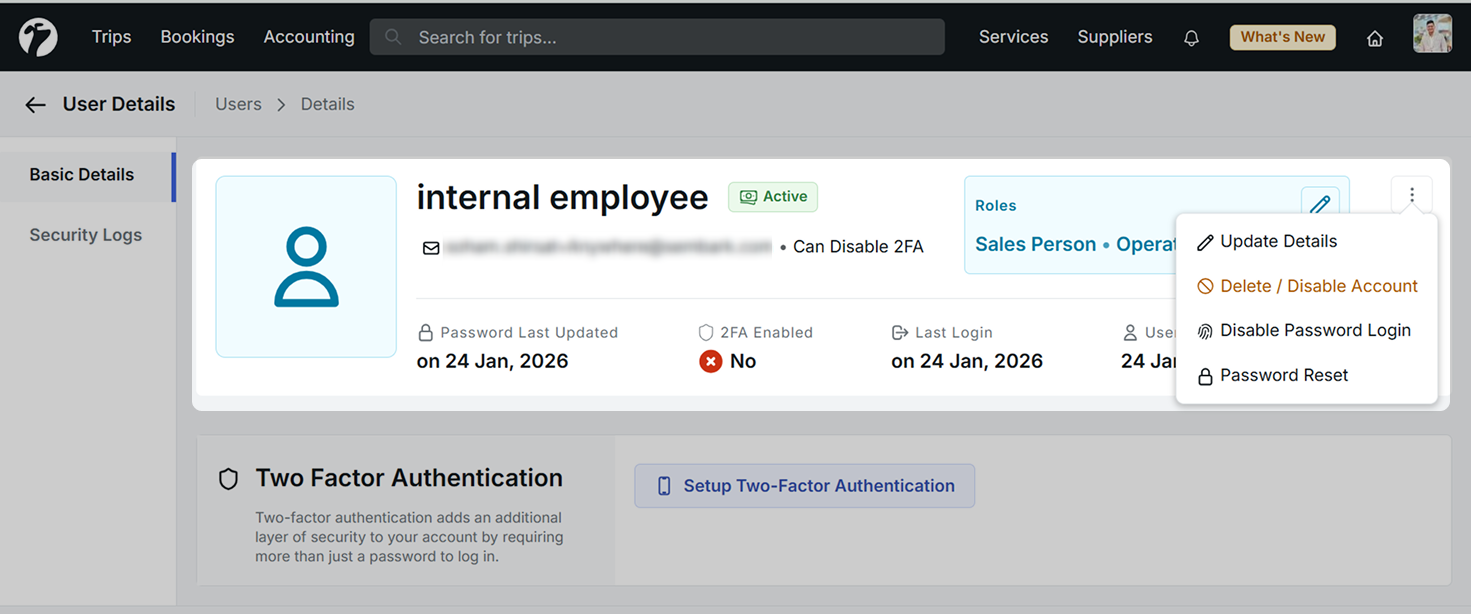
Account Administrators have additional security management capabilities available under:
Organization → Users
Password Management
Administrators can:
- Reset passwords for team members.
- Assign a temporary password. The user will be required to change it upon their next login.
- Prevent users from changing administrator-assigned passwords when required by company policy.
Two-Factor Authentication Management
Administrators can:
- Enable or enforce Two-Factor Authentication (2FA) for team members.
- Prevent users from removing their configured 2FA setup.
- Improve organization-wide account security.
Security Visibility
Administrators can view security-related information for each user, including:
- Two-Factor Authentication status
- Password last updated date
- Account status and login restrictions
Important Note
Administrators can reset passwords only for non-admin users. Administrator accounts must manage their own passwords through the standard password reset process.
For complete information on managing users and permissions, refer to the Users and Teams documentation.
Privacy and Data Protection
Sembark includes additional privacy protections to safeguard sensitive information.
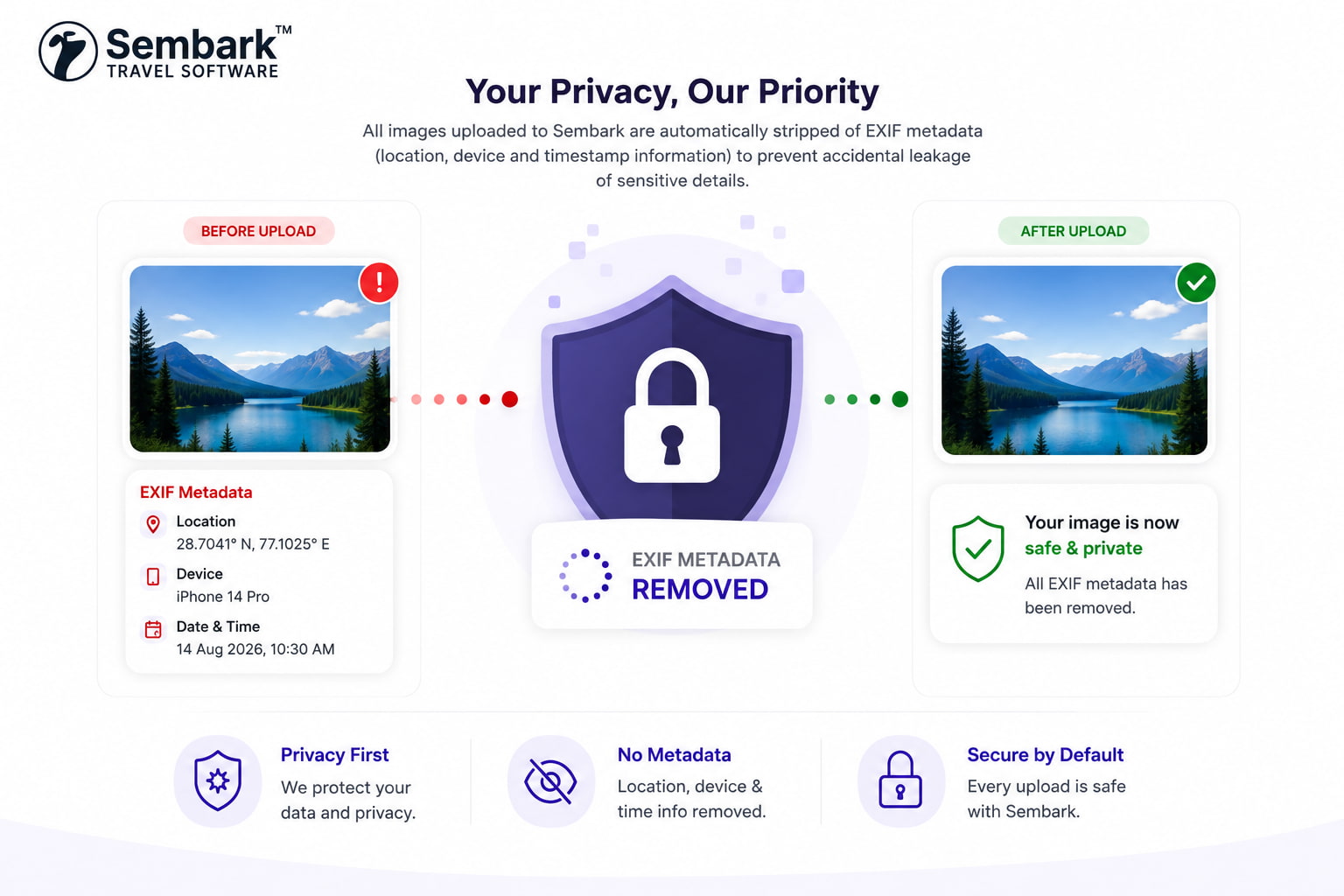
Automatic EXIF Metadata Removal
Whenever images are uploaded to Sembark, the system automatically removes embedded EXIF metadata.
This helps prevent accidental exposure of:
- Device information
- GPS location data
- Camera details
- Timestamps
- Other hidden image metadata