







Benefits of Two-Factor Authentication
- Protects your account from unauthorized access.
- Adds an additional security layer beyond passwords.
- Reduces the risk of account compromise due to password leaks.
- Helps organizations maintain stronger security standards.
How to Set Up Two-Factor Authentication
To enable 2FA for your account:
-
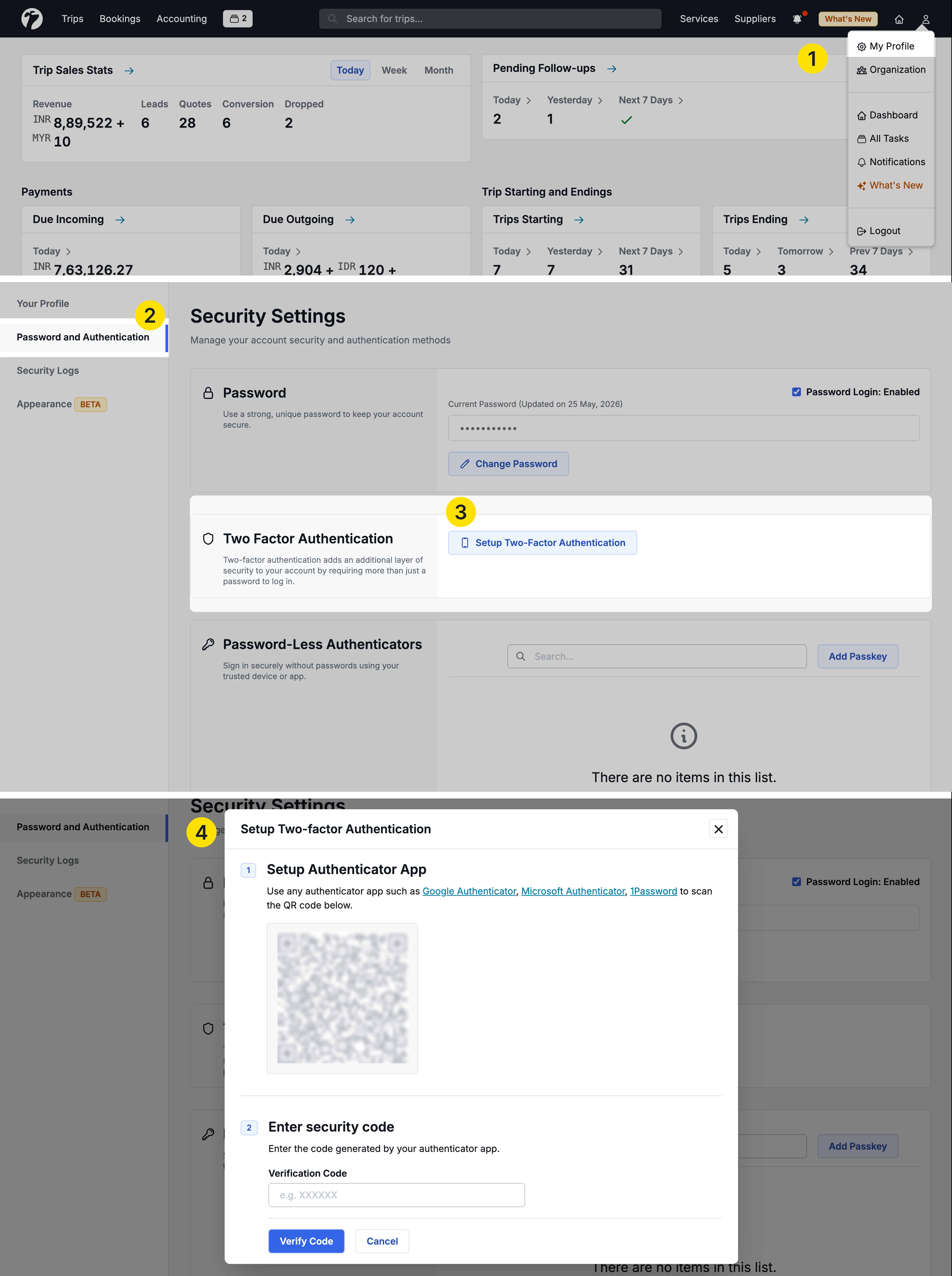
Click on your Profile Icon from the top-right corner of the dashboard.
-
Open Profile Settings.
-
Navigate to Password & Authentication.
-
Locate the Two-Factor Authentication section.
-
Click Setup Two-Factor Authentication.
Step 1: Install an Authenticator App
Download and install any supported authenticator application, such as:
Open the application and scan the QR code displayed on the Sembark setup screen.
Step 2: Verify the Authentication Code
After scanning the QR code, your authenticator app will generate a six-digit verification code.
- Enter the generated code into the Verification Code field.
- Click Verify.
Once the verification is successful, Two-Factor Authentication will be enabled for your account.
Log In with 2FA
After enabling Two-Factor Authentication:
-
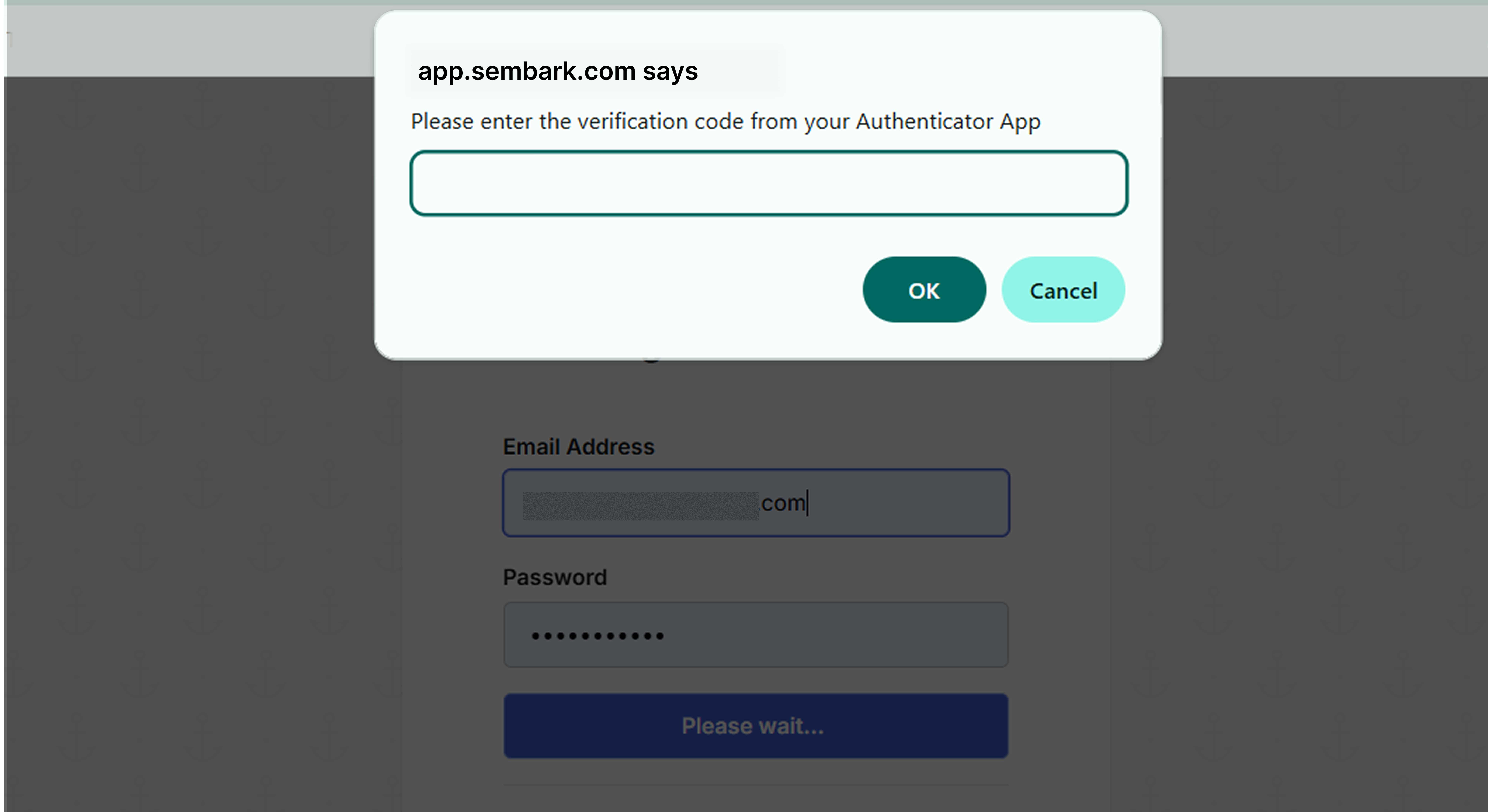
Enter your email address and password as usual.
-
Open your Authenticator App.
-
Retrieve the current six-digit verification code.
-
Enter the code on the login screen.
-
Click Verify to access your account.
Frequently Asked Questions
Is an Authenticator App required to use 2FA, and are there any SMS charges?
Yes.
Sembark uses Time-Based One-Time Passwords (TOTP), which are generated securely through authenticator applications. This method is more secure than SMS-based verification and does not require any SMS charges.
Can I set up 2FA for multiple accounts on the same mobile device?
Yes.
Most authenticator applications allow multiple accounts to be configured on a single device.
This can be useful for administrators who need to monitor or manage access for multiple team members.
To set this up:
- Ask the team member to start the 2FA setup process.
- Scan the QR code using your authenticator application.
- Complete the verification process.
Once configured, the authenticator app will generate login codes for that account.
Can I remove Two-Factor Authentication later?
Yes.
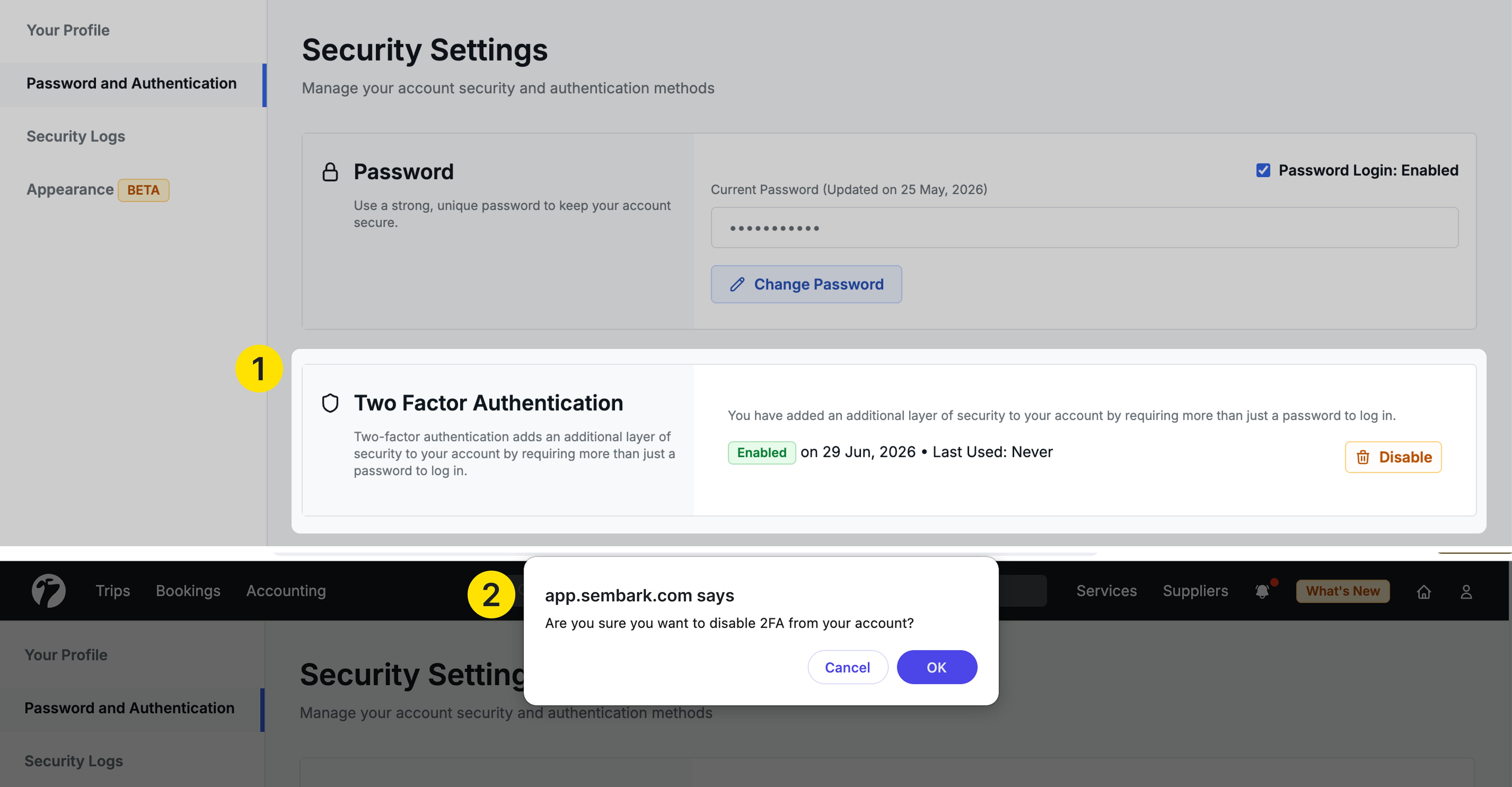
To remove 2FA:
- Open Profile Settings.
- Navigate to Password & Authentication.
- Locate the Two-Factor Authentication section.
- Click Remove.
After confirmation, Two-Factor Authentication will be disabled for your account.
As an Admin, I want my team members to request an OTP from me during login. How can I enable this?
How It Works
Follow these steps to enable OTP-based login for a team member:
- Log in to Sembark using your Admin account.
- Go to Organization → Users.
- Select the team member for whom you want to enable 2FA.
- Scroll down to the Two-Factor Authentication section.
- Click Set Up 2FA.
- Scan the displayed QR code using your preferred authenticator app.
- Enter the 6-digit OTP generated by the authenticator app.
- Click Save to complete the setup.
Once enabled, the team member will need to enter an OTP during login. The OTP can be generated from the configured authenticator app.
Can I manage my authenticator on two smartphones?
Yes. You can set up the same authenticator on multiple smartphones and generate the same OTP on each device. With supported apps such as Google Authenticator, you can sync your authenticator codes across devices using your Google Account.
These verification codes use Time-Based One-Time Password (TOTP) technology and automatically change at regular intervals.
Learn more about Time-Based One-Time Password (TOTP).
Important Notes
- Administrators can monitor and enforce stronger authentication policies across the organization to improve overall account security.
- If you lose access to your authenticator device, contact your Account Administrator for assistance.
- We recommend enabling 2FA for all users handling bookings, accounting, operations, or sensitive business data.