







Smart Push Notifications for Desktop and Mobile
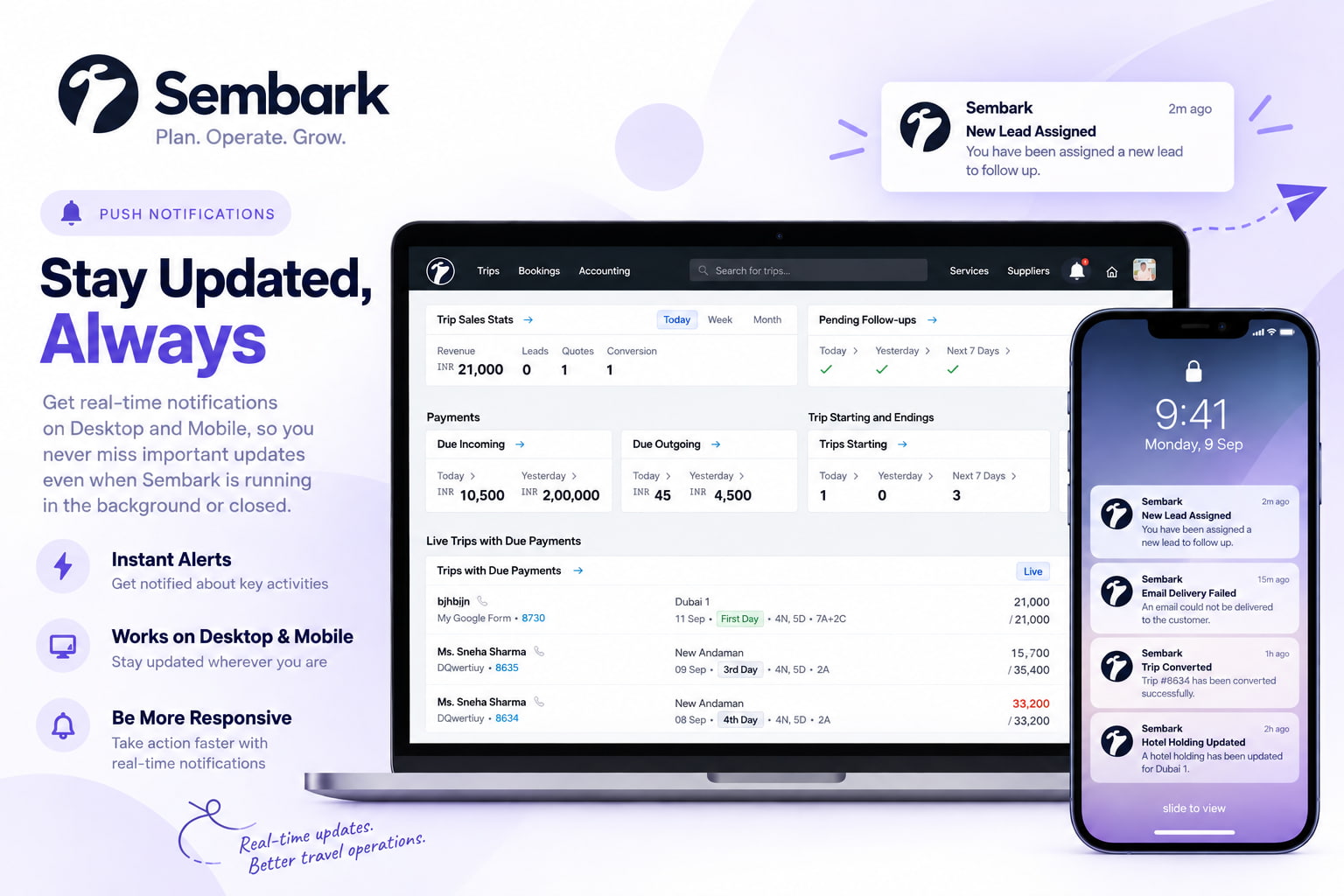
Sembark supports Smart Push Notifications for Desktop and Mobile, so you can receive important updates even when Sembark is running in the background or the application is closed.
Once enabled, you will receive real-time alerts for supported activities without having to continuously check the application.
More notification types may be added in future updates.
Enable Push Notifications
To enable Push Notifications:
- Click the Bell icon and Notifications Text
- Go to Settings → Push Notifications.
- Register your device on the Push Notifications page.
- Allow notifications when prompted by your browser or device.
Once your device is registered, you will start receiving Push Notifications.
You can also manage the notification sound from the top section of the Push Notifications page.
Supported Push Notifications
Once Push Notifications are enabled, you will receive alerts for supported activities, including:
- Lead Assignment / Trip Plan Requests
- Email Delivery Failures
- Trip Conversion
- Hotel Holding Updates
More notification categories will be added in future updates.
These notifications help your team stay updated and respond quickly without continuously monitoring Sembark.
Notification Setup Reminder
The Notification Setup banner will remain visible for two weeks after the feature update to remind users to enable Push Notifications.
If you dismiss or ignore the banner without completing the setup, it may appear again after the two-week reminder period.
You can enable Push Notifications at any time from:
Bell Icon → Settings → Push Notifications
Not Receiving Notifications?
Push Notifications depend on your browser and device settings. If you are not receiving notifications, please check the following:
1. Check Browser Permissions
Make sure notifications are allowed for Sembark.
Click the lock/site icon in your browser’s address bar and make sure Notifications are set to Allow.
2. Check Device Settings
Make sure notifications are enabled for your browser in your device settings.
Also check that Do Not Disturb / Focus Mode is turned off.
3. Check Device Registration
Make sure your device is registered on the Push Notifications page.
If you recently cleared your browser’s site data, you may need to register your device again.
4. Use an Updated Browser
If notifications are still not working, try using an updated version of a supported browser:
- Google Chrome
- Microsoft Edge
- Mozilla Firefox
- Safari
If a test notification does not arrive within one minute after completing the setup, check the above settings and try registering your device again.