







When a quote is converted into a trip, the visa details are available on the trip’s Service Booking page. This is where your team handles the operational side of the visa booking. See Conversion for how queries become trips.
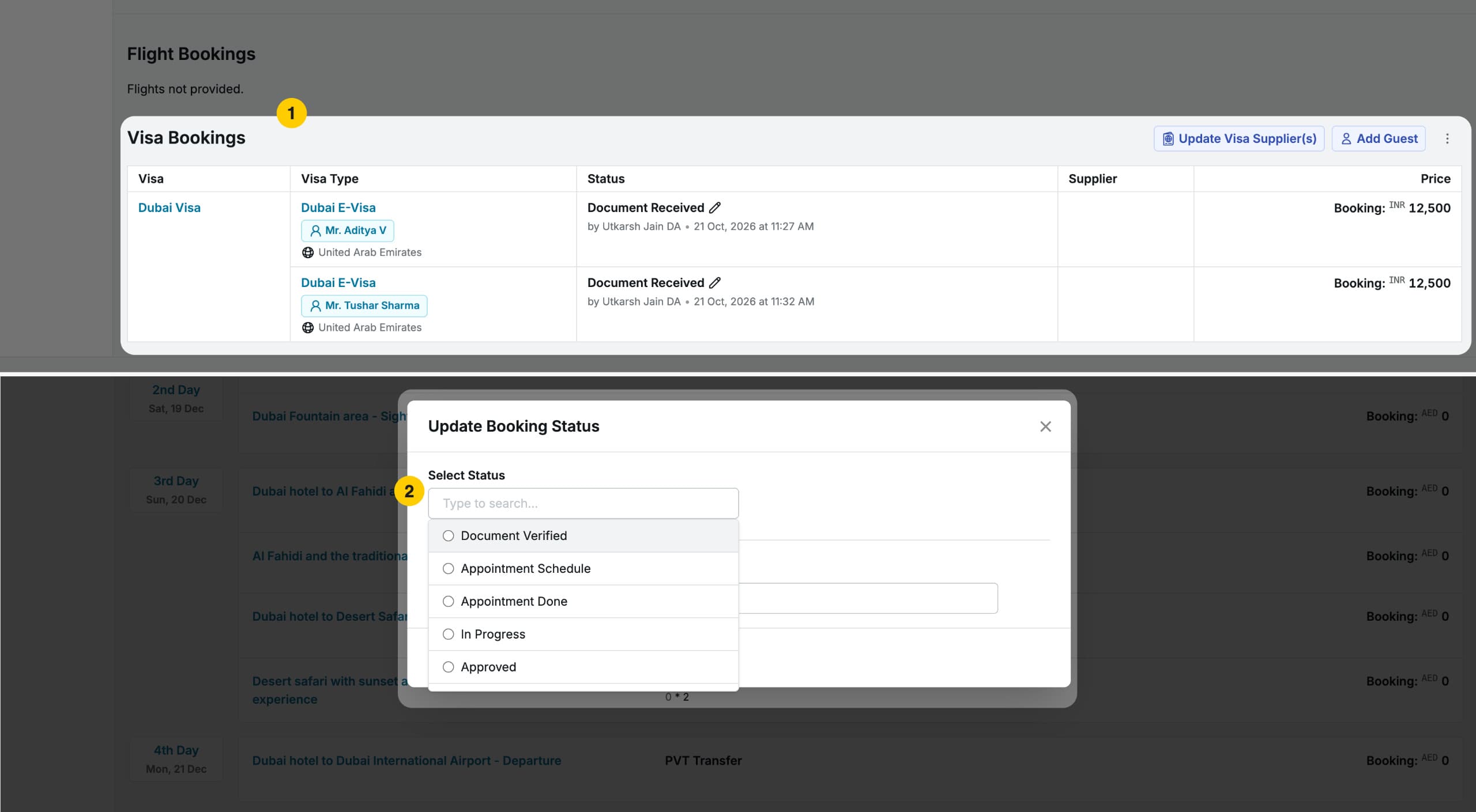
Assign Guests
Assign the relevant guests to the appropriate visa type. Different guests on the same trip can be assigned to different visa types if needed. See Guests and Tourists to manage the guest list.
Collect Documents with the Upload Link
- On the Service Booking page, open the Docs tab and then the Guests section.
- Click Copy Link to copy the document upload link.
- Share the link with the guest.
When the guest uploads their documents through the link, they appear in Sembark immediately for your team to review. The upload link connects to the guest’s profile, so every document stays linked to the right applicant.
TODO: Add image for the document upload link
Review Documents
After the documents arrive, review them in Sembark and move the visa booking through the next stages of the process. See Visa Booking Status for every stage.
Supplier and Payment Details
On the Service Booking page, record the following against a visa booking:
- Supplier details — the visa supplier or agency handling the application.
- Booking cost — the cost incurred for the visa booking.
- Amount payable to supplier — the amount to be paid to the supplier for processing.
Supplier and payment information stays linked to the trip, so you can track costs and outstanding payments without switching to an external system. Bookings with Rejected or Dropped status are excluded from supplier assignment. See Suppliers for managing suppliers.
TODO: Add image for visa supplier and payment details
Guest-Wise Visa Documents
The Guest tab on the Service Booking page has a Documents section. Once visa documents are uploaded, you can:
- View all documents submitted for each guest individually.
- Download the documents of a specific guest directly from this section.
This makes it easy to pull the right documents for each applicant without searching through a combined list.